What should you choose first?
Start with where the screen and input devices will sit, then check connections against your laptop before adding a dock or second display.
| Priority | What to check | Your needs |
|---|
| Screen and input position |
Check whether the screen can sit directly ahead at a comfortable viewing distance. If you raise the laptop or use a separate monitor, leave space for an external keyboard and mouse. |
I work at a desk for long stretches and want to position the screen without putting the keyboard and mouse out of reach. |
| Desk space and portability |
Measure usable desk depth and the equipment’s footprint. Decide whether a fixed monitor, a laptop stand or a portable second screen fits how often you move the setup. |
My work surface is shared or compact, so I need equipment I can position for work and move afterwards. |
| Display connection |
Check your exact laptop’s external-display limit, video port and the cable or adapter needed for the intended resolution and refresh rate. Apple Support notes that these limits can vary by Mac model and connection. |
I want a second screen, but it needs to work at my intended settings with this laptop, not just have a matching-looking connector. |
| Dock and charging |
Confirm the laptop port’s required video protocol, dock compatibility and cable specification. Compare the dock or monitor’s power delivery with the laptop manufacturer’s charging requirements. |
One desk connection would be useful for my display and peripherals; I also need to check whether it can charge my laptop as intended. |
| Keyboard and mouse connection |
Check the connection method, any required receiver, operating-system compatibility and space for both devices. A stand does not add a separate typing or pointing position. |
I want to move my laptop screen without having to use its raised keyboard and trackpad for sustained work. |
Relevant brand references
These brands illustrate different workstation components; their guidance and product ranges do not establish which model will fit your laptop or desk.
Dell
Dell UK describes USB-C and Thunderbolt docks for connecting a laptop to desk-based displays and peripherals.
- Dell says its docking solutions can carry display, audio and data connections and charge a laptop through one connection.
- Check the particular dock against your laptop, display configuration and power requirements; Dell’s range description is not a compatibility guarantee.
Lenovo
Lenovo UK lists USB-C, Thunderbolt and USB4 docks with differing display and charging specifications.
- The range includes travel-oriented and desk-based docking options.
- Lenovo Support says compatible USB-C Alt Mode or Thunderbolt support is needed for its relevant docks; video output depends on the host system, and some features may be unavailable on non-Lenovo laptops.
Logitech
Logitech’s keyboard and mouse range is relevant when a laptop screen is raised or used alongside an external display.
- Logitech’s own work-from-home guidance recommends an external screen and separate input devices, kept within comfortable reach.
- Choose the connection type, size and shape for your laptop, desk and preferences; the brand’s guidance is not an independent product comparison.
Joybuy product options
These options cover a portable or desk-based second screen, separate keyboard-and-mouse sets and a dock for a laptop workspace. Check each option against your laptop connections and available desk space.
 No image available
ASUS ZenScreen MB166CR FHD
A portable second-screen option for a setup that moves between work locations. Confirm the exact laptop’s video-output connection and the display’s power needs before choosing it.
View on Joybuy
 No image available
HP 680 CFT Dual-Mode Keyboard/Mouse Combo
A separate keyboard and mouse let you place input devices independently of a raised laptop screen. Check the connection requirements and operating-system compatibility for your laptop.
View on Joybuy
 No image available
Targus USB-C™ Universal Dual HDMI 4K Docking Station, 100W Power Delivery Pass-Thru
A dock option for connecting a desk-based display setup and peripherals. Its name specifies dual HDMI and 100W Power Delivery pass-through; check your laptop’s video capabilities, intended display settings and charging requirements before relying on either feature.
View on Joybuy
 No image available
Philips 3000 Series SPT6318B/05 Wireless Keyboard and Mouse, UK English, Black
A separate input-device option with a UK English keyboard layout. Check which wireless connection and receiver it uses before deciding whether it fits your laptop.
View on Joybuy
 No image available
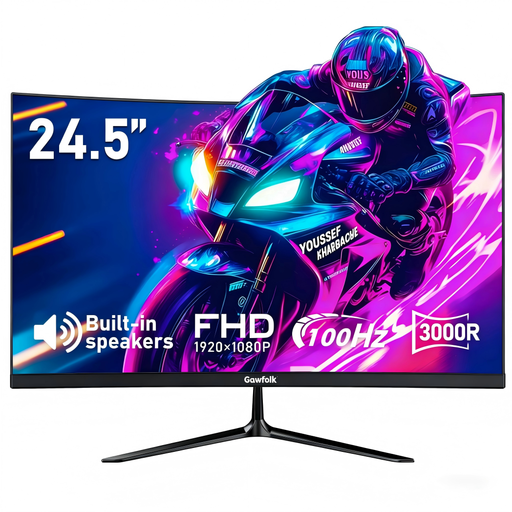
Gawfolk 24.5-inch FHD Curved Monitor
A separate screen option for a recurring desk setup. The product name specifies HDMI and VESA 75 × 75 mm mounting; measure your workspace and check your laptop’s video output and intended display settings before buying.
View on Joybuy
Common questions
Do DSE responsibilities apply to employees working from home?
They can apply to qualifying home workers. The Health and Safety Executive says the Great Britain rules can cover permanent or long-term home workers and hybrid workers who use display screen equipment daily for continuous periods of an hour or more; employers must assess applicable workstations. The Health and Safety Executive for Northern Ireland gives the same daily-use threshold for home workers under Northern Ireland rules.
Could my employer provide equipment for my home workstation?
Yes, if an applicable DSE assessment identifies equipment that needs to be provided. The Health and Safety Executive says qualifying workers cannot be charged for equipment required as a result of that assessment. This is not an automatic entitlement to a particular monitor, stand or dock; ask your employer how your individual workstation is assessed.
What should I check before buying a USB-C dock?
Check your exact laptop model’s port protocol, supported external displays and charging requirements against the dock, cable and intended monitors. Microsoft warns that USB-C hardware and software combinations can have limited functionality, while Lenovo Support says video output from its relevant docks depends on the host system.
Will a USB-C port both connect a monitor and charge my laptop?
Not necessarily: the connector alone does not establish video support or adequate charging. Apple Support says a cable or adapter can limit display resolution or refresh rate, and advises checking the recommended power-source wattage for the applicable Mac model. For another laptop, check its manufacturer’s video and charging specifications.
Does a laptop stand replace an external keyboard and mouse?
A stand does not separate the built-in keyboard and trackpad from the raised screen. For sustained desk work, consider separate input devices so you can position the screen and controls independently; the Chartered Institute of Ergonomics & Human Factors advises against prolonged direct laptop use.


