What should you check before choosing?
Decide how many devices need connecting at each desk, then check the laptop’s video and charging capabilities before selecting a dock, hub or cables.
Powered desk dock
Consider it when: Several devices stay at one desk and you want to reconnect them through one laptop cable.
Trade-off: That arrangement depends on the laptop, cable and dock supporting the required displays and host charging.
Compact hub
Consider it when: You move between desks and mainly need one display connection alongside a few peripherals.
Trade-off: Check that its port selection and display limits cover each location rather than assuming it can replace a fixed dock.
Direct connections
Consider them when: One monitor and a small number of accessories are quick enough to connect separately.
Trade-off: You may reconnect several cables and need an adapter if the laptop and monitor have different video ports.
| Priority |
What to check |
Your needs |
| Video connection |
Check the exact laptop port’s video capabilities, the dock or adapter requirements, and the monitor’s input and cable type. Microsoft Learn notes that a USB-C alternate-mode device, computer and cable must meet one another’s requirements. |
I need the display connection to work with my actual laptop port, not just fit its USB-C socket. |
| External displays |
Compare the intended number of screens, resolution and refresh rate with both the laptop and dock specifications. Microsoft’s Surface display guidance shows that some dual-display configurations require a lower resolution or refresh rate on one screen. |
Two monitor sockets matter to me only if my laptop can run the screens at settings I can use for work. |
| Laptop charging |
Compare power delivered to the host laptop with its charging requirement; do not use the dock’s power-adapter rating as a substitute. Dell UK specifies different host power figures for Dell and non-Dell systems on its WD25TB4 dock. |
I want to reconnect my desk devices and charge my laptop through the same cable, if the delivered power meets its requirements. |
| Devices and portability |
List the display, USB, network and audio connections you use at each desk. Decide which devices can remain attached to a fixed dock and which connections you need to carry. |
At a fixed desk, I would rather reconnect fewer cables. Between locations, I may prefer carrying a smaller hub and plugging in a display separately. |
| Work-device software |
If considering a DisplayLink-based product, check computer and operating-system support, required software and permission to install it. DisplayLink’s support guidance treats software installation and display configuration as separate setup steps. |
I use a work-managed laptop, so I need to know whether a software-dependent display connection is permitted before choosing one. |
| Video-call equipment |
Count the connections needed for a webcam, microphone, speakers or headset alongside the displays. Check each accessory’s connection requirements and compatibility with the work computer and meeting software. |
Calls are part of my desk setup, so I need enough suitable connections for the equipment I actually use. |
Dock brands to compare
These manufacturer ranges illustrate different connection and charging specifications; compare the exact dock model with your laptop rather than applying one model’s capabilities to a whole brand.
Dell
Dell’s dock range includes desk-focused USB-C and Thunderbolt models. Its WD25TB4 specification is a useful example of why the connected laptop changes the charging check.
- Dell UK states up to 130W USB-C power delivery for Dell systems and 96W for non-Dell systems on the WD25TB4.
- Those figures and the dock’s video configurations are model-specific; check the intended laptop and monitors separately.
Lenovo
Lenovo’s ThinkPad Universal USB-C Dock range is relevant to a desk with several peripherals and a compatible USB-C laptop.
- Lenovo UK lists 11 or more ports for the ThinkPad Universal USB-C Dock; its specified 135 W adapter version lists up to 100W charging and three 4K displays at 60Hz.
- Confirm the exact dock version, laptop support and intended display configuration before relying on those manufacturer specifications.
Kensington
Kensington offers docks built around different host connections, including USB-C, USB-A and Thunderbolt 4 models.
- Kensington describes the SD4781P as supporting USB-C and USB-A laptops, while it positions the SD5760T for Thunderbolt 4-enabled laptops with dual-4K connectivity and 96W power delivery.
- The two models have different connection requirements; do not transfer a display or charging claim from one to the other.
Joybuy options for the desk setup
These options cover multiport docks and adapters for desk connections, plus a webcam for calls. Choose the connection equipment against your laptop and monitor requirements; the webcam serves a different part of the setup.
 No image available
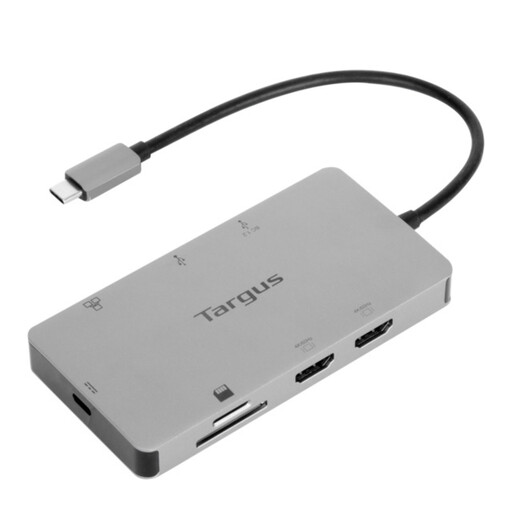
Targus USB-C Universal Dual HDMI 4K Docking Station
Consider this dock if reconnecting two displays is central to your desk arrangement. Its name specifies dual HDMI 4K connections and 100W Power Delivery pass-through; check your laptop’s supported display configuration and whether the power delivered meets its charging requirement.
View on Joybuy
 No image available
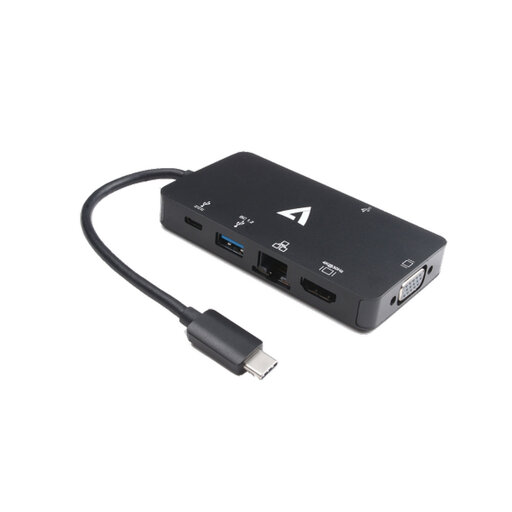
V7 V7UC-U3CRJ45HDVG-BLK USB-C adapter
This adapter fits a connection kit built around one external display and wired peripherals. Its name lists 4K HDMI, VGA, Gigabit Ethernet, dual USB 3.0 ports and 100W Power Delivery; confirm your laptop’s USB-C video support and charging requirements.
View on Joybuy
 No image available
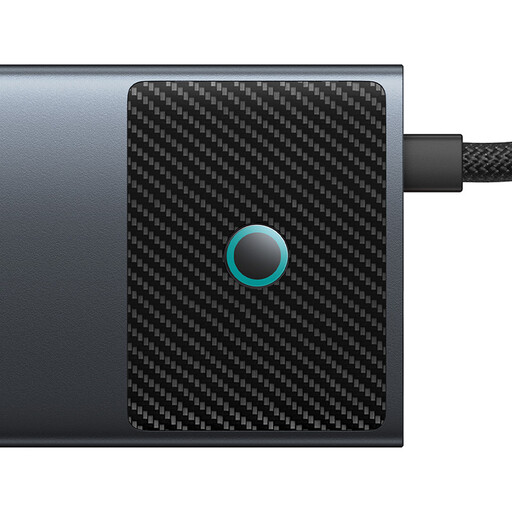
Baseus Metal Gleam Series II 10-in-1 USB-C hub, Cosmic Black
For a desk with several wired devices, this hub lists two HDMI outputs, USB-A and USB-C ports, RJ45, SD/TF and a USB-C PD connection. Its named HDMI outputs are 4K at 120Hz and 4K at 60Hz; check what your laptop can deliver with both displays attached and how much charging power reaches it.
View on Joybuy
 No image available
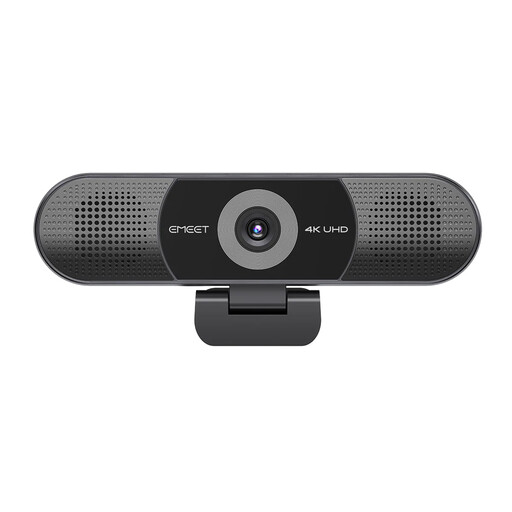
EMEET all-in-one 4K webcam with Sony sensor
This is call equipment rather than a laptop dock or display adapter. The product name specifies a four-microphone array, dual speakers, fixed focus and a 98° adjustable field of view; check its connection and meeting-software compatibility with your work computer.
View on Joybuy
 No image available
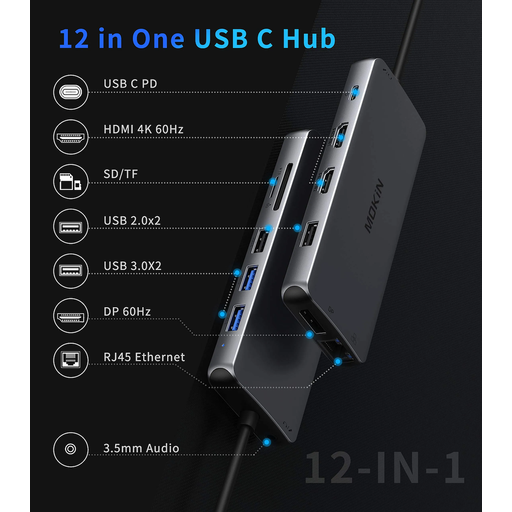
USB-C multiport adapter with 2 HDMI and DisplayPort
This adapter provides connection options for a desk with displays and peripherals. Its name also lists USB 3.0 and USB 2.0, RJ45, PD, SD/TF and audio; verify the supported display modes for your laptop and the power delivered to it before planning a multi-screen setup.
View on Joybuy
Frequently asked questions
Does every USB-C laptop port support a monitor through a dock?
No. USB-C identifies the connector, not a guaranteed video function. As Microsoft Learn explains, the computer, cable and alternate-mode device must meet the connection requirements, so check the exact laptop model and port before buying a display hub or dock.
Can a dock run more monitors than my laptop’s stated display limit?
Do not assume it can: check both the laptop’s supported external-display arrangement and the dock’s limits. Microsoft’s Surface guidance shows that resolution or refresh rate can change when two external displays are used. A DisplayLink-based device is a separate, software-dependent route that needs its own compatibility check.
When should I use a dock instead of connecting a monitor directly?
A dock makes more sense when several devices remain at a desk and reconnecting them through one laptop cable would simplify your routine, provided video and charging compatibility are confirmed. With one monitor and few accessories, a direct cable or compact hub may involve less equipment.
Will a powered dock charge my work laptop at its stated wattage?
Not necessarily. Compare power delivered to the host laptop with that laptop’s charging requirement and the dock’s compatibility conditions. Dell UK lists different maximum host power for Dell and non-Dell systems on its WD25TB4 dock, while Lenovo UK lists up to 100W charging for a specified ThinkPad Universal USB-C Dock version.
Does a hybrid-work desk need a workstation assessment?
In Great Britain, the Health and Safety Executive says employers must assess workstations when workers use display screen equipment daily as part of normal work for continuous periods of an hour or more; its guidance also addresses homeworking. Northern Ireland has separate administration: the Health and Safety Executive for Northern Ireland says assessments should cover home and workplace use where workers use display screen equipment in both places. These employer duties do not mean an individual worker must buy a dock or monitor.


