For a hybrid laptop desk, direct connections or a compact hub can suit one monitor and a few accessories; a powered dock is more relevant when several peripherals and Ethernet will stay connected at one desk. Before choosing, check the exact laptop’s video protocol, supported display arrangement and charging capability against the dock, cable and monitors. Laptops Direct notes that extra video sockets do not, by themselves, guarantee extra independent screens.
Who a laptop dock or hub may suit
Two-screen desk switchers
If you move a laptop between desks and want your external screens to reconnect in the intended arrangement, check the laptop’s display limit first. Laptops Direct and Apple Support explain why the host laptop’s capabilities matter.
Peripheral-heavy home workers
If you regularly reconnect a display, input devices and wired networking, a desk connection that leaves those devices attached may suit your routine. Laptops Direct discusses these desk connections, while the Health and Safety Executive provides guidance on home display-screen equipment.
Light-setup travellers
If you use one external screen and a few accessories, a compact hub or direct connection may be a better fit for what you carry than a larger desk dock. Check that the laptop supports the video connection you plan to use.
What to check before buying a laptop dock or hub
| Concern |
What to check when buying |
Who this matters to |
| Independent displays |
Check the exact laptop’s external-display limit, video protocol and the dock’s simultaneous display modes. |
If I need two independent external screens, I check the laptop’s display limit before buying; around 33% of consumers put independent screens first. |
| Desk reconnection |
Match the devices you use at the same time to the dock’s USB, audio, display and Ethernet connections. |
If I move between locations but leave peripherals or wired networking at my desk, I want to reconnect them together; around 33% of consumers prioritise fewer repeated connections. |
| Charging |
Compare power delivered to the laptop with its charging requirement, and check whether the necessary adapter and cable are included or already available. |
If I want my laptop to charge through the desk connection, I compare its needs with the dock’s host-delivered power; around 17% of consumers make charging their main concern. |
| Setup size |
Count the devices you reconnect regularly and check whether direct video or a smaller hub covers them before choosing a full dock. |
If I use one monitor and only a few accessories, I would rather avoid connections I do not need; around 17% of consumers prioritise a compact, simpler setup. |
Common laptop dock and hub buying pitfalls
-
Assuming each video socket adds another screen
The laptop’s own display limit and supported video connection determine what the dock’s outputs can do. A dock cannot override that limit.
Check the exact laptop model, relevant lid position and the simultaneous display mode supported by the dock. Assess a software-based option separately if native video output is not enough.
An unsuitable dock may leave you needing a different connection route or a return.
-
Confusing charger input with power delivered to the laptop
Power passing through a hub can depend on the charger and cable as well as the laptop. Anker says its 553 USB-C Hub’s 85 W pass-through charging requires a 100 W PD charger and USB-C cable; Dell lists different power delivery for Dell and non-Dell systems for its WD25TB4.
Compare the laptop’s charging requirement with the power delivered to the host, and check which adapter and cable the exact product requires.
A pass-through hub may mean supplying a separate compatible charger and cable, or continuing to use the laptop’s own charger.
-
Choosing DisplayLink without checking software permission
DisplayLink’s macOS setup requires its Manager application and Screen Recording permission, according to DisplayLink Support.
For a managed laptop, confirm operating-system compatibility and workplace permission before relying on a DisplayLink dock or adapter.
-
Buying a full dock for a light one-monitor setup
If you connect one monitor and a few accessories, the extra connections of a full dock may not be needed for your desk.
List the devices you reconnect regularly, then check whether a direct connection or compact hub supports them.
A powered dock also takes desk space and adds a power-supply arrangement to a setup that may use only a few connections.
Brands to consider for laptop docks and hubs
Anker
The 553 USB-C Hub is a multiport option to consider for a desk that needs HDMI, Ethernet and peripheral connections without a full powered dock.
- Anker specifies dual HDMI and 85 W pass-through charging for this model.
- Anker says the pass-through charging requires a 100 W PD charger and USB-C cable. The host laptop still needs to support the intended display arrangement.
UGREEN
The Revodok 105, SKU 15495, illustrates a compact USB-C hub for a one-monitor desk setup.
- UGREEN specifies one HDMI output, three USB-A data ports and a 100 W charging input for this variant.
- Its listed maximum display mode is 4K at 30 Hz, and this variant lists no Ethernet port. Check that the host supports the intended video mode.
Dell
The Pro Thunderbolt 4 Dock WD25TB4 is a powered desk option to check against the specific laptop and screen arrangement.
- Dell lists power delivery up to 130 W for Dell systems and 96 W for non-Dell systems, alongside multiple display configurations.
- These are Dell’s stated capabilities for this model; confirm the host, screens and intended configuration before choosing it.
CalDigit
The TS4 illustrates a Thunderbolt dock for a desk that needs a broad range of connections.
- CalDigit specifies 18 ports, up to 98 W laptop charging and 2.5GbE for the TS4.
- CalDigit says functionality depends on the host computer. The port count and display description do not establish the result for every USB-C laptop or Mac.
Plugable
Plugable’s DisplayLink-capable docks are an alternative to consider when a laptop’s confirmed native display limit does not meet the intended arrangement.
- A software-based display route may be relevant when native output is the limiting factor and the particular product and operating system are supported.
- On macOS, DisplayLink requires compatible software and Screen Recording permission. Check workplace rules and any protected-video requirements before choosing this route.
Joybuy product choices for laptop desk connections
These Joybuy choices are USB-C hubs and multi-function adapters for laptop desks that need display, peripheral, network or pass-through power connections. Check each product’s ports against your devices and confirm that your laptop supports the video mode and charging arrangement you need.
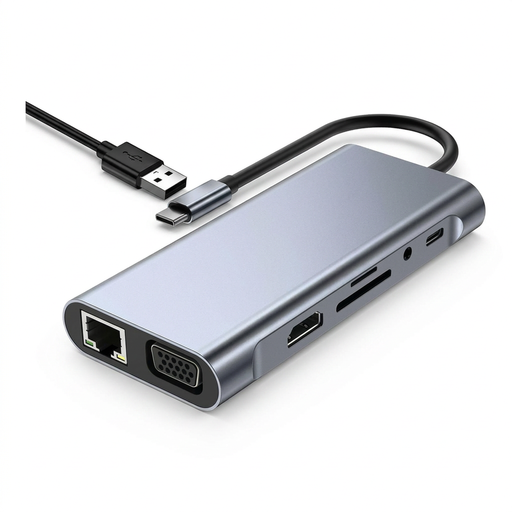 No image available
TW11A 11-in-1 USB-C Hub Docking Station
For a desk needing HDMI or VGA display connections, wired networking and USB peripherals through a hub; check your laptop’s video and charging support.
The product name lists 4K HDMI, VGA, USB 3.0, Type-C PD, RJ45 Ethernet, an SD/TF card reader and 3.5 mm AUX.
View on Joybuy
 No image available
Baseus Metal Gleam Series II 10-in-1 USB Hub, Cosmic Black
For a desk that needs HDMI, USB data and wired networking from one hub; check that the laptop and displays support the intended video modes.
The product name lists one HDMI output at 4K120Hz and one at 4K60Hz, USB-A and USB-C data ports, RJ45, SD/TF and USB-C PD.
View on Joybuy
 No image available
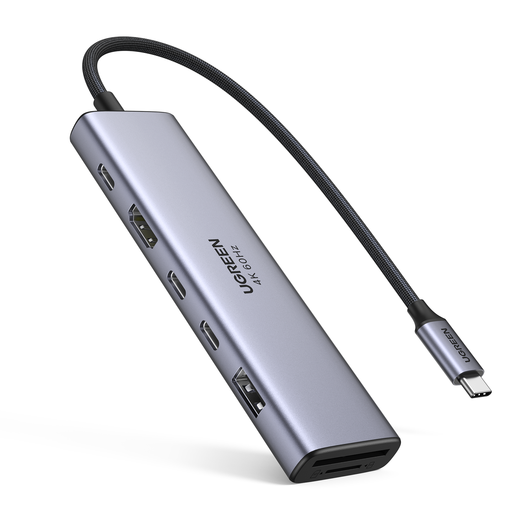
UGREEN 7-in-1 USB-C Multi-Function Docking Station
For a laptop setup needing HDMI, data connections and card-reader slots; confirm the laptop supports the required video and charging modes.
The product name lists HDMI, two USB-C 3.2 ports, one USB-A 3.2 port, SD/TF and PD.
View on Joybuy
 No image available
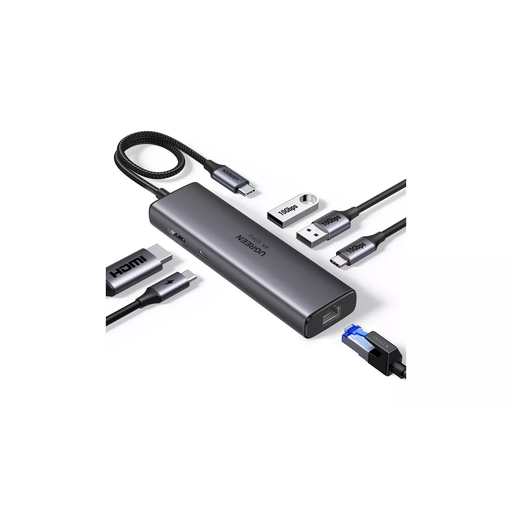
UGREEN USB-C Multi-Function Docking Station, HDMI and RJ45
For a desk needing HDMI, wired networking and USB connections through one adapter; check the host’s video and charging support.
The product name lists HDMI, two USB-A 3.2 ports, one USB-C 3.2 port, RJ45 and PD, with 4K/60 specified.
View on Joybuy
 No image available
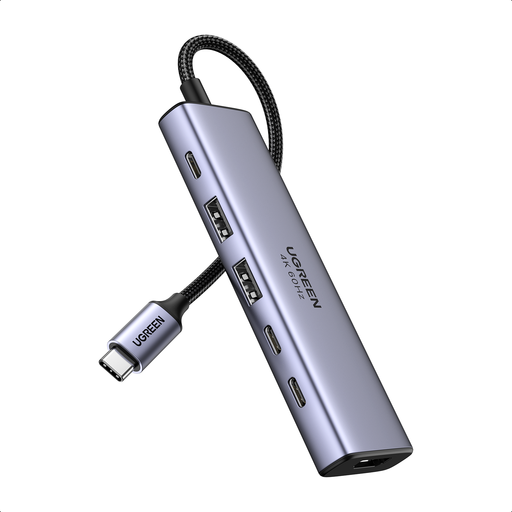
UGREEN 6-in-1 USB-C Multifunctional Adapter
For a compact laptop setup needing HDMI, USB connections and pass-through power; check the laptop’s video mode and charging requirements.
The product name lists HDMI, two USB-A 3.2 ports, two USB-C 3.2 ports and PD power.
View on Joybuy
Frequently asked questions about laptop docks and hubs
Will any USB-C port run a monitor through a hub?
No. For native USB-C video, check that the laptop port, cable and connected device support the required video mode; a data-only or charging-only port may not provide video. StarTech.com UK explains that the host port, cable and connected device all need DisplayPort Alternate Mode for those features.
Will a dock with two display outputs give my laptop two independent screens?
Not necessarily. Check the exact laptop’s supported external-display count and the dock’s simultaneous-output mode. Apple Support says that a supported hub can connect two displays to a single Thunderbolt port on certain MacBook Air models, but does not increase the model’s maximum display count.
What changes when setting up a DisplayLink dock on a Mac?
DisplayLink Manager is required for DisplayLink products on macOS and needs Screen Recording permission to function, according to DisplayLink Support. Check operating-system compatibility and, for a managed work laptop, whether installation is permitted before choosing this route.
Does a home-working employee have to buy a dock personally?
A dock is not automatically required. The Health and Safety Executive says that where an assessment under display-screen equipment rules identifies a need for equipment, workers cannot be charged for that equipment. The assessment should consider both home and office work where both are used; it does not specifically require a dock.


