What to check before buying
Decide what the desk needs to do—show one or more screens, connect peripherals through a dock, or switch shared equipment between computers. Then check the exact laptops, displays, cables, software and charging requirements that affect that arrangement.
| Concern |
What to check when buying |
Who this matters to |
| Display compatibility |
Exact laptop model and video-capable ports; supported external displays and display settings. |
I need to know that my laptop can run the screens I plan to use, not just that a dock has enough sockets. Around 29% of consumers put display compatibility first. |
| Comfortable desk position |
Screen height and distance; room for a separate keyboard and mouse. Where DSE requirements apply, follow the employer’s assessment process. |
If I work at a laptop for long periods, I want to position the screen separately from the keyboard. Around 23% of consumers make comfortable screen and input-device positioning their primary concern. |
| Older-laptop connections |
Available native video outputs; for DisplayLink, check host-port and operating-system support, software installation permission and separate charging needs. |
My laptop may not have a suitable USB-C video connection, so I need to check which display route it can use. Around 18% of consumers prioritise connecting an older laptop to external displays. |
| Switching between computers |
Which displays and USB devices must switch together; both laptops’ connections, software requirements and charging arrangements. |
I share a desk between two computers and want to know whether the keyboard and mouse need to switch along with the picture. Around 18% of consumers put shared-desk switching first. |
| Charging and connections |
Compare the laptop’s charging requirements with the dock’s or monitor’s host-facing power; count the specific display and peripheral connections needed. |
I want fewer desk connections without giving up the power or peripherals my laptop needs. Around 12% of consumers prioritise charging and connection consolidation. |
Joybuy products for monitor and desk setups
These Joybuy products relate to external displays and USB-C desk connections, including monitors, hubs and docks. Check that each product’s connections match your laptop and the screens and peripherals you plan to use.
 No image available
BenQ MA270UP 27-inch 4K Mac Monitor
A monitor option for a Mac-focused desk that needs an external screen and flexible screen positioning.
4K UHD; USB-C; height-adjustable stand.
View on Joybuy
 No image available
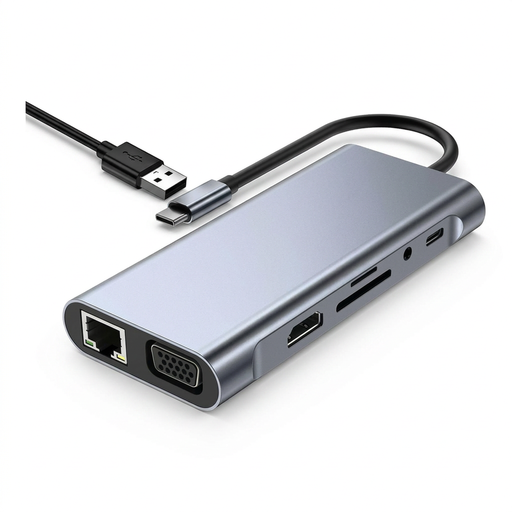
USB-C Hub Docking Station TW11A, 11-in-1
Consider this hub if your setup needs the HDMI and VGA connections named in its listing alongside USB peripherals.
HDMI, VGA, USB 3.0, Type-C PD, Ethernet, SD and TF card readers, and 3.5 mm AUX. The listing says to power the hub through its Type-C PD port when using the displays.
View on Joybuy
 No image available
MSI MD272UPSW Smart 27-inch 4K Monitor
A monitor option for a desk needing an external display and the listed Multi-Control function for two devices.
USB-C 65W; Multi-Control; Google TV.
View on Joybuy
 No image available
Targus USB-C Universal Dual HDMI 4K Docking Station
Consider this dock when your laptop supports the stated USB-C video connection and your desk needs two HDMI display connections.
Dual HDMI; 100W Power Delivery pass-through. The listing specifies a USB-C Alt. Mode host connection and an external 100W+ adapter.
View on Joybuy
 No image available
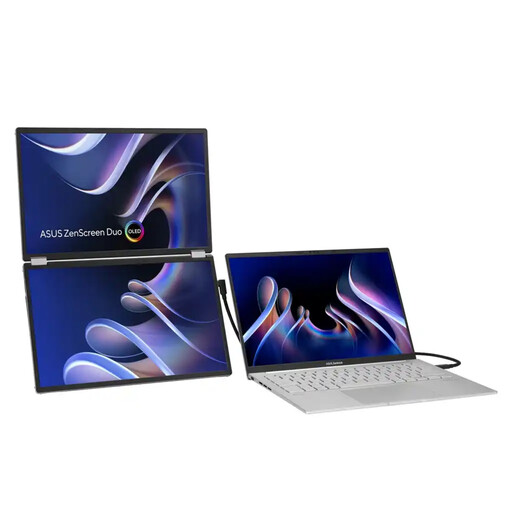
ASUS ZenScreen Duo OLED MQ149CD Portable Monitor
A portable external-screen option if your setup needs the two panels described in the product title.
Dual 14-inch panels; 1920 × 1200 per panel; USB-C and mini-HDMI; foldable design with kickstand.
View on Joybuy
Frequently asked questions
Does a USB-C socket mean my laptop can run a monitor and charge through one cable?
No. Check the exact laptop port’s video specification, the monitor or dock’s host-video requirements, the cable and the laptop’s charging needs against the host-facing power rating. Dell lists different power ratings for Dell and non-Dell systems on its WD25TB4 dock.
Do I need a KVM to use work and personal laptops with one monitor?
Not necessarily. If the monitor has suitable inputs, switching its input can change the picture; sharing a keyboard, mouse and other USB devices also needs an appropriate switching arrangement. Check both laptops against the chosen device’s connection and software requirements.
How should I set up a laptop for prolonged desk work?
HSE guidance describes using a separate keyboard and mouse so the laptop screen can be raised, or using a separate display. Plan the screen and input-device positions as part of the whole workstation.
Does an employer have to assess a home or hybrid workstation and supply a monitor?
For employees who use display screen equipment daily as part of normal work, continuously for an hour or more, HSE says employers must assess the workstation. The assessment determines what action or equipment is needed; it does not mean every worker must receive a monitor. HSE guidance applies in Great Britain, while Northern Ireland has its own DSE regulator and regulations.
What if a dock bought online proves unsuitable?
GOV.UK guidance distinguishes faulty or misdescribed goods from a change of mind. For a qualifying distance purchase, it says you must notify the seller within 14 days of receiving the item if you want to cancel, then have another 14 days to return it; exceptions and conditions can apply. Faulty or misdescribed goods are a separate issue from changing your mind.


