For prolonged laptop work at a home desk, start with screen and input-device placement: the Health and Safety Executive (HSE) describes using a separate keyboard and mouse with a raised laptop screen, or using a separate display. Choose a monitor if screen area is the main constraint, or a riser with separate input devices if you will keep using the laptop screen; add a dock only after checking that your laptop supports the displays and connections you need. Before personally buying equipment for work, check your employer's arrangements and any applicable display screen equipment assessment.
Who is this for?
Regular laptop-only desk workers
If you work for sustained periods at one home desk, consider how to position the screen separately from the keyboard and pointing device. The HSE describes a separate keyboard and mouse when a laptop screen is raised.
Hybrid workers setting up a home desk
If you move between home and another workplace, consider what you need to reconnect or carry. Acas advises employers and staff to agree what equipment is needed and who provides or pays for it.
Users connecting screens and peripherals
If your desk needs an external display or several connected devices, match the proposed arrangement to your laptop's video outputs, supported display count and connection requirements.
What should you check first?
For regular home or hybrid laptop work, let the constraint that most affects your setup guide the first purchase. If the equipment is primarily for work, establish what your employer will provide before buying it yourself.
| Concern |
What to check |
Who this matters to |
| Screen position |
Decide whether to raise the laptop screen or use a separate display; check stand stability or space for the monitor. |
If I mainly need to reposition the screen for sustained desk work, I want it placed independently of my hands. About 36% of consumers put screen position first. |
| Keyboard and mouse placement |
Check keyboard layout, desk space and the connection your laptop needs for separate input devices. |
With the laptop screen raised, I still need a keyboard and pointing device I can position on the desk. For about 29% of consumers, independent input placement is the primary need. |
| Display and peripheral connections |
Check the laptop's documented video outputs and external-display limit against the monitor, adapter or dock you plan to use. |
If I need external screens or several devices at one desk, the connections must work with my particular laptop. Connectivity is the first concern for about 21% of consumers. |
| Moving between workplaces |
Consider what you must carry and reconnect, including cables and any power adapter. |
When I regularly change workplaces, I want a setup I can move and reconnect without relying on a permanently equipped desk. About 14% of consumers prioritise portability. |
Buying mistakes to avoid
-
Buying a riser without separate input devices
Raising the laptop also raises its attached keyboard and trackpad. The HSE describes pairing an elevated laptop screen with a separate keyboard and mouse for prolonged use.
Plan the riser, keyboard and mouse as one desk arrangement, then check their connections and the space available.
-
Assuming any USB-C dock will run the planned setup
A USB-C connector alone does not establish a laptop's video, charging or multi-monitor capabilities. Dock requirements also vary by model.
Check the exact laptop model and its documented display support against the dock's host, display, power and operating-system requirements.
-
Using a splitter for two independent extended screens
Microsoft Support explains that a display splitter duplicates a signal rather than creating two independent signals.
For separate extended desktops, check that the laptop and the proposed dock or adapter explicitly support the required number of external displays.
-
Buying work equipment before checking workplace arrangements
Acas advises agreeing what home-working equipment is needed and who provides or pays for it and its repairs. The HSE says workers cannot be charged where an applicable display screen equipment assessment indicates that equipment must be provided.
Check the employer's equipment, reimbursement, IT-security and support arrangements before making a personal purchase for work.
Brands to consider for workspace accessories
Logitech
Makes separate keyboards and mice, including wireless and ergonomic product lines.
- Its separate input devices can be considered alongside a raised laptop screen.
- A keyboard and mouse do not themselves change screen position or establish monitor compatibility.
Dell
Offers USB-C and Thunderbolt docks for connecting a laptop to desk peripherals and displays.
- Dell describes single-connection video, audio and data functions for its dock range.
- Check the particular dock's display and charging support against your laptop; the range description does not establish compatibility with every laptop.
Kensington
Offers laptop risers, monitor accessories, video adapters and docks.
- Kensington specifies USB-C and USB-A laptop support for its SD4781P dock, subject to that model's requirements.
- For the SD4781P, check the host connection and power arrangement; USB-A use can require an alternative power source sold separately.
CalDigit
Offers docks for fixed desks requiring several connections.
- CalDigit lists up to 18 ports and up to 98W host charging for the TS4 specifically.
- The TS4 needs its supplied AC adapter; check the host and display requirements before choosing it.
Ergotron
Offers monitor mounts, display stands and laptop risers for desk setups.
- Its mounting range offers ways to position a compatible monitor at a fixed workspace.
- Check the monitor's VESA attachment, size and weight and the intended mounting surface; a mount does not provide video connectivity.
Joybuy keyboard and mouse selections
These products address separate keyboard and pointing-device placement for a laptop desk. If you raise the laptop screen, the HSE's described arrangement includes both a separate keyboard and mouse; check the contents of any keyboard listing before relying on it for the full setup.
 No image available
Philips 3000 Series SPT6318B/05 wireless keyboard and mouse
A keyboard-and-mouse set to consider when you need separate input devices at a laptop desk. The product name specifies a UK English version; check that your laptop has a suitable connection for the set.
View on Joybuy
 No image available
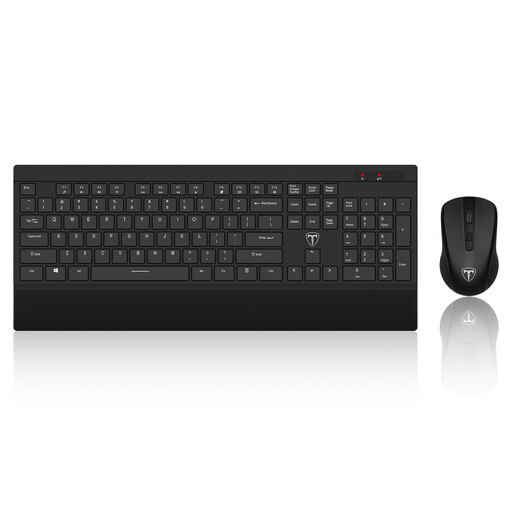
ET wireless keyboard and mouse set, US layout
A separate keyboard-and-mouse option for arranging input devices around a laptop screen. The name specifies a 2.4GHz wireless connection and US keyboard layout; check the layout and receiver connection against your needs.
View on Joybuy
 No image available
HP 680 CFT Dual-Mode keyboard and mouse
A keyboard-and-mouse set for positioning both input devices separately from the laptop. Confirm that its connection options work with your devices and that the keyboard layout suits you.
View on Joybuy
 No image available
Lofree OE907 65% keyboard, US layout
A separate keyboard to consider where desk space matters, rather than an established keyboard-and-mouse set. Its name specifies 68 keys, Jellyfish switches and Bluetooth 5.1 or wired use. Check that the compact US layout suits you, and confirm whether a mouse is included if you need both devices.
View on Joybuy
Questions about home laptop setups
Do home or hybrid workers in the UK always need to buy their own accessories?
No. The HSE says additional equipment needs should follow the relevant display screen equipment assessment and that workers cannot be charged where the assessment indicates equipment must be provided. Acas advises employers and staff to agree what is needed and who will provide or pay for equipment and repairs.
When is a home-working display screen equipment assessment required?
The HSE says the UK Display Screen Equipment Regulations can apply to people working at home permanently or long term, or routinely splitting time between home and a workplace. It says employers must assess workstations for users who work with display screen equipment daily as part of their normal work for continuous periods of an hour or more.
Can any USB-C dock run two independent external monitors?
No. Check both the exact laptop's documented external-display capability and the dock's requirements. Microsoft Support notes that a laptop's display adapter may limit how many external monitors it supports; a splitter duplicates a signal rather than creating two independent extended displays.
What should I choose first for prolonged laptop work at a desk?
Choose according to the constraint you need to address first: screen position, screen area or input-device placement. For a raised laptop screen, the HSE describes a separate keyboard and mouse; a separate display is another arrangement to consider. Add a dock if you also need compatible display, peripheral or charging connections through one host connection.


