What to check before buying
Start with the actual laptops and drive connection, then check the shared desk’s displays, charging and security requirements. A connector that fits is not, by itself, a promise that every laptop will offer the same features.
| Concern |
What to check |
Who this matters to |
| Drive connection |
Check the laptop’s USB-C, USB4 or Thunderbolt capability and the dock port and cable you would use for the external drive. |
I regularly move large files to an external SSD and want the connection to suit that workflow. Around 31% of consumers would put drive connection capability first. |
| Mixed-laptop compatibility |
List the laptops that will share the desk and confirm each one’s required display arrangement. Kensington specifies only one external display for USB-C Alt Mode hosts on its SD5780T. |
When I change laptops at a hot desk, I need to know which screens will still work. For around 31% of consumers, predictable compatibility would be the main concern. |
| Drive data and desk security |
Check the organisation’s removable-drive encryption policy; assess a compatible dock lock separately if equipment is left unattended. |
I may leave equipment at a shared desk, and the drive could hold sensitive work files. Protecting the drive and desk setup would come first for around 23% of consumers. |
| Desk connections and charging |
Count the ports needed at once, then compare the dock’s stated host charging with the laptop’s requirements and its supported monitor setup. |
I want to reconnect my drive and everyday peripherals without plugging in each item separately. Around 15% of consumers would prioritise that one-cable routine. |
Joybuy products for USB-C desks
These USB-C dock and hub options are relevant when a shared desk needs an external-drive connection alongside other peripherals. Match their stated connections to each laptop, and check display and host-charging requirements before choosing.
 No image available
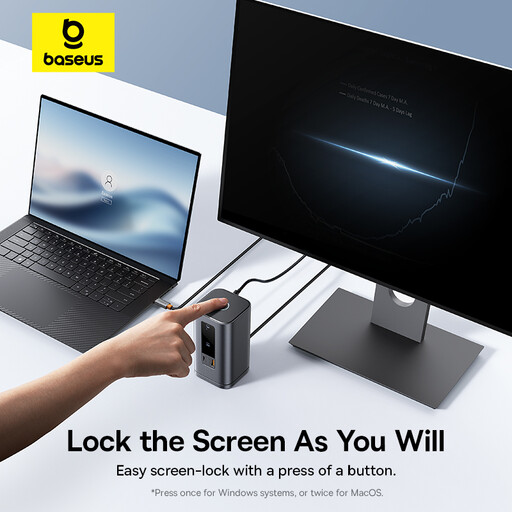
Baseus Wisdom Series 11-in-1 (WIN) Workstation, Space Gray
Consider this for a shared USB-C desk where the external drive is one of several peripherals; check that the intended laptops support the connections the desk needs.
The product name identifies an 11-in-1 workstation and the Space Gray variant.
Joybuy
 No image available
Targus USB-C Universal Dual HDMI 4K Docking Station with 100W Power Delivery Pass-Thru, Retail Packaging
Consider this for a desk that needs an external-drive connection alongside HDMI displays, provided each laptop supports the required USB-C display features.
The named variant has dual HDMI outputs, a 4K designation and 100W Power Delivery pass-through; check the required power adapter and package contents.
Joybuy
 No image available
AJAZZ AKP01E Visualization Hub 8-in-1 USB-C Expansion Dock
Consider this if a portable drive is part of a USB-C desk setup; confirm the laptop’s host and display capabilities before choosing it for a shared desk.
The product name identifies an 8-in-1 hub with TF/SD card slots.
Joybuy
 No image available
USB-C Dock with 2 HDMI, DP, USB, RJ45, PD, SD/TF and Audio
Consider this where the external drive must share a desk connection with displays and other peripherals; check the laptops’ video support and charging requirements.
The product name lists two HDMI, one DisplayPort, two USB 3.0 and two USB 2.0 connections, plus RJ45, PD, SD/TF and audio.
Joybuy
 No image available
MOVESPEED DK5A1 USB-C 10-in-1 Docking Station
Consider this for a USB-C laptop desk where the external drive needs a data port alongside a monitor connection; check the laptop’s video compatibility and any need for host charging.
The product name specifies USB-C 10Gbps, USB-A 10Gbps/5Gbps, HDMI up to 4K 60Hz, SD/TF 160MB/s and 3.5mm audio. Those stated port figures do not establish the speed of a particular drive setup.
Joybuy
Common questions
Will any USB-C laptop use all the features of a Thunderbolt dock?
No: a USB-C connector alone does not establish which Thunderbolt or USB4 features the laptop supports. Kensington specifies only one external display for USB-C Alt Mode hosts on its SD5780T, and CalDigit says TS4 functionality depends on the connected host. Check the exact laptop and dock combination before buying.
Should a shared-office dock be updated before use?
For the Dell WD22TB4, Dell advises updating the system BIOS, graphics drivers and dock drivers before use. For another model, follow its manufacturer’s instructions and test the laptops expected at the desk.
Does locking the dock protect files on an external drive?
No: anchoring a dock does not encrypt the drive. The Information Commissioner’s Office advises using encryption when storing or transmitting personal information; follow the organisation’s policy for removable drives and recovery keys.
Can a standard Windows user encrypt a removable drive?
Microsoft’s BitLocker FAQ says standard users can change BitLocker configurations on removable data drives, including turning encryption on or off. An employer may manage or restrict that option, so check its IT policy before relying on it for a work drive.


