What should you check first?
Decide where the screen and input devices will go before adding connection hardware; then check whether lighting or desk clearance changes the arrangement.
| Priority |
What to check |
Your needs |
| Screen and input position |
Check whether the laptop screen is adequate or you need a larger display. If raising the laptop, leave room for a separate keyboard and mouse, as the HSE advises for prolonged use. |
I mainly use one laptop and want its screen higher without filling the desk with another display. |
| Dock compatibility |
Compare the exact laptop’s video output, supported display count and charging requirements with the dock’s host requirements. Microsoft notes that hardware and software combinations can affect USB-C operation; Apple says Mac display limits vary by model, resolution and refresh rate. |
I reconnect a monitor and peripherals often, so one connection is useful only if it delivers the functions my laptop supports. |
| Desk space and mounting |
For an arm, check the monitor’s mounting interface and weight against the arm’s limits, then check the desk’s mounting method and movement clearance. Ergotron’s published arm specifications illustrate why the exact model matters. |
Desk surface is limited, but I still need a screen position that works with the desk edge and nearby wall. |
| Keyboard and mouse |
Check layout, connection method, available desk space and any software requirements. A shaped or adjustable device is a choice of layout, not a guaranteed improvement in comfort. |
I need separate input devices for a raised laptop, and the key layout and mouse must suit how I work. |
| Light and work routine |
Position a task light with screen reflections in mind; the HSE notes that directional light can cause glare on reflective screens. Where display-screen equipment rules apply, equipment does not replace planned breaks or changes of activity. |
I work with papers as well as a screen and want light I can aim without creating reflections. |
Relevant brand references
These brands illustrate different checks for docks, input devices and monitor arms; their product lines are not interchangeable.
Anker
Anker offers USB-C hubs and docks for laptop desk connections.
- Anker UK specifies different single-monitor output for its 565 USB-C Hub depending on whether the host laptop supports DisplayPort 1.4 or 1.2.
- Check the exact hub and host laptop rather than assuming every USB-C connection provides the same display functions.
Logitech
Logitech’s desk-input range includes separate keyboards and mice.
- Logitech lists a curved split layout and 0°, -4° and -7° tilt positions for the ERGO K860 keyboard.
- Check whether its layout, connection method and software requirements suit your devices and typing preferences; the shape alone does not establish individual comfort.
Ergotron
Ergotron’s monitor-arm specifications provide a useful example of the mounting details to check.
- Ergotron lists a supported weight range and VESA mounting interfaces for its LX Desk Monitor Arm with Top Mount C-Clamp.
- Those figures apply to that arm model, not every Ergotron arm; confirm the exact monitor, arm and desk fit before choosing a mount.
Joybuy input-device option
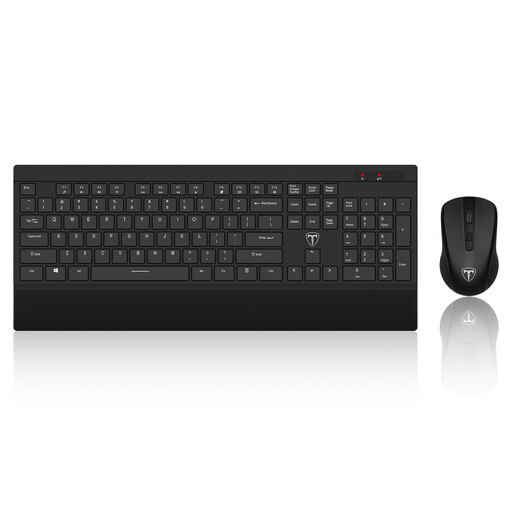
This keyboard-and-mouse option addresses desk-level input for a laptop workstation, including a raised-laptop setup. It does not raise the screen or provide an external display.
 No image available
ET Silent 2.4GHz Wireless Keyboard and Mouse, US Layout
A separate keyboard and mouse provide desk-level input when a laptop screen is raised. The listing identifies a full-size US-layout keyboard and 2.4GHz wireless connection; check that the layout and connection suit your computer before ordering.
Joybuy
Frequently asked questions
Does a hybrid worker need a home workstation assessment?
In Great Britain, the HSE says employers must assess workstations for workers who use display-screen equipment daily as part of normal work for continuous periods of an hour or more; its home-working guidance includes people who routinely split their time between home and their workplace. Northern Ireland has separate rules, and the Health and Safety Executive for Northern Ireland says they apply to workers using display-screen equipment daily for an hour or more at a time.
Should I ask my employer before buying workstation equipment?
Ask about the assessment process and available equipment first. For home workers in Great Britain, the HSE says that when a display-screen equipment assessment indicates action such as providing equipment, the worker cannot be charged for that provision. A personal purchase does not replace an assessment where one is required.
Will any USB-C dock run two monitors from my laptop?
No: the connector alone does not establish the laptop’s video or charging capabilities. Check the exact laptop model’s supported displays, resolution and charging requirements against the dock’s host requirements. Apple says the number of displays supported by a Mac depends on its model and the displays’ resolution and refresh rate.
Can a laptop stand take the place of an external monitor?
A stand can suit a compact desk if the laptop screen provides enough space for your work; choose a separate display if more screen area is the reason for changing the setup. For prolonged use with the laptop screen raised, the HSE advises using a separate keyboard and mouse.
What should I check before fitting a monitor arm?
Check the monitor’s mounting interface and weight against the exact arm’s specifications, then confirm the desk can accommodate its clamp or other mounting method. Allow room for the arm to move behind the screen and around the desk.


