Choose laptop accessories for the problem at your actual workstation, rather than buying a standard bundle: a separate screen, raised-laptop setup, dock or call device serves a different need. Check laptop compatibility before choosing a display or dock. For employees covered by the Health and Safety Executive’s display screen equipment guidance in Great Britain, an assessment may identify equipment the employer needs to provide; workers cannot be charged for equipment provided as a result of that assessment.
Who is this for?
Regular home or hybrid laptop workers
If you use display screen equipment at home daily for continuous periods of an hour or more, your workstation may need an assessment under the Health and Safety Executive’s guidance. That assessment helps distinguish a needed change from an optional accessory.
People connecting a laptop at one desk
If you repeatedly connect a display and other devices, a dock or hub may simplify the arrangement. Check the laptop’s ports, video output and charging requirements before selecting one.
Employees considering a personal purchase
If a workstation assessment identifies equipment that needs to be provided, ask your employer about provision before buying it yourself. The Health and Safety Executive says workers cannot be charged for equipment provided following an assessment that indicates action is needed.
What should you check first?
Start with the task and workstation issue, then check whether the accessory works with your laptop and whether an employer assessment calls for it.
| Priority | What to check | Your needs |
|---|
| Workstation assessment |
Consider the whole home workstation, work tasks and individual requirements. If you also work in an office, consider that arrangement too. |
I want to identify the actual problem before adding equipment that may not be needed. |
| Screen setup |
Decide whether the laptop screen is suitable for the work or a separate display is needed. Check desk space, the laptop’s video output and the monitor’s input. |
A larger, separate screen matters to me if the laptop display does not suit my tasks at a fixed desk. |
| Raised-laptop input |
If using a riser, plan for a separate keyboard and mouse as described by the Health and Safety Executive. Check their connection method and device compatibility. |
When the laptop screen is raised, I need input devices I can use separately from its built-in keyboard and trackpad. |
| Dock or hub compatibility |
Match the exact laptop and host port to the required video technology, display arrangement and charging capability. Check the cable and dock specifications too; a USB-C connector alone does not establish video support. |
Repeatedly connecting a display and peripherals makes a single desk connection useful to me, provided it supports my laptop and devices. |
| Calls and meetings |
Check the required camera, microphone or listening arrangement, along with device, conferencing-tool and employer requirements. |
I would consider a webcam or headset if my work calls require a separate device, rather than treating either as standard workstation equipment. |
| Who provides it |
Check the assessment finding and ask the employer about provision before personally buying equipment it identifies as needed. |
I want to distinguish an optional preference from equipment my employer needs to provide following an applicable assessment. |
Common buying mistakes
-
Buying a bundle before identifying the problem
A monitor, dock, input devices and call accessories address different tasks. The Health and Safety Executive says an assessment should consider the whole workstation, the job and individual requirements.
Write down whether the issue is the screen, repeated connections, input-device arrangement or calls. Choose equipment against that need and check any employer assessment first.
-
Assuming every USB-C port does the same job
Video over USB-C depends on a supported display mode or other compatible host technology. A dock’s ports do not, by themselves, establish what a particular laptop can drive or charge.
Compare the exact laptop’s port and charging documentation with the dock, intended displays and required cable before purchase.
An incompatible connection may mean changing the cable, adapter or dock to complete the setup.
-
Raising the laptop but still relying on its keyboard
Raising the screen changes where the built-in keyboard and trackpad sit. The Health and Safety Executive describes using a separate keyboard and mouse with a laptop riser or similar setup.
Consider the riser and input devices together, checking how the keyboard and mouse connect to your work laptop.
-
Personally buying equipment identified by an assessment
Under the Health and Safety Executive’s guidance for applicable home-working display screen equipment arrangements, workers cannot be charged when an assessment indicates action is needed, such as providing equipment.
Ask your employer how it will provide an identified item before funding it yourself. Keep optional personal preferences separate from assessed needs.
Relevant brand references
Dell
Dell’s monitor and dock ranges offer examples to compare for a fixed laptop desk.
- Dell UK lists model-specific details for the P2425DE monitor and SD25 dock, including display and connection specifications.
- A listed dock configuration or charging capability still needs to be checked against the exact laptop and cable.
Kensington
Kensington is a reference for comparing docks across USB-C, USB4 and Thunderbolt laptop connections.
- Kensington specifies supported host technologies and display arrangements for individual docks such as the SD4843P EQ.
- Its stated multi-display capability applies to compatible laptops and configurations, not every USB-C port.
Logitech
Logitech provides examples of separate input devices and call accessories to consider where the setup calls for them.
- Its ranges include keyboards, mice, webcams and headsets that can be considered by accessory type.
- Choose by connection and work-device requirements; brand statements about comfort do not establish an outcome for an individual user.
Joybuy accessory options
These options cover different home-workstation tasks: connecting devices at a desk, adding separate input or a display, and handling work calls. Choose the relevant type only after checking your setup and, where applicable, your employer’s assessment.
 No image available
Targus USB-C Universal Dual HDMI 4K Docking Station, 100W Power Delivery Pass-Thru
Consider this dock if you regularly reconnect displays and other devices at one desk. Its name specifies dual HDMI and 100W Power Delivery pass-through; check the exact laptop’s video and charging support, the required cable and the package contents before buying.
 No image available
EMEET All-in-One 4K Webcam with Sony Sensor, 4-Mic Array and Dual Speakers
This is an option where work calls require a separate camera and audio device. The title specifies fixed focus and a 98° adjustable field of view; check the USB connection, operating-system and conferencing-tool requirements for your setup.
 No image available
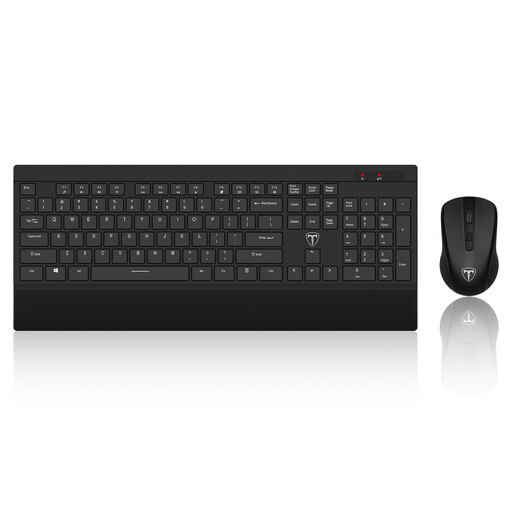
ET 2.4GHz Wireless Keyboard and Mouse Set, US Layout
A separate keyboard and mouse can be considered when the laptop screen is raised. This set is labelled 2.4GHz wireless with a US keyboard layout; check that the layout, receiver connection and device requirements suit your work laptop.
 No image available
AOC Q32V4 31.5-inch 2K IPS Monitor
Consider a separate monitor if the laptop screen does not suit your work at a fixed desk. Check that your laptop has a compatible video connection and that the included stand or a suitable mounting arrangement meets your positioning needs.
 No image available
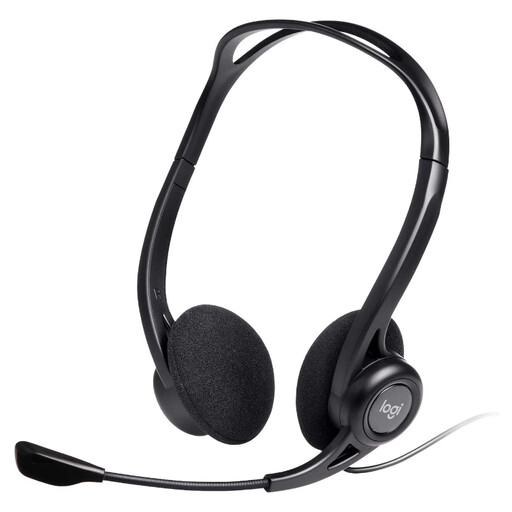
Logitech 960 Wired USB Headset with Inline Remote
This wired headset is an option when calls require private listening and a separate microphone. Its title specifies a noise-cancelling microphone; check the USB connection and any employer-managed device or conferencing requirements.
Frequently asked questions
Does every home worker need a monitor, dock and peripherals?
No. The Health and Safety Executive says an individual display screen equipment assessment should determine whether additional equipment is needed. For someone working both at home and in an office, the relevant workstation arrangements should be considered.
Should I use a separate keyboard and mouse with a laptop stand?
When a riser raises the laptop screen, the Health and Safety Executive describes using a separate keyboard and mouse. Check that the input devices connect to your laptop and meet any work-device requirements.
Will any USB-C dock connect my external monitor?
No. Video over USB-C requires a display technology supported by the laptop’s port, as Microsoft’s USB-C guidance explains. Check the exact laptop, dock, cable and intended monitor arrangement rather than relying on the connector shape.
Can I be charged for equipment identified by my work assessment?
Under the Health and Safety Executive’s guidance for applicable display screen equipment arrangements in Great Britain, workers cannot be charged when a workstation assessment indicates action is needed, for example providing equipment. Ask your employer how it will provide an identified item before buying it personally.


