Who needs which setup?
The useful accessories depend on whether you reconnect at one desk, carry your equipment or spend much of the day in calls.
Regular home-desk workers
If you repeatedly connect a monitor, charger and peripherals to the same laptop, consider whether a compatible dock would make that routine simpler. For workers routinely using display screen equipment at home and in the workplace, the Health and Safety Executive says assessments should cover both situations; a full duplicate workstation is not automatically necessary.
Workers carrying their setup
If you move between home, the workplace and other locations, focus on the connections you actually use rather than carrying a large desk dock. A portable USB-C dock still needs a compatible laptop: Kensington specifies Power Delivery and DisplayPort Alt Mode host support for its UH1400P mobile dock.
People with frequent video calls
If camera position or voice pickup is the main problem, assess a webcam or headset before adding more desk connections. Check the exact device and calling platform; Microsoft describes Teams-certified personal peripherals as supporting plug-and-play use and Teams call controls.
What should you check before buying?
Decide which task needs help first, then check the laptop and accessory specifications together. A connector’s shape alone cannot establish what a complete setup will do.
| Priority |
What to check |
Your needs |
| Repeated desk connections |
List the display, charger, network and peripheral ports you use. For a one-cable dock, compare its host video requirements and power delivered to the laptop with the laptop’s specifications. |
I return to the same desk and want to reconnect my existing laptop without plugging in each accessory separately. |
| Screen space |
Check the laptop’s supported external-display count and the intended monitor’s resolution and refresh rate against the exact dock, adapter and cable. Apple advises checking Mac model and adapter compatibility for USB-C or Thunderbolt display connections. |
An additional screen would help my desk work, but I need to know whether my laptop can drive the arrangement I have in mind. |
| Portability |
Check the ports needed at each location and the portable dock’s stated display and charging limits. Kensington specifies one HDMI 4K display at 60Hz and up to 85W pass-through for its UH1400P, subject to its host requirements. |
I carry my setup often and would rather bring a small connection kit than a permanent desk dock. |
| Meetings |
Identify whether camera position, lighting or microphone pickup needs attention. Check operating-system requirements, connection type and certification for the conferencing platform you use; some webcam features require companion software. |
Calls are the weak point in my current setup, so I would address the camera or audio before adding another display. |
| Charging |
Compare the laptop maker’s minimum and recommended charging requirements with power available at the relevant dock or charger port. For a multi-port charger, check its output when your intended devices are connected together. |
I want fewer chargers to carry, provided the one I take meets my laptop’s requirements alongside my other devices. |
| Workstation fit |
Assess screen position, input-device placement and safe charging arrangements. The Health and Safety Executive says applicable home and workplace display screen equipment assessments should cover both locations; Electrical Safety First advises against overloaded sockets and chained extension leads. |
A stand or monitor should address a specific setup problem, not replace an assessment of persistent discomfort or an unsafe cable arrangement. |
Relevant brand references
These examples show why the exact model and its requirements matter more than a brand name alone; they do not describe every product in each range.
Kensington
Kensington lists both mobile USB-C docks and larger desk docks for different connection needs.
- Its UH1400P specification lists one HDMI 4K display at 60Hz and up to 85W USB-C power pass-through.
- That model requires host Power Delivery and DisplayPort Alt Mode support; do not apply its capabilities to other Kensington docks.
Logitech
Logitech’s Brio 505 is a business webcam example for checking meeting-platform and software compatibility.
- Logitech lists 1080p video, a privacy shutter and certification for Microsoft Teams, Google Meet and Zoom for Brio 505.
- Its auto-framing requires Logi Tune and, according to Logitech, is unavailable on ChromeOS and unsupported on ARM computers.
Jabra
Jabra’s Evolve2 65 Flex is a portable headset example for calls across work locations.
- Jabra describes this model as fold-flat, with hybrid active noise cancellation and noise-cancelling microphones.
- Those noise-control descriptions are manufacturer claims, not a guarantee in every room. Check the connection and Teams or UC variant required for your setup.
Apple
Apple’s Mac adapter guidance is relevant when a USB-C or Thunderbolt connection must carry video to an external display.
- Apple identifies DisplayPort Alt Mode, Thunderbolt 3 and Thunderbolt 4 as relevant adapter standards for this connection.
- The number of supported external displays remains Mac-model-specific; a USB-C connector alone does not establish Thunderbolt capability.
Microsoft
Microsoft’s Surface guidance helps illustrate why charging checks must use the exact laptop model.
- Microsoft provides model-specific minimum and recommended Surface charging wattages and power-supply guidance.
- Do not apply one Surface model’s charging requirement to another laptop or assume every USB-A port on a power supply transfers data.
Joybuy accessory options
These options cover desk connections, an additional screen, meeting equipment and charging for a laptop-based hybrid-work setup. Choose by the task you need to improve, then check compatibility with your own laptop.
 No image available
Targus USB-C Universal Dual HDMI 4K Docking Station, 100W PD Pass-Thru
A dock to consider if reconnecting a display and peripherals at the same desk takes time. The product name specifies dual HDMI, 4K and 100W Power Delivery pass-through; check your laptop’s USB-C video mode, supported display count and charging needs. Also confirm the required external adapter and whether it is included.
Joybuy
 No image available
ASUS ZenScreen MB166CR FHD portable monitor
An additional screen option for work across locations. Its stated USB-C video connection requires DisplayPort Alt Mode support from the laptop; check that capability before planning a single-cable display setup.
Joybuy
 No image available
Targus 2K Webcam with Auto Focus
A webcam option when camera positioning matters more than additional desk ports. Its product name says 2K, while the detailed product information gives 1080p at 30fps; confirm the actual output resolution before choosing it for a resolution requirement.
Joybuy
 No image available
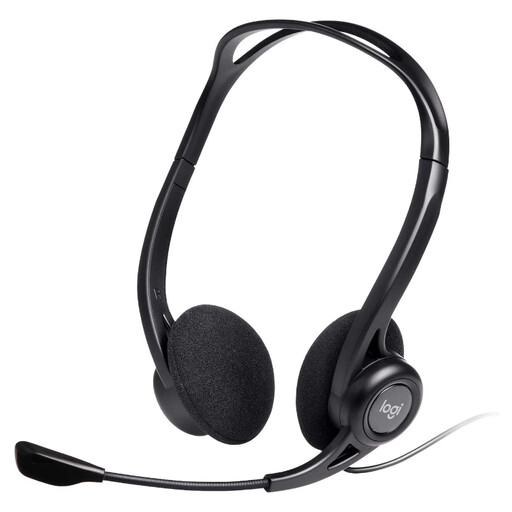
Logitech 960 Wired USB Headset with in-line controls
A wired headset to consider for recurring calls at a desk. It uses USB-A, so check for a suitable laptop port or compatible adapter; do not assume that a USB-C-only laptop can connect it directly.
Joybuy
 No image available
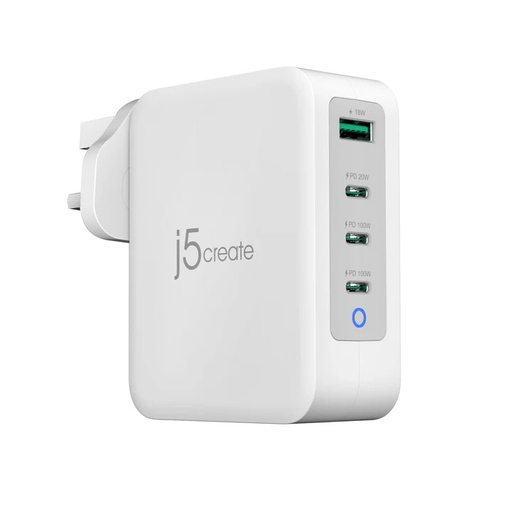
j5create JUP43130F 130W GaN USB-C 4-Port Charger, UK variant
A multi-port charging option if you want to carry fewer separate adapters. The 130W figure is the stated combined maximum, not a promise of that output to one laptop; compare your laptop’s charging requirements with the port output available when your other devices are connected.
Joybuy
Frequently asked questions
Will any USB-C dock run a monitor and charge my laptop through one cable?
No. Check the laptop, dock and cable together: Kensington specifies host DisplayPort Alt Mode and USB-C Power Delivery for its UH1400P mobile dock. Apple also advises checking the applicable display-adapter standard and Mac model; the laptop’s supported display count is a separate limit.
Should I choose a desk dock or a compact hub?
Choose according to where the connections are needed: a desk dock can serve peripherals left at a regular workstation, while a compact hub is easier to take between locations. Check the exact model’s display limit, ports and power arrangement rather than assuming either type supports your intended setup.
Would a webcam or headset help with frequent calls?
Consider one if your laptop’s existing camera position or audio does not meet your meeting needs. For Teams use, Microsoft describes certified personal peripherals as plug-and-play devices with Teams call controls; check the exact webcam or headset’s connection and any software requirements.
Is a laptop-only home workstation enough?
It can be, depending on the individual setup and use pattern. The Health and Safety Executive says applicable display screen equipment assessments for workers routinely splitting time between home and the workplace should cover both locations, and suitable equipment already available at home may be enough.
Is a charger with a higher wattage rating automatically suitable?
No. Compare the laptop’s required charging profile with the output available from the charger or dock port you intend to use, especially when several devices share one adapter. Microsoft’s Surface charging guidance gives minimum and recommended wattages by device model rather than one requirement for the whole range.


