Who this applies to
The Health and Safety Executive says home-working display screen equipment assessments should address the individual worker and cover both home and office settings where both are used.
Working at a home desk for sustained periods
You use a laptop regularly and need to turn an individual workstation assessment into a workable screen and input arrangement. The Health and Safety Executive advises considering the whole workstation, not just the computer.
Moving between home and office
You use display screen equipment in both places and need to consider each setup on its own terms. An arrangement that works at one desk does not establish that the other is suitable.
Using a managed work laptop
You may need a display, adapter or peripherals, but device connections and approved accessories can be governed by your employer's IT requirements. Confirm those requirements before choosing equipment for the work laptop.
What to check when choosing equipment
Resolve the assessed screen and input needs first. Connection equipment and call accessories serve different tasks and should be chosen only when those tasks call for them.
| Concern |
Buying checks |
Who this matters to |
| Screen position and viewing space |
Check the assessed screen position and available desk depth. If considering a monitor, confirm its input matches the laptop's supported video output. |
If my laptop screen cannot be positioned for sustained work, I need to decide whether a separate display fits my desk and tasks. About 36% of consumers put that screen-position decision first. |
| Raised laptop and separate controls |
Check that the stand fits the laptop and leaves room to position a separate keyboard and mouse. The Health and Safety Executive recommends separate controls when elevating a laptop screen for prolonged use. |
When I raise my laptop screen, I still need controls I can place independently rather than typing on the raised device. For about 29% of consumers, that combined setup is the primary need. |
| Display connections and IT approval |
Confirm the exact laptop model's video support and the intended display arrangement. Check employer approval before connecting accessories to a managed device. |
If I rely on a dock or adapter, I need the intended connections to work with my laptop and my employer's requirements. That compatibility is the main concern for about 21% of consumers. |
| Calls and meetings |
Check whether the job requires a headset or webcam, then confirm its connection method and the approved meeting platform. |
With regular work calls, I may need equipment for communication rather than another change to screen position. About 14% of consumers put that need first. |
Relevant brands for reference
These ranges illustrate equipment to assess against a particular laptop and workstation; a brand name alone does not establish suitability.
Dell
Dell's Pro dock range is relevant when an employer specifies a docking standard or a particular laptop needs a documented connection arrangement.
- Named dock specifications provide ports, power-delivery information and display modes to compare with the intended setup.
- Check the exact laptop, displays, operating system and employer requirements; a Dell dock specification does not establish compatibility with every setup.
Kensington
Kensington lists laptop risers and docks, covering two different needs: screen elevation and expanded connections.
- Product-specific dimensions and connection details can help check desk fit or laptop compatibility.
- A riser still needs to fit the assessed workstation, while dock features must be checked against the exact host device.
Logitech
Logitech's keyboard and mouse ranges are relevant when a raised laptop screen calls for separately placed input devices.
- Wired and wireless device categories offer different connection methods to check against the work laptop.
- A particular shape or connection method should be chosen for the assessed setup and any employer restrictions, not assumed necessary for every worker.
Jabra
Jabra's business range includes headsets, video products and speakerphones for work communication.
- The range offers categories to consider when calls or meetings are a substantive part of the job.
- Confirm the meeting platform and employer approval; communication equipment does not resolve screen or input positioning.
Joybuy products for specific setup needs
These monitors are options when the assessed setup calls for a separate display. The USB-C adapter addresses a different need: connecting a compatible laptop to one display and other peripherals. Compare each with your desk, laptop and employer requirements before choosing.
 Image unavailable
AOC Q32V4 31.5-inch QHD monitor
Consider this separate display if the assessed workstation needs more screen space and has room to position it. The listing states HDMI 1.4 and DisplayPort 1.2 inputs, plus VESA 100 × 100 mm mounting compatibility. Check the laptop's supported display output, the required cable and whether the supplied stand or a compatible mount can achieve the needed position.
Joybuy
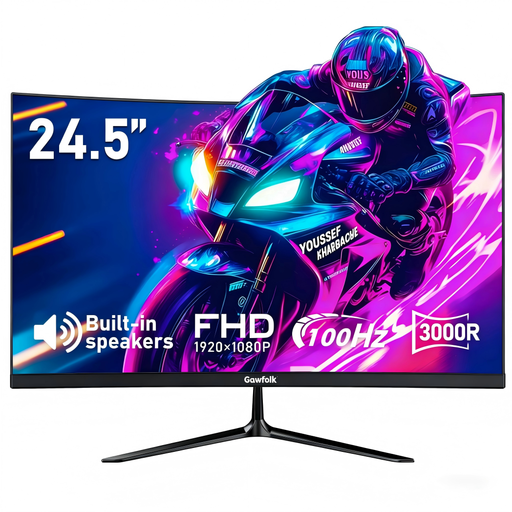 Image unavailable
Gawfolk 24.5-inch Full HD curved monitor
This is another separate-display option where the assessment and desk arrangement support one. Its stated resolution is 1920 × 1080, with HDMI and VGA inputs, tilt adjustment and VESA 75 × 75 mm mounting support. Confirm the laptop connection and cable, and check whether the stand or a compatible mount reaches the required screen position.
Joybuy
 Image unavailable
CRUA 32-inch 1500R curved QHD monitor
Consider this display only if its physical size fits the assessed desk arrangement and a separate screen is needed. The listing specifies 2560 × 1440 resolution, HDMI and DisplayPort inputs, tilt adjustment from −5° to 15°, and VESA 100 × 100 mm mounting support. Verify the laptop's intended display mode and cable as well as the final viewing position.
Joybuy
 Image unavailable
V7 V7UC-U3CRJ45HDVG-BLK USB-C adapter
This adapter is for a compatible laptop that needs a connection to one external display alongside peripheral or wired-network ports. The listing specifies HDMI, VGA, Gigabit Ethernet, dual USB 3.0 ports and 100W USB-C Power Delivery pass-through; it limits video to a single display. Confirm video-capable USB-C support, the laptop's charging needs and employer approval before choosing it.
Joybuy
Common questions
Does a home-working assessment mean I need every type of accessory?
No. The Health and Safety Executive says an assessment should address the individual worker and, for hybrid work, both home and office settings. Choose a monitor, raised-laptop setup or other equipment to address the needs identified for the actual workstation and tasks, rather than buying a standard bundle.
Can I be charged for equipment identified as necessary by a DSE assessment?
For workers covered by display screen equipment requirements in Great Britain, the Health and Safety Executive says workers cannot be charged where a workstation assessment indicates that equipment needs to be provided. Ask your employer what it will provide before purchasing an assessment-identified item yourself.
What should I check before buying a USB-C dock or display adapter?
Check the exact laptop model's video-capable ports and supported display arrangement, then compare the intended monitor inputs, cables and any charging requirement with the dock or adapter. Microsoft notes that USB-C hardware and software combinations can cause connection problems; Apple says Mac external-display support depends on the model. Check employer approval as well if the laptop is managed.
Can I connect my own peripherals to a work laptop?
Check your employer's IT and security rules before connecting them. Acas advises agreeing the technology and support needed for home work, while the Information Commissioner's Office identifies security risks associated with personal-device arrangements. Permission for a particular dock or peripheral should not be assumed from its physical connector.


