Desk-based appointment coordinators
If booking requests, a calendar and messages need to remain visible at one workstation, decide whether the laptop screen counts as one of your two screens before choosing connections or a dock.


Choose a laptop for appointment requests by deciding whether you need its built-in display plus one monitor, or two independent external monitors. Check the exact configuration’s display support before buying: a fixed desk may call for a compatible dock, while a portable second screen needs the right video connection.
If booking requests, a calendar and messages need to remain visible at one workstation, decide whether the laptop screen counts as one of your two screens before choosing connections or a dock.
If you move between locations, the laptop needs to remain useful on its own. A portable second screen is an option when the laptop and monitor have compatible video and power connections.
If appointment details include personal information, check the exact laptop configuration for the sign-in and camera-privacy features your organisation requires, alongside its display connections.
Choose this when: You want two screens in total, with the laptop open beside a monitor for booking requests and your calendar.
Trade-off: One compatible external-display connection can serve this arrangement, but the laptop screen may sit lower than the desk monitor.
Choose this when: A fixed desk needs separate external workspaces, whether the laptop stays open or is used closed.
Trade-off: A dock can simplify desk connections, but its outputs cannot override the laptop’s monitor limits.
Choose this when: Appointment work moves between rooms or locations and the second screen needs to travel.
Trade-off: One-cable video and power require a compatible laptop port, monitor and cable; a portable screen may also be less comfortable to position than a desk monitor.
| Concern | What to check | Who this matters to |
|---|---|---|
| Independent displays | Confirm whether the exact laptop supports your intended number of external monitors at the required resolution and refresh rate. Match the dock and cables to that arrangement. | If I need a booking system and calendar on separate external monitors, duplicated pictures will not do; around 36% of consumers would put reliable independent display output first. |
| Scheduling comfort | Check the built-in screen, keyboard layout and memory against the booking and communications software you use. | For long sessions entering dates and appointment details, I want a screen and keyboard I can work with comfortably; around 29% of consumers would prioritise this day-to-day workspace. |
| Portable second screen | If you want a one-cable portable monitor, check the laptop’s USB-C video capability and the monitor’s power and cable requirements. | When I move between locations, I need the second workspace to come with me; around 21% of consumers would make that flexibility their main concern. |
| Device privacy | Check the sold configuration for the sign-in and camera-privacy features your organisation requires. | If I handle personal appointment details, I want device controls that fit my organisation’s requirements; around 14% of consumers would place those safeguards first. |
USB-C describes the connector, not its display capability. One-cable operation with a portable monitor requires compatible video output, such as the DisplayPort Alt Mode connection specified for Joybuy’s Arzopa A1S.
Check the exact laptop port specification, the monitor’s connection requirements and whether the planned cable carries both video and power.
An incompatible connection may leave you needing a different adapter, dock or monitor.
Microsoft Support explains that a splitter duplicates one signal rather than creating two independent extended desktops. Both monitors would show the same workspace instead of separate booking and calendar views.
Choose connections or a laptop-and-dock combination specified for the independent displays you intend to use.
A dock’s listed display outputs do not establish what every connected laptop can drive. Microsoft Support advises checking the display adapter’s monitor support.
Match the exact laptop’s supported monitor count, resolution and refresh rate with the dock and monitors before choosing the setup.
A 16-inch laptop gives you a larger built-in workspace, but its size may be less convenient when appointment work moves between locations. A portable monitor changes what you need to carry and position.
Choose the screen arrangement around where you usually work, then check how you will carry and set up any second display.
These product lines illustrate different features to check; availability and specifications depend on the exact model and configuration.
The 16-inch ExpertBook B5 B5604 line is relevant to a desk setup that needs HDMI and display-capable Thunderbolt connections.
The TravelMate P2 16 line combines a 16-inch laptop format with desk connections that may suit a fixed appointment workstation.
ThinkPad E16 configurations are worth examining if the built-in 16-inch screen and frequent number entry matter to your appointment work.
These 16-inch laptops offer built-in screens for appointment work. Before pairing either with another screen, confirm the video connections and independent-monitor support of the exact configuration you intend to buy.
 No image available
For appointment work using the built-in screen, this configuration has a 16-inch 4K OLED touchscreen.
It lists an AMD Ryzen AI 9 HX 370, NVIDIA GeForce RTX 5080 16GB, 64GB RAM, 2TB SSD and Windows 11 Home.
Confirm its video connections and supported independent-display count before pairing it with your intended monitor setup.
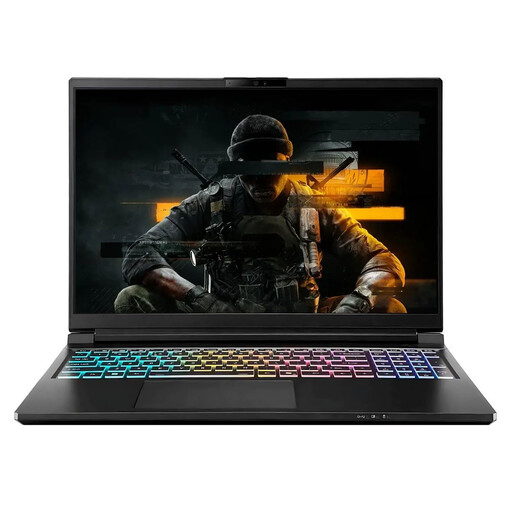 No image available
For desk-based appointment work using the built-in screen, this Exobook offers a 16-inch QHD+ display.
This Ultra 9 and 5080 variant lists 32GB memory and 4TB storage.
Check its video connections and independent-monitor support before choosing an external screen.
No: the laptop display and one connected monitor make two screens in total, provided the laptop has a compatible external-display connection. If you want two separate external monitors, check the exact laptop’s graphics and connection limits as well as any dock.
No. Microsoft Support explains that a splitter duplicates a signal rather than creating two independent extended desktops. Choose a laptop connection or compatible dock arrangement that supports the separate displays you need.
In Windows, open Settings, then System and Display to identify and arrange connected screens. Select an extended display arrangement if you want different workspaces; if a screen is not detected, check the connections and follow Microsoft Support’s external-monitor troubleshooting steps.
Yes, when the laptop, monitor and cable support the required connection. Joybuy’s Arzopa A1S instructions specify USB-C DisplayPort Alt Mode for compatible laptops using one cable for video and power; check the requirements of the monitor you choose.
Keep the order confirmation, the sold configuration’s specifications and any seller promises about monitor compatibility. GOV.UK confirms that consumer rights apply to goods bought remotely or in person; seek guidance on the remedy that applies to the fault rather than relying only on a change-of-mind returns policy.