Who this setup suits

Laptop users building a permanent work or study desk

You want two external screens, a keyboard, mouse and other peripherals with less cable clutter. A native dock is most useful when your laptop already supports two displays and you want one central connection.

Users of older or port-limited laptops

You may have one HDMI output, USB-A ports, or a USB-C port with uncertain display capability. Distinguish a connector adapter from a USB graphics solution such as DisplayLink, which can require software.

MacBook owners checking display limits

Your choice depends on the exact Mac model, chip, display resolution and refresh rate. Apple states that a hub can improve connection convenience but does not raise the model’s stated maximum display support.

What to check before buying

Start with the laptop’s model-specific display limit, then trace each connection from the laptop port to the monitor. Only after that should you choose a dock, USB graphics adapter or cable.

Priority What to check Your needs
Two independent displays Check the exact laptop model’s maximum external-display count; confirm each output path can carry a separate signal; set both screens to Extend mode in the operating system. I need two separate workspaces, not the same image mirrored on both monitors. A splitter is not the right route for an extended desktop.
Port and cable capability Confirm whether USB-C supports DisplayPort Alt Mode; compare the laptop port, host cable and dock requirement; check USB4 or Thunderbolt requirements where stated. I want to know whether the ports I already have can carry video before buying extra hardware. The USB-C connector shape alone is not enough.
Software and operating system Check the operating-system version; confirm whether DisplayLink or manufacturer software is required; check whether a managed work laptop allows installation. I need a setup that I can use on my own laptop without an unexpected driver or approval requirement.
Display mode and workload Check the stated resolution and refresh rate for two displays together; compare the dock’s host-port condition; review workload notes for gaming, protected video and full-screen playback. I want both monitors to run at modes that suit my work, whether that is reading, coding, office tasks or motion-heavy content.

Common compatibility mistakes

  • Buying a splitter or two-output dock before confirming separate display support

    Two physical HDMI connectors do not prove that a laptop can extend across two monitors. Microsoft Support notes that a splitter duplicates one signal, while the laptop itself may have a limit of one external display.

    Check the exact laptop model’s external-display specification, then identify whether every planned output is native video, dock-fed native video or a DisplayLink USB graphics path.

    You may need a different dock, adapter or cable if the first product only mirrors one screen.

  • Treating every USB-C port, cable and dock as interchangeable

    USB-C video adaptation depends on the source supporting DisplayPort Alt Mode, while USB4 docks can have additional host and cable requirements. A high single-display specification also does not confirm the mode available with two screens connected.

    Compare the laptop port specification, dock host requirement, included host cable and required monitor modes. For high-resolution or high-refresh setups, verify the stated condition for both displays.

    A cable or dock intended for a higher-specification setup can provide reduced capability or no video if the connection path does not meet its requirements.

  • Choosing DisplayLink without allowing for software and workload limits

    DisplayLink products use USB graphics software, and manufacturer documentation can limit suitability for protected video, gaming or full-screen playback.

    Confirm that you can install the required software on the target operating system and read the exact product’s compatibility notes. Prefer a native video route when the laptop already supports the two-display configuration you need.

    A managed work laptop may need software approval, and a second connection route may be necessary for unsuitable workloads.

  • Assuming all MacBooks have the same dual-monitor behaviour

    Apple states that external-display support depends on the Mac model, resolution and refresh rate. Some M3 MacBook Air and MacBook Pro configurations require a closed lid, specified macOS, power and input-device conditions for two external displays.

    Identify the exact Mac model and chip before choosing hardware. Check Apple’s current model-specific display guidance and confirm whether the intended arrangement works with the internal screen active.

    A dock and pair of monitors may not suit the lid-open workflow or display count available on your particular Mac model.

Relevant brand references

Kensington

Kensington offers USB-C, USB-A, Thunderbolt and DisplayLink docking products for multi-display workstation setups, including models with stated operating-system, charging and display-output conditions.

  • Its SD5920T EQ product documentation describes support for up to four external displays under specified Thunderbolt, USB-C, Windows, macOS and ChromeOS conditions.
  • Kensington describes DisplayLink as virtual graphics technology, so the exact laptop, software, host connection and display-limit conditions still need checking.

Plugable

Plugable offers both native USB4 or Thunderbolt docking paths and DisplayLink USB graphics products, helping illustrate the difference between high-bandwidth native video and software-driven display expansion.

  • Its UD-3900Z documentation states dual HDMI output from one USB connection and identifies the product as a DisplayLink option for productivity work.
  • Plugable states that the UD-3900Z is not intended for gaming or full-screen video playback, while higher dual-4K refresh modes can require a full-featured USB4 or Thunderbolt 4 host port.

Apple

Apple provides model-specific Mac external-display documentation rather than one universal MacBook rule, which is useful when deciding between a native connection, dock or software-based USB graphics route.

  • Apple states that the number of external displays depends on the Mac model and the target resolution and refresh rate.
  • Apple also states that hubs and daisy chains do not increase a Mac model’s maximum display count, even when they allow more displays through one Thunderbolt port.

Joybuy product options

Joybuy dock options for a fixed dual-monitor laptop workstation. Each needs a laptop with a compatible USB-C video connection and sufficient external-display support for the intended monitor modes.
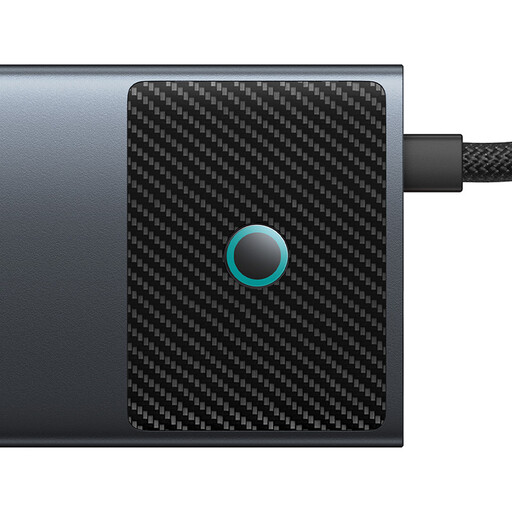
Baseus Metal Gleam Series II 10-in-1 USB-C hub

Baseus Metal Gleam Series II 10-in-1 USB-C Hub

For a desk that combines monitor connections, wired networking and everyday peripherals through one USB-C connection.

Two HDMI outputs are labelled 4K@120Hz and 4K@60Hz; the hub also lists 100W PD input, Gigabit Ethernet, 10Gbps USB ports and SD/TF card reading.

Requires USB-C with DisplayPort Alt Mode for video. Check the laptop’s external-display limit and the simultaneous two-monitor modes before buying.

Joybuy
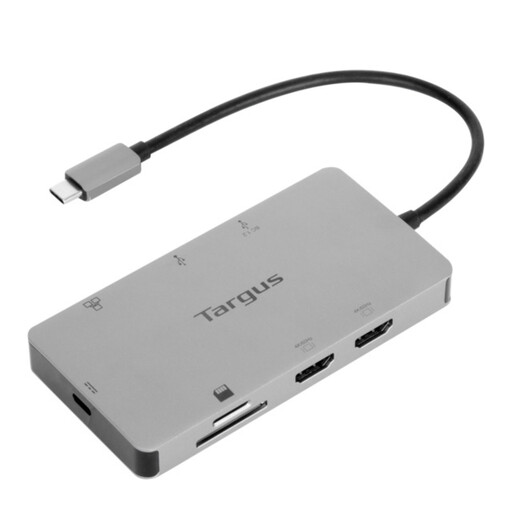
Targus USB-C Universal Dual HDMI 4K Docking Station

Targus USB-C Universal Dual HDMI 4K Docking Station

For a tidier two-monitor desk with charging, network and peripheral connections gathered at the dock.

The listing states two HDMI 2.0 outputs for dual 4K UHD displays at 60Hz, 100W Power Delivery pass-through, Gigabit Ethernet, USB ports and card readers.

Requires a USB-C Alt Mode-capable laptop. Confirm that your model can drive two external 4K@60Hz displays and check the stated external power adapter arrangement.

Joybuy
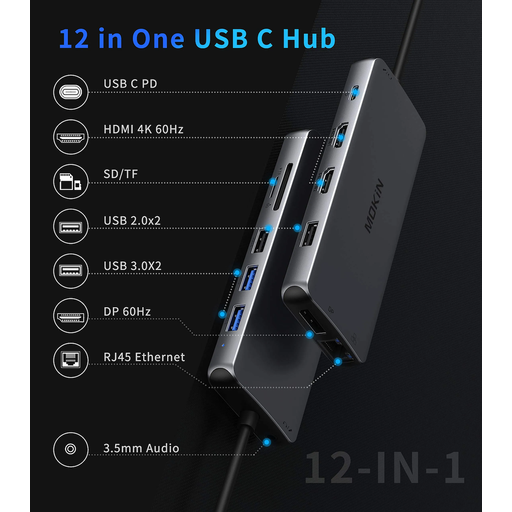
USB-C dock with two HDMI ports and DisplayPort

USB-C Dock with 2 HDMI, DisplayPort and Ethernet

For a peripheral-heavy workstation needing multiple display connectors alongside Ethernet, USB, card-reader, audio and PD connections.

The product name lists two HDMI ports, DisplayPort, Gigabit Ethernet, USB ports, SD/TF, audio and PD pass-through.

Check the required USB-C video capability, operating-system conditions and supported simultaneous display modes before relying on the multi-display connection.

Joybuy

Frequently asked questions

Will an HDMI splitter let me extend a laptop across two monitors?

Usually no. Microsoft Support states that a display splitter duplicates the same signal rather than creating two independent signals. Use two supported display paths, a compatible dock or a USB graphics adapter designed for extended displays instead.

Does a USB-C port guarantee that I can connect a monitor?

No. USB-C is a connector type, so check whether the specific laptop port supports DisplayPort Alt Mode or another documented display-output mode. VESA states that USB-C adapters for HDMI, DVI and VGA need a source device that supports DisplayPort Alt Mode.

Can a dock increase the maximum number of displays supported by my Mac?

Not through a native hub or daisy chain alone. Apple states that these can connect up to two displays through one Thunderbolt port but do not increase the Mac model’s maximum display count. A DisplayLink product is a separate software-based route, with driver, operating-system and workload conditions to check.

Do DisplayLink docks and USB display adapters need drivers?

Often, yes. Synaptics provides DisplayLink graphics drivers for Windows and advises checking whether the dock or monitor manufacturer supplies different software. Check the exact product’s operating-system guidance before purchase.

Are CE-marked docks, adapters and powered monitors allowed for sale in Great Britain?

For products placed on the Great Britain market, the Department for Business and Trade states that CE marking continues to be recognised alongside or in place of UKCA marking where the relevant rules allow it. Check the applicable product rules, seller details, supplied UK mains lead or plug where relevant, and product documentation.