Decide what “two screens” means for your desk before choosing a laptop: the built-in screen plus one monitor, or two external monitors. For two external monitors, check the exact laptop, dock and display combination; for the built-in screen plus one monitor, confirm that the laptop has a port capable of video output. A USB-C connector or a dock with two video sockets does not, by itself, establish that the planned arrangement will work.
Who each setup suits
Desk-based help-centre editors
If you keep a CMS, page preview, source material and support tools open at one desk, establish whether you need two external monitors in addition to the laptop screen. Check the exact laptop-and-dock combination against your intended displays, rather than relying on the dock's output count alone.
Editors working across locations
If your two screens are the laptop display and one external monitor, a verified video-capable connection may suit a setup you move between desks. Check how the monitor connects and how you will charge the laptop at each location.
Browser-heavy documentation workers
If your working day involves a help-centre CMS, browser previews, image assets and communication software, assess memory and storage against the requirements of those tools. Treat that as a separate decision from whether the laptop can drive your planned screens.
What to check before buying
Count the screens you intend to use simultaneously, then check their connections before comparing configurations for your editing workload.
Two external monitors through a dock
Consider this when: You work mainly at a fixed desk and want both external monitors connected through a dock.
Trade-off: Dock capability is not a guarantee for every laptop. Dell UK lists dual 4K at 60 Hz for its Pro Thunderbolt 4 Smart Dock, while Lenovo Support GB documents output configurations by ThinkPad system and dock; check your complete combination.
Laptop screen plus one monitor
Consider this when: You move between desks and can use the built-in display as one of your two screens.
Trade-off: You have one external display rather than two. Confirm that the exact HDMI or USB-C connection carries video; ASUS Support notes that USB-C functions vary.
Direct connections without a dock
Consider this when: You want to connect your planned external monitors to display-capable laptop ports rather than depend on a dock.
Trade-off: Ports vary by model, and their presence alone does not establish simultaneous display support. ASUS UK lists two display-capable Thunderbolt 4 ports and HDMI 2.1 for the ExpertBook B5604CMA; check the operating configuration for the monitors you intend to use.
| Concern |
What to check |
Who this matters to |
| Screen support |
Specify whether you need one or two external monitors. Check the exact laptop and any dock against the required display count, resolutions, refresh rates and cables. |
If my CMS and preview need separate monitors, I want to establish that both will run in the arrangement I plan to use. Around 50% of consumers put reliable screen support first. |
| CMS multitasking |
Compare the configured memory and storage with your CMS, browser extensions, asset workflow and managed-software requirements. |
With page previews, source documents and communication tools open together, I need a configuration suited to my actual workload. Comfortable multitasking is the primary concern for around 30% of consumers. |
| Moving between desks |
Check port functions, monitor inputs and the charging arrangement on the exact laptop configuration. |
When I change work locations, I want a screen setup I can reconnect without relying on the wrong cable or port. Roughly 20% of consumers prioritise portability and a simpler setup. |
Mistakes to avoid
-
Assuming every USB-C port carries video
A USB-C connector can have different functions, including data transfer without display output. ASUS Support advises checking the computer's specific USB-C capabilities.
Find explicit display support in the exact laptop's specification or manual before choosing a monitor connection.
An unsuitable connection may leave you needing a different compatible cable, adapter or dock.
-
Choosing a dock by its video sockets alone
A dock's listed display modes do not establish what every host laptop can deliver. Lenovo Support GB publishes system-and-dock-specific display configurations.
Check the laptop model, dock model, monitor resolutions and refresh rates, inputs and cables as one setup before ordering.
-
Treating one memory and storage combination as a rule
A listed configuration is a comparison point, not a universal requirement for help-centre editing. Your CMS, browser tools and local asset workflow determine what you need.
Check your organisation's software requirements, then assess memory and storage independently of display compatibility.
-
Discarding the details of the configuration you ordered
Port functions, accessories and other listed details can affect whether the delivered laptop matches the arrangement you planned.
Keep the order confirmation, configuration details and any written compatibility claims. If you replace an old laptop, consult the electrical-equipment collection and take-back information available to you; GOV.UK says UK distributors supplying new electrical equipment must provide this information to household users.
Relevant brands to consider
Use a brand's model-specific documentation to check your intended screens; a laptop family name alone cannot confirm a particular display arrangement.
ASUS
The ExpertBook B5604CMA is a reference point for checking direct display connections on a specific business-laptop model.
- ASUS UK lists two Thunderbolt 4 ports with display and power-delivery support, plus HDMI 2.1, for the B5604CMA.
- ASUS says features vary by model. Check another ExpertBook configuration on its own specification, including the simultaneous display arrangement you need.
Lenovo
ThinkPad buyers considering a dock can consult documentation for particular laptop-and-dock combinations.
- Lenovo Support GB publishes display-output configurations by ThinkPad system and dock.
- A ThinkPad family name does not establish support for your two-monitor configuration; check the exact system and dock.
Dell
Dell's business-laptop and Thunderbolt-dock documentation is relevant to a fixed-desk setup.
- Dell UK lists dual 4K at 60 Hz as a capability of its Pro Thunderbolt 4 Smart Dock.
- That is a dock specification, not confirmation for every host laptop and cable combination. Dell's listed Pro 14 memory and storage configuration does not establish its dual-external-display support.
HP
The EliteBook range offers business-laptop configurations to compare against your software requirements.
- HP Store UK lists EliteBook configurations with Windows 11 Pro and 16 GB memory.
- Port layouts and external-display support depend on the exact model and configuration; check those details before planning a two-monitor connection.
Joybuy laptop choices
These laptops represent different ways to approach the two-screen task: the ASUS Zenbook DUO has two built-in displays, while the MSI Modern is a candidate for using the laptop screen alongside one monitor. Check the exact external-display arrangement you need before selecting either model.
 No image available
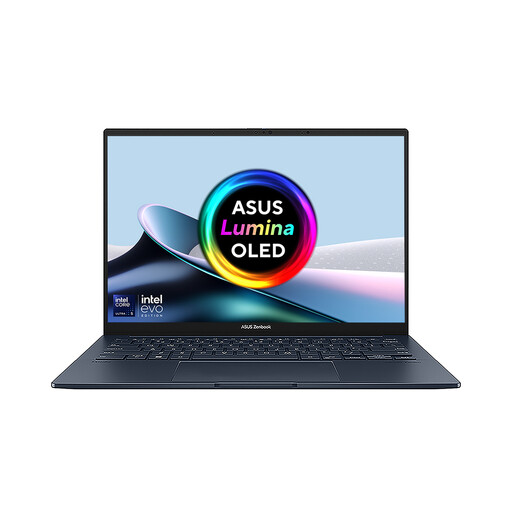
ASUS Zenbook DUO UX8406CA-QL135W, 14-inch dual OLED touch
Consider its two built-in screens if you want a two-screen help-centre workspace without depending on two external monitors.
The listed configuration has an Intel Core Ultra 7 255H, 16 GB LPDDR5X memory and a 1 TB SSD. Check the exact panel resolution before ordering: the listing gives conflicting resolution details.
If you intend to attach external monitors as well, confirm the number of displays that can operate simultaneously and the supported connection modes for this configuration.
View on Joybuy
 No image available
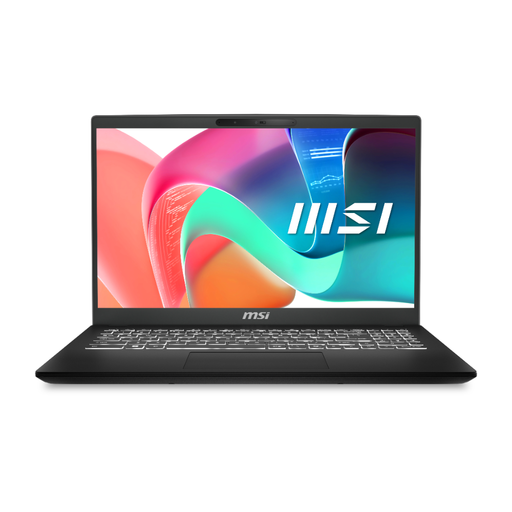
MSI Modern C2RMG-282UK (9S7-15H431-282), 15-inch FHD
Consider this configuration if your two screens will be the laptop display and one external monitor; check that its connection matches your planned monitor.
The product title specifies an Intel Core 5, 16 GB DDR IV memory and a 512 GB SSD.
Confirm the USB-C video mode and supported resolution and refresh rate for your monitor. If you need two external monitors in addition to the laptop screen, check that arrangement separately with the exact laptop and dock.
View on Joybuy
Frequently asked questions
Can every USB-C laptop port connect an external monitor?
No. USB-C describes the connector, not a guaranteed video function. ASUS Support notes that port capabilities vary, so check the exact laptop's specification or manual for display output before choosing a monitor or dock.
Will a Thunderbolt dock let any laptop run two external monitors?
Not necessarily. A dock's advertised outputs must be checked against the laptop, monitor configuration and cables. Lenovo Support GB documents different display configurations for particular ThinkPad-and-dock combinations.
How do I arrange connected displays on a Windows laptop?
Once the displays are connected, use Windows display settings to identify and arrange them. Microsoft Support advises checking the cables and the connection to the PC or dock before changing display settings.
What should I keep if a delivered laptop differs from its listing?
Keep the listing, order confirmation and any written configuration or compatibility claims, then raise the discrepancy with the retailer. GOV.UK explains that the Consumer Rights Act 2015 covers faulty goods and that retailers must not restrict statutory rights through their returns wording; the appropriate remedy depends on the circumstances.
What should I do with an old laptop when replacing it?
Use an appropriate electrical-equipment collection or take-back route rather than ordinary household waste. GOV.UK says UK distributors supplying new electrical equipment must provide household users with information about available collection and take-back systems.


