Fixed-desk timetable comparers
You keep timetable pages, route maps or spreadsheets visible for long sessions and want two external monitors without repeatedly swapping cables.


Choose the display connection before comparing processor specifications: if you need two external timetable screens, look for documented support for two independent displays on the exact laptop model. A compatible dock can simplify a regular desk setup, while a MacBook Air is an option if its external-display specification and macOS compatibility meet your needs; in either case, check the intended monitors, cables and dock together.
You keep timetable pages, route maps or spreadsheets visible for long sessions and want two external monitors without repeatedly swapping cables.
You compare schedules away from your desk, then connect the laptop to two screens at home or work. Portability and a convenient dock connection both matter.
You need a setup that can be checked against your employer's approved applications, dock and monitors before purchase.
Start with the exact laptop's support for two independent external displays, then decide how you will connect them and whether your required tools work on its operating system.
| Concern | What to check | Who this matters to |
|---|---|---|
| Independent displays | Confirm the exact model's external-display count at your monitors' resolutions and refresh rates. Check that it can extend the desktop rather than only mirror it. | If I need a separate timetable on each external screen, a USB-C port alone gives me too little assurance. Around 50% of consumers put confirmed independent-display support first. |
| Desk connection | Check the laptop's display output and the dock's host compatibility and dual-display modes; account for the required cables and adapters. | When I reconnect a portable laptop at the same desk each day, I want fewer separate connections to manage. For around 30% of consumers, a repeatable desk connection is the primary concern. |
| Portability and work tools | Confirm that required transport portals, browser extensions, VPNs and workplace applications work on the chosen operating system. | If timetable work follows me between locations, I need a laptop I can carry without losing access to essential tools. Around 20% of consumers prioritise that combination. |
A connector's shape does not establish how many independent displays the laptop can drive. Dell Support notes that the workable connection method depends on ports and graphics hardware, not cable count alone.
Check the exact model's display-support specification against the resolutions and refresh rates of your intended monitors.
A dock's stated display mode does not override the host laptop's limits. Dell lists dual 4K displays at 60 Hz for its SD25TB4 dock, but the laptop and cables still need to support the intended connection.
Check the laptop, dock, monitors and cables as one setup before ordering.
HP notes that configuration components are not available in every region or country. A product-family specification may therefore differ from the particular laptop on sale.
Match the retailer's SKU or manufacturer part number to the applicable specification, especially for HDMI and Thunderbolt or USB4 ports.
Display support will not solve a problem with an essential timetable portal, browser extension, VPN or employer-provided application.
List the tools you need and confirm their Windows or macOS compatibility with the provider or employer before choosing a laptop.
The ThinkPad T14 Gen 5 (Intel) is a Windows business-laptop example with documented multi-display support.
MacBook Air is an option when you want a portable macOS laptop for a two-external-display desk.
The EliteBook 840 G11 is a Windows business-laptop option to examine for a desk using HDMI or a Thunderbolt dock.
The Zenbook 14 OLED UX3405 is a portable Windows model with display connections worth checking for this use.
This MacBook Air is a portable macOS option for connecting two external timetable screens at a desk, provided your required websites and applications work on macOS and the chosen display connections suit your monitors.
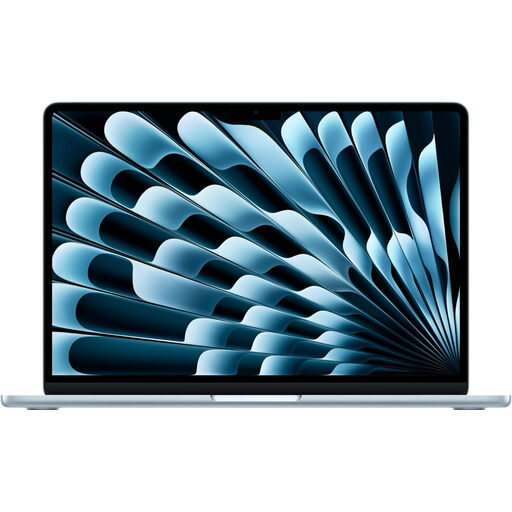 Image unavailable
Consider this model if you take timetable work between locations and use two external screens when you return to your desk.
The listing specifies two Thunderbolt 4 ports. Apple's UK MacBook Air specifications state support for up to two external displays while using the built-in display; check the intended monitors' display modes and your dock or cable compatibility for this configuration. Confirm that any essential workplace applications, extensions and VPN work on macOS.
No. Dell Support explains that multi-monitor connection options depend on the laptop's ports and graphics hardware, not simply the number of cables. Check the exact laptop's display specification and the intended dock, cables and monitor modes.
Direct connections can keep a fixed setup straightforward when the Windows laptop has suitable outputs for both monitors. If you frequently disconnect the laptop and also use desk peripherals, a compatible dock can reduce the number of connections you make each time; check its display modes against the laptop's limits.
Extend the Windows desktop rather than duplicating it, then place a timetable window on each screen. Microsoft Support directs Windows 11 users to Settings > System > Display to identify and arrange connected displays.
Apple's UK MacBook Air specifications state support for up to two external displays while retaining the built-in display. Confirm the exact Mac model's supported display modes, the connections your monitors need and whether your essential tools work on macOS.