Bright-window tariff comparer
You read supplier tables and contract terms near a bright window. Check both listed brightness and screen finish, then assess reflections from the position where you normally sit.


If window glare regularly interrupts tariff comparisons, start with the exact display configuration: look for a stated brightness figure and a separately specified anti-glare or low-reflection finish. Then confirm that your comparison sites, sign-in method and documents work on the chosen operating system; neither a brightness figure nor a familiar laptop name settles those checks.
You read supplier tables and contract terms near a bright window. Check both listed brightness and screen finish, then assess reflections from the position where you normally sit.
You use Windows-specific documents, extensions or sign-in tools while comparing and saving tariff information. Confirm your workflow and the exact screen configuration before ordering.
You mainly use comparison sites, email and documents, and may move the laptop to escape glare. Check its weight, display finish and compatibility with the tools you use.
For tariff comparison beside a bright window, settle screen readability and software compatibility before deciding how much portability you need. Manufacturer specifications describe particular configurations, not how every screen will look in your room.
| Concern | What to check | Who this matters to |
|---|---|---|
| Screen readability | Check the exact panel’s brightness in nits and its separately stated anti-glare or low-reflection finish. Assess reflections in similar light if possible. | When window reflections obscure tariff tables, I need to read figures and terms without repeatedly moving the screen; around 45% of consumers put screen readability first. |
| Workflow compatibility | Confirm that your tariff sites, sign-in method, browser extensions and document files work on the chosen operating system. | If a required portal or spreadsheet will not work with my setup, the display alone cannot make the laptop suitable; roughly 36% of consumers make workflow compatibility their primary concern. |
| Portability and specification fit | Compare the selected configuration’s weight, screen size and ports with how you will use and move it. | Being able to shift position when glare changes matters to me, but I also want enough screen space for tables; around 19% of consumers prioritise portability and specification fit. |
Brightness and surface treatment are separate specifications. Apple lists a 500-nit display for the 13-inch MacBook Air with M5, while the cited Apple specification does not describe that screen as anti-glare.
Check both properties for the exact configuration. If reflections are decisive, assess the screen in similar lighting and check the retailer’s applicable return terms before purchase.
Display details can change between configurations. ASUS lists an anti-glare, low-reflection OLED option for the Zenbook A14 UX3407; that description should not be assumed for every UX3407 variant.
Match the retailer’s full model number and panel description to the manufacturer’s specification.
On 7 October 2026, a Joybuy page for a MacBook Air M5 configuration was marked unavailable even though its product details remained visible.
Check availability, the final configuration, seller and warranty terms at checkout rather than relying on a search result.
The specified ThinkPad X1 Carbon Gen 13 Aura Edition configuration is a Windows option for someone who wants both brightness and anti-glare treatment stated for the panel.
The 13-inch MacBook Air with M5 is a macOS option if your tariff sites, sign-in tools and documents work in your chosen browser.
The Zenbook A14 UX3407 range includes a compact Windows configuration with an explicitly described low-reflection OLED display.
These laptops offer different screen sizes and configurations for browser-led tariff comparisons. Check each exact panel’s brightness and finish, as well as your required software, before choosing one for a bright-window position.
 No image available
Consider this compact option if you want to move between places to read tariff tables; check its display in lighting like yours and confirm that your required sites and tools work with this configuration.
The named variant has a Snapdragon X processor, 16GB RAM and a 512GB SSD.
 No image available
The 15.6-inch display offers more room for tariff tables, but check whether the laptop’s size and weight suit how often you will move it away from glare.
This variant lists a 144Hz Full HD display, 16GB RAM, a 1TB SSD and GeForce RTX 5050 graphics. Its gaming specification is not, by itself, a reason to choose it for browser-led comparisons.
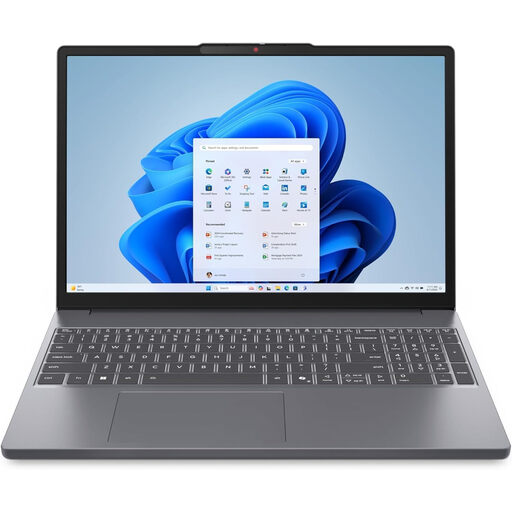 No image available
This is a larger-screen option for keeping tariff pages and documents in view. Confirm the exact panel’s brightness and finish, and check any ports needed for your existing equipment.
The named variant has a 15.3-inch WUXGA display, AMD Ryzen 5 7535HS processor, 24GB DDR5 RAM, a 512GB SSD and Windows 11 Home.
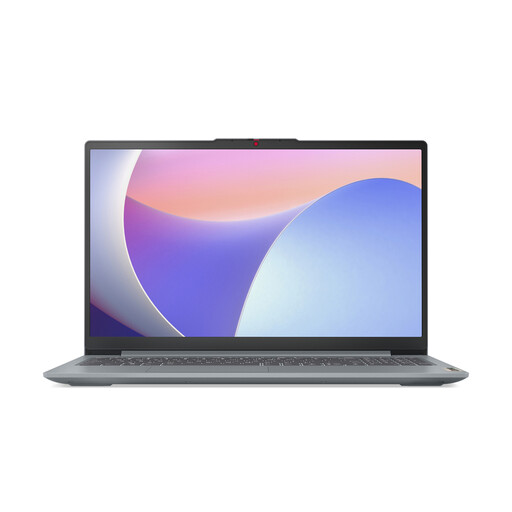 No image available
The 15.6-inch format may suit reading tariff tables if you have room for it. Check panel brightness in your usual lighting and confirm the runtime you need before using it away from a socket.
This variant names an Intel Core i5 processor, 8GB RAM and a 512GB SSD.
 No image available
This 15.6-inch option gives tariff tables room on screen; check the exact panel in bright light. Before choosing it for particular browser extensions or apps, confirm whether its Windows installation has S Mode restrictions.
The named variant has an Intel N150 processor, 8GB DDR4 RAM and a 128GB SSD.
Check brightness and reflection treatment separately for the exact laptop configuration. Lenovo lists both 500 nits and anti-glare for the specified ThinkPad X1 Carbon Gen 13 configuration; ASUS describes a 400-nit Zenbook A14 variant as anti-glare and low-reflection. Neither specification establishes how a screen will look from your particular seat.
Choose Windows only if your required tariff sites, sign-in tools, browser extensions or documents call for it; otherwise macOS may also fit your workflow. Check each service and file format you use before choosing between the Windows options and Apple’s MacBook Air.
For a qualifying purchase from a business where you did not see the laptop in person, Citizens Advice says a 14-day cooling-off period normally starts the day after receipt, subject to exceptions. Check the applicable guidance and the seller’s process before relying on a change-of-mind return; this is distinct from remedies for a faulty or misdescribed laptop.
Back up and securely erase your personal data, then use an appropriate reuse or electrical-equipment recycling route. UK government guidance on waste electrical and electronic equipment describes routes intended to encourage recovery, reuse and recycling.