What matters when choosing?
For event-calendar work on a small desk, decide whether desk fit, visual layout, image-editing capacity or compatibility is your primary constraint before comparing configurations.
| Concern |
Buying check |
Who this matters to |
| Desk fit and long sessions |
Check the laptop’s dimensions against usable desk space. Allow room for a riser, separate keyboard and mouse if you work for long periods. |
If notes and a mouse must share my small desk, I need the laptop to fit without crowding them out. Around 33% of consumers would put desk fit and a workable long-session setup first. |
| Layout and colour review |
Check the exact display resolution and stated colour coverage; for print work, consider how you will check proofs. |
When calendars include logos and photographs, I want to inspect the layout and artwork on a suitable screen. Roughly 25% of consumers would make visual review their primary concern. |
| Image-editing capacity |
For desktop Photoshop, compare memory and available SSD space with Adobe’s recommendations for your version. |
If I edit layered artwork locally, the image editor has to run alongside my calendar work. About 25% of consumers would prioritise memory and storage for that workflow. |
| Windows and accessories |
Check required apps, plugins, printer drivers and connectors against the exact laptop, especially an ARM-based model. |
At venues, I may need a particular Windows tool or peripheral to work without changing my workflow. Around 17% of consumers would put compatibility first. |
Joybuy laptops for event-calendar design
These choices include compact laptops for a small desk, a dual-screen option that needs more room when opened, and a 16-inch model to consider only if a larger working area takes priority over desk space. Check each configuration against your software and physical setup.
 No image available
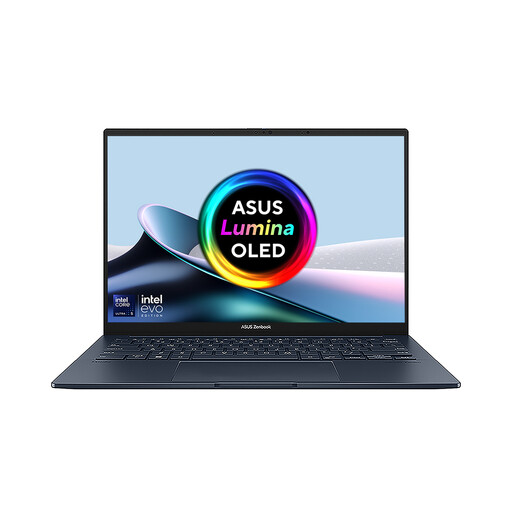
ASUS Zenbook DUO UX8406CA-QL135W, dual 14-inch OLED touchscreens
Consider the two-screen format if you want space for a calendar layout and supporting material, but measure the desk area it will occupy when open.
The product title specifies an Intel Core Ultra 7 255H, 16GB LPDDR5X memory and a 1TB SSD. Check the exact panel resolution if it matters to your design work.
View on Joybuy
 No image available
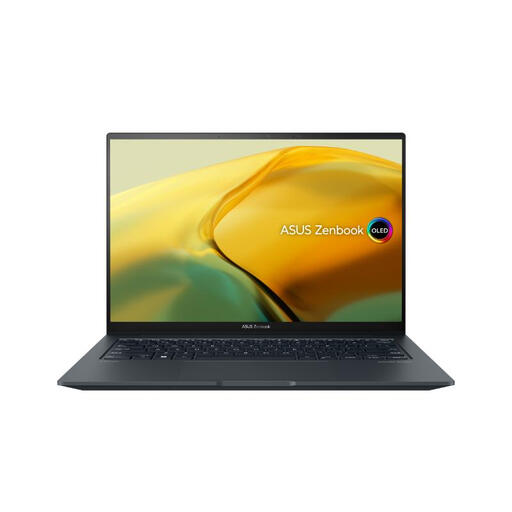
ASUS ZenBook UX3404VC-M3130W, 14.5-inch OLED touchscreen
The 14.5-inch screen offers room for calendar layouts; measure whether the laptop will still leave space for your mouse and notes.
The product title specifies an Intel Core i9, 16GB RAM, a 1TB SSD, RTX 3050 graphics and Windows 11 Home. If colour matching matters, check the exact panel’s stated colour coverage.
View on Joybuy
 No image available
ASUS Vivobook 14 X1407QA-LY003W, Snapdragon X, Quiet Blue
This 14-inch option is worth considering for a space-conscious Windows workflow, provided your essential applications and peripherals suit its ARM-based configuration.
The product title specifies 16GB RAM and a 512GB SSD. Check any required plugins, printer drivers and accessories individually before buying.
View on Joybuy
 No image available
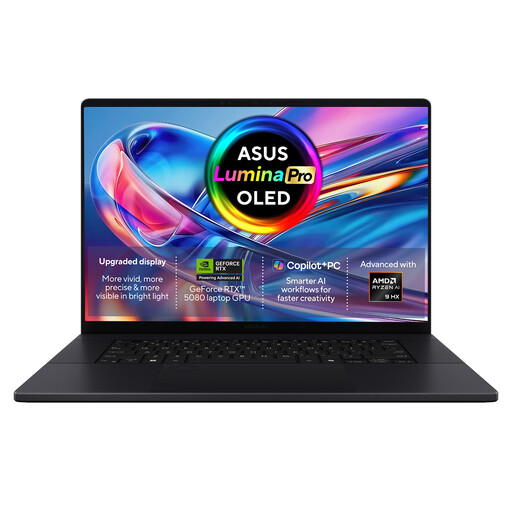
ASUS ProArt P16 H7606WW-SE006W, 16-inch 4K OLED touchscreen
Consider the larger screen for substantial local artwork and layout work only if your desk can accommodate a 16-inch laptop and your input devices.
The product title specifies an AMD Ryzen AI 9 HX 370, NVIDIA GeForce RTX 5080 16GB graphics, 64GB RAM, a 2TB SSD and Windows 11 Home. Those specifications do not make the larger footprint necessary for basic calendar templates.
View on Joybuy
 No image available
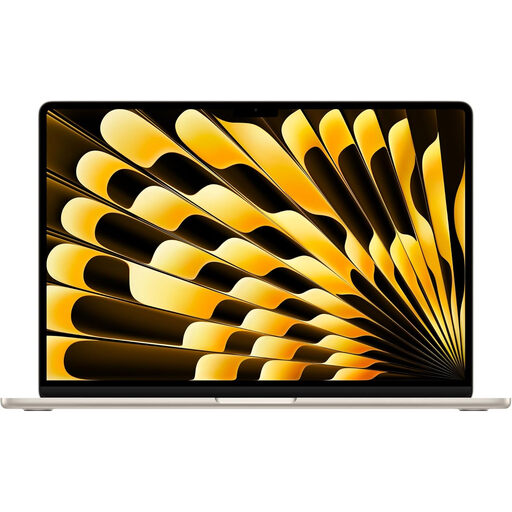
Apple 13-inch MacBook Air (2026), M5, 16GB, 1TB SSD, Starlight
The 13-inch format is a choice when desk space matters more than keeping several design panels visible at once. Confirm that your calendar applications and printer software work with macOS.
The product title specifies an M5 chip with a 10-core CPU and 10-core GPU, 16GB memory and a 1TB SSD. Check the exact display and ports against your artwork and accessory needs.
View on Joybuy
Common questions
Is a 13-inch laptop large enough to design an event calendar?
A 13-inch laptop can suit browser-based scheduling and work on one layout at a time when desk space is tight. If you regularly need the grid, artwork and formatting controls visible together, compare a larger screen or an external-monitor setup against the space available.
Should I choose 8GB or 16GB of memory?
Choose memory for the applications you will actually run, not just the calendar format. For current desktop Photoshop, Adobe recommends 16GB or more; basic browser tools have different demands, so check your full browser and application workload.
Can I work on the laptop alone at a small desk all day?
For prolonged laptop work, plan space for a separate keyboard and mouse so you can raise the screen. That follows the Health and Safety Executive’s workstation advice and means measuring the complete setup, not just the closed laptop.
Will Photoshop run on an ARM-based Windows laptop?
Adobe publishes requirements for current Photoshop on Windows on ARM and recommends 16GB or more RAM. Confirm your particular plugins, printer drivers, older applications and other essential accessories separately; Photoshop’s requirements do not settle their compatibility.
Will I need a dock or adapters?
You need them only if the laptop’s available connections do not accommodate the devices in your planned setup. Compare the exact laptop’s ports with your monitor, printer, storage, mouse receiver and charging connections before deciding.


