What matters when buying
Start with the software and workstation you will use, then decide how much built-in screen space you need when you are away from the desk.
| Concern |
What to check |
Who this matters to |
| Standing-desk setup |
Check how you will raise the screen or connect a monitor while keeping a separate keyboard and mouse comfortably positioned. Confirm the exact laptop, cable and display connections. |
When I work on calendars for long stretches, I want the screen raised without lifting the keyboard with it. Around 42% of consumers put workstation positioning first. |
| Portability |
Compare the exact configuration’s weight and size, alongside any keyboard, riser, charger or hub you would carry. |
If I move between my desk, meetings and venues, I need a laptop and accessories I can carry without making each move cumbersome. For around 33% of consumers, portability is the primary concern. |
| Layout visibility |
Check the exact screen size, aspect ratio, resolution and stated colour specification, plus memory and external-display support for your workflow. |
When I review crowded dates, images and other open windows, I need enough visible detail to spot layout problems. That makes screen and multitasking needs the priority for around 25% of consumers. |
Joybuy product choices
These laptops offer different ways to work on a calendar at a standing desk, from compact Mac models to Windows laptops with larger or dual built-in screens. Choose by your software and screen needs, then plan the separate keyboard, mouse and display arrangement you will use for longer desk sessions.
 No image available
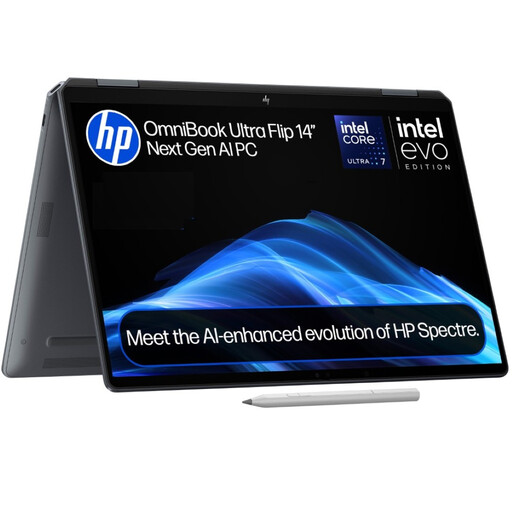
HP OmniBook Ultra Flip 14-fh0006na 2-in-1, 16GB, 1TB
Consider this Windows laptop if a convertible format fits the way you review and share calendar layouts. Its named configuration has 16GB RAM, a 1TB SSD and Windows 11 Home. Check the exact graphics configuration and how your monitor, dock and cables will connect before buying.
View on Joybuy
 No image available
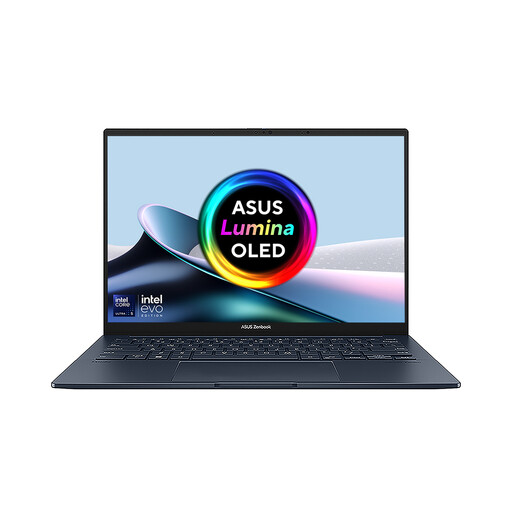
ASUS Zenbook DUO UX8406CA-QL135W, 14-inch Dual OLED Touch
The two named OLED touchscreens may suit a workflow that keeps the calendar visible beside reference material. This configuration names an Intel Core Ultra 7 255H, 16GB LPDDR5X RAM and a 1TB SSD. Confirm the exact screen resolution before choosing it for detailed layout review, and check how you would position its screens and keyboard at your standing desk.
View on Joybuy
 No image available
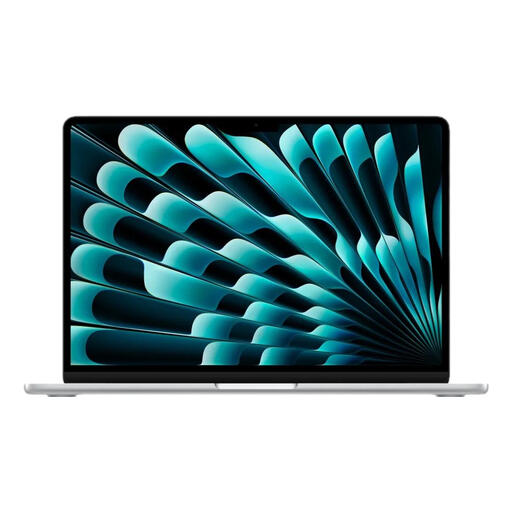
Apple 13-inch MacBook Air (2026) M5, 16GB, 1TB SSD, Silver
This is a compact macOS choice if you move between locations but use an external display for longer desk sessions. The named variant has 16GB memory and a 1TB SSD; Apple states that the M5 MacBook Air supports up to two external displays. Confirm the exact CPU configuration and the connections needed for your monitor and accessories.
View on Joybuy
 No image available
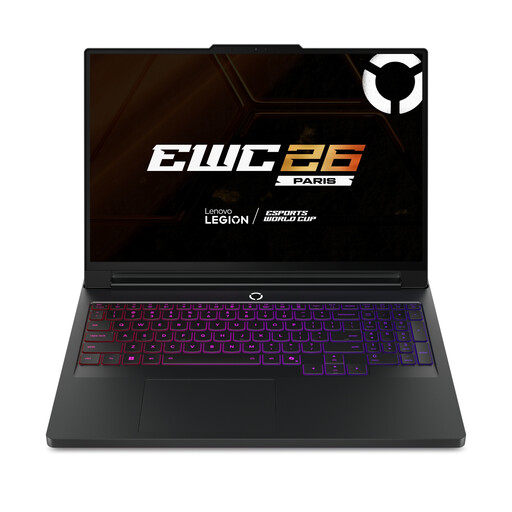
Lenovo Legion Pro 7 16IAX10H (83F5000UUK), 64GB, 2TB
The named 16-inch format is an option if you want more built-in screen area for calendar layouts at the desk. This Windows 11 Home configuration names an Intel Core Ultra 9, 64GB RAM, a 2TB SSD and NVIDIA GeForce RTX 5090 graphics; those specifications alone do not establish a need for this configuration in ordinary calendar work. Check its carrying weight and the exact monitor connection if either matters to your setup.
View on Joybuy
 No image available
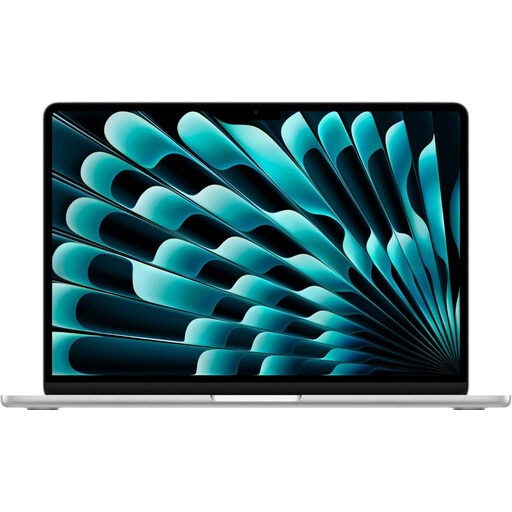
Apple 15-inch MacBook Air (2026) M5, 16GB, 1TB SSD, Silver
Consider the 15-inch format if you want a larger built-in view of your calendar while retaining a macOS workflow. This variant names 16GB memory and a 1TB SSD; Apple states that the M5 MacBook Air supports up to two external displays. Check this configuration’s screen characteristics and carrying weight if they will affect your choice, as well as the connections for your desk setup.
View on Joybuy
Common questions
Do I need a separate keyboard and mouse at a standing desk?
For prolonged laptop use, plan to use a separate keyboard and mouse so you can raise the laptop screen or use a separate display without raising the input devices. That follows the Health and Safety Executive’s laptop-positioning guidance and lets you arrange the screen and keyboard independently.
Will Canva work on both Windows and Mac laptops?
Canva offers desktop apps for both Windows and Mac, as well as browser use. Check Canva’s current requirements for the version you intend to use, then confirm that any fonts, storage arrangements or other tools in your calendar workflow also work on the chosen laptop.
Do I need dedicated graphics for an event calendar?
Dedicated graphics are not a stated requirement for Canva’s basic desktop-app setup. Those application requirements do not describe every project, though: if your work also involves large image files, video or specialist design software, check those tools’ requirements before selecting a configuration.
When does a work standing-desk setup need an assessment?
The Health and Safety Executive says employers must assess a workstation when a worker uses display screen equipment daily as part of normal work, continuously for an hour or more. That assessment covers the workstation, the work and individual needs; it is not a requirement applied to every personal laptop purchase.


