Home and hybrid workers with a regular desk
If you want a larger screen and everyday peripherals at one workspace, check the laptop’s display limit, the monitor or dock outputs and whether the connection can provide the charging you need.


Start with the laptop: check its supported number of external displays and whether its ports provide video, then match a monitor, adapter or dock to those capabilities. A direct connection suits a single screen when the laptop has a compatible video output; a dock can bring desk connections together, while a supported USB-A DisplayLink dock offers a software-dependent route for some laptops without USB-C video. Check the intended resolution, refresh rate and charging arrangement before choosing.
If you want a larger screen and everyday peripherals at one workspace, check the laptop’s display limit, the monitor or dock outputs and whether the connection can provide the charging you need.
If your laptop has USB-A but no USB-C video output, compare its native video ports with the requirements of a USB graphics dock. A USB-A display connection depends on compatible hardware and software.
A portable monitor offers a second screen without a permanent desk dock. Check how it receives both video and power from your particular laptop.
Work from the laptop’s supported display outputs towards the screen and connection accessories; the shape or number of ports alone cannot settle compatibility.
| Priority | What to check | Your needs |
|---|---|---|
| Screen count | Find the exact laptop model’s external-display limit. Compare the intended resolution and refresh rate with the laptop and dock specifications; Apple says supported display counts for Macs depend on the model and display modes. | I want to know whether my laptop can run the additional screens independently, not just whether a dock has enough sockets. |
| USB-C video | Confirm DisplayPort Alt Mode, USB4 or Thunderbolt display support for the laptop port. If a USB-C dock requires Multi-Stream Transport (MST) for two screens, check the host requirement too; Targus specifies MST for dual displays on its DOCK430EUZ. | A USB-C plug fits my laptop, but I need to establish that the port can send video to the screen or dock. |
| USB-A displays | Check the named dock’s USB-A support, USB graphics technology, operating-system requirements and display modes. DisplayLink advises checking graphics and USB 3.0 host-controller drivers as well as conflicting software. | My older laptop needs another screen, and I can use a software-dependent connection if it works with my system. |
| Connections and power | Match the laptop output to the monitor input and check the cable or adapter’s intended display mode. If a dock or portable monitor relies on the laptop for power, check that arrangement separately from video compatibility. | I would rather connect one suitable screen directly than add a desk dock I do not need; at a fixed desk, I may also want peripherals and charging on one connection. |
| Workstation fit | Consider screen placement and adjustment as well as size. For employees using display screen equipment daily for continuous periods of an hour or more, the UK Health and Safety Executive says employers must carry out a workstation assessment. | The extra display needs to fit a working position I can use regularly, whether I work at home or split time with an office. |
A USB-C monitor or dock can fit the socket yet receive no image if the laptop port lacks the video mode it requires.
Look up the exact laptop port’s DisplayPort Alt Mode, USB4 or Thunderbolt display capability, then compare it with the accessory’s host requirements.
Two video outputs do not establish that a native-video dock and laptop can run two independent screens at your intended resolution and refresh rate. Apple documents model-specific Mac display limits, while Targus requires host MST support for dual displays on its DOCK430EUZ.
Check the laptop’s display limit and the dock’s output modes together, including any MST requirement.
A USB-A DisplayLink setup depends on compatible USB graphics software and the dock’s supported modes. DisplayLink also reports that some protected video may not play on a Mac while DisplayLink screens are connected.
Check the named dock’s operating-system and driver requirements, power arrangement and intended monitor mode before relying on it.
Setting up the required software takes an extra step; Kensington says USB-A use of its SD4781P dock also requires an alternative power source.
An additional screen does not address the placement and other workstation conditions involved in regular display-screen work. The UK Health and Safety Executive advises assessing the whole workstation.
Check how the screen will be positioned. If you are an employee whose work calls for a display-screen assessment, use your employer’s process for the workspace concerned.
Kensington’s named dock models illustrate why the laptop connection matters more than the USB-C socket shape.
Targus has named docks using different approaches to multiple displays.
The ThinkVision M14 is a portable-screen example rather than a multi-peripheral desk dock.
ZenScreen is a portable-monitor range with connection methods that vary by model.
These options cover a USB-C display adapter, fixed and portable monitors, and a USB-C desk dock. Choose among them by the connection and screen arrangement your laptop supports.
 No image available
For connecting a screen and desk peripherals through a compatible USB-C laptop port. The named configuration includes 4K HDMI, VGA, Gigabit Ethernet, 100W Power Delivery and two USB 3.0 ports; check the laptop’s USB-C video support and do not assume the HDMI and VGA outputs provide two independent screens.
 No image available
A fixed-screen option for a laptop desk setup. Match the laptop’s video output and your intended cable or dock to this IPS WQHD monitor before choosing how to connect it.
 No image available
A second-screen option for work away from a fixed desk. If you plan to use its USB-C display connection, check that the laptop supports DisplayPort Alt Mode and can meet the monitor’s power requirements.
 No image available
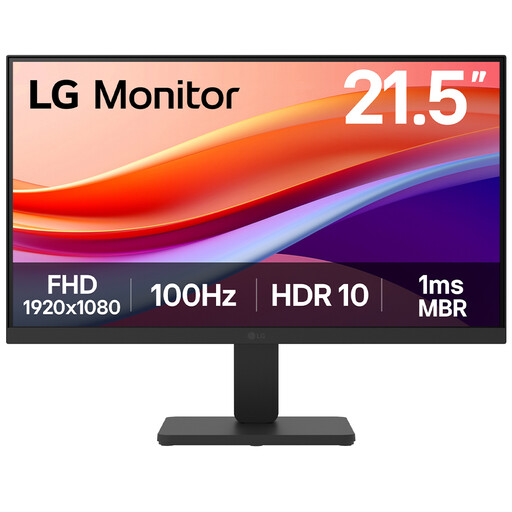
A fixed-desk screen with HDMI in its named configuration. Check that the laptop has a suitable video output, that you have the required cable or adapter, and that it supports your intended display mode.
 No image available
For a desk setup considering two external HDMI screens and 100W Power Delivery pass-through. Check the exact laptop’s USB-C video capability and external-display limit before planning two screens, and confirm the required external power adapter for your setup.
No. Check the laptop port for the video mode required by the monitor or dock, such as DisplayPort Alt Mode or a relevant Thunderbolt or USB4 display capability. ASUS says USB-C display use requires video capability at both the computer and monitor connections.
Extra dock sockets do not by themselves increase a laptop’s native display capacity. Check the exact laptop and dock together; Apple says a Mac’s supported simultaneous displays depend on its model and the displays’ resolution and refresh rate. A USB graphics dock is a different, software-dependent route with its own requirements.
It is an option for a suitable laptop without native USB-C video if the named USB-A graphics dock supports its system and intended monitors. Check the required software and drivers: DisplayLink identifies graphics drivers, USB 3.0 host-controller drivers and conflicting USB graphics software as compatibility considerations.
Yes, in some applications. DisplayLink says protected content may fail to play while DisplayLink screens are connected to a Mac; consider that limitation if watching such content is important to your setup.
For UK employees who use display screen equipment daily as part of normal work for continuous periods of an hour or more, the Health and Safety Executive says employers must carry out a workstation assessment. Its guidance says the display screen equipment regulations can also apply to permanent home workers and those who routinely split their work between home and another workplace; the actual work pattern and workstation should be considered.