Quiet-study letter translators
You want to read the original, compare it with a translation and make corrections without a cramped screen, awkward typing or distracting laptop noise. Gaming-class performance is not the starting point for this task.


For occasional translation in a browser, choose a laptop with a screen and keyboard you can use comfortably, then check that your letter opens in the translation and editing tools you intend to use. A Chromebook can suit a browser-based workflow; choose Windows if you need particular desktop applications, or consider a MacBook Air if you already prefer macOS. A scanned letter needs a separate workflow check, and a quiet study calls for care with model-specific noise claims.
You want to read the original, compare it with a translation and make corrections without a cramped screen, awkward typing or distracting laptop noise. Gaming-class performance is not the starting point for this task.
You have an existing document editor, locally installed application, printer or scanner to use. Check that the operating system and the exact laptop work with those tools before choosing on screen size alone.
You expect to translate and edit mainly through websites or web-based documents. A Chromebook may fit, provided your files work with those tools and the specific model has sufficient remaining automatic-update support.
Start with the letter’s format and the tools needed to edit it. That determines whether a browser-first Chromebook is practical or whether a Windows or macOS workflow deserves closer attention.
Consider it when: You can translate and review the letter using browser-based tools.
Check first: Confirm that your file workflow works on ChromeOS and check the model’s Auto Update Expiration date.
Consider it when: You need a particular desktop document application or connected device.
Check first: Confirm compatibility with the exact laptop and configuration; Windows 11 eligibility alone does not establish that your applications and hardware will work as intended.
Consider it when: You prefer macOS for reading, writing and browser translation.
Check first: Confirm your required applications and charging accessories; Apple says a power adapter is not included with its UK MacBook Air purchase configuration.
| Concern | What to check | Who this matters to |
|---|---|---|
| Comfortable reading and typing | Compare screen size, resolution and keyboard layout. If silence is essential, seek a demonstration or an independent noise test for the exact model. | When I compare the original letter with my edits in a quiet room, I want text I can read easily and keys I can use accurately. Around 42% of consumers put this comfort first. |
| Document and tool compatibility | Identify whether the letter is editable or scanned, then check your translation tool, document editor and any printer or scanner against the chosen laptop. | If my family letter is a Word file or scanned PDF, I need a workflow that handles that file before screen specifications become useful. For around 33% of consumers, compatibility is the primary concern. |
| Simple browser-based use | Check that your preferred web tools meet your needs; for a Chromebook, check the exact model’s Auto Update Expiration date. | For an occasional letter, I would rather use familiar browser tools than choose hardware for tasks I do not plan to do. Roughly 25% of consumers place straightforward browser-based use first. |
Google Translate Help says text found in images and scanned PDF pages can appear in an output document without being translated. A different laptop does not, by itself, resolve the file-format problem.
Inspect the letter before buying. If it is scanned, try transcription or optical character recognition on a copy of a representative page, then test the translation while preserving the original file.
Transcription or file conversion can add time to the task.
Remaining automatic-update support depends on the specific Chromebook model, not simply on whether it is offered for sale.
Check that model’s Auto Update Expiration date using Google Chromebook Help, particularly when considering an older or refurbished device.
Microsoft says individual applications and added hardware can exceed Windows 11’s minimum requirements. Being able to run the operating system does not settle whether your intended document workflow will suit the laptop.
Check the exact processor, memory and storage configuration against the editor, translation tools and connected devices you plan to use.
Apple’s UK MacBook Air purchase information says a power adapter is not included. An unfamiliar keyboard layout can also make careful transcription less convenient.
Confirm the included charging equipment, the required compatible adapter and the exact keyboard layout before checkout.
These brands illustrate different laptop routes for this letter-translation task; check the configuration of any individual model.
MacBook Air is a macOS option for reading, writing and browser translation.
The Vivobook Go 14 E1404G family offers a compact Windows-laptop route for document work.
The HP 15a-nb0503sa Chromebook is an example of a larger-screen ChromeOS route for browser-first work.
Lenovo’s Chromebook Plus 2-in-1 Gen 10 is a ChromeOS convertible to consider if that form factor appeals to you.
These MacBook Air and Windows laptop options suit readers considering a desktop-oriented document workflow or a larger screen for reviewing a letter. Check the original file format and your required applications before choosing between them.
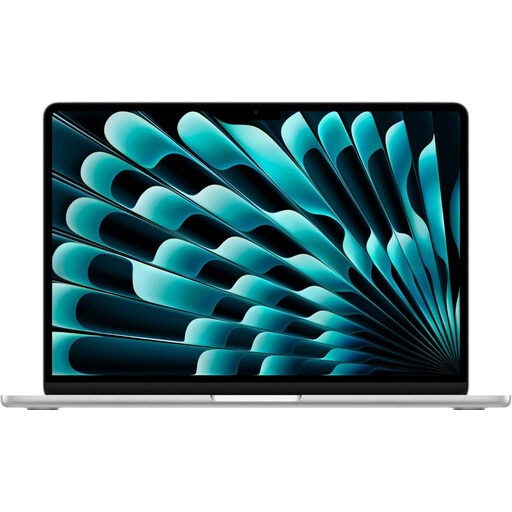 No image available
Consider this MacBook Air if you prefer macOS and want a 15-inch screen for reading and editing the letter.
The listed variant has an M5 chip with a 10-core CPU and 10-core GPU, 16GB memory and a 1TB SSD.
Check your required applications and keyboard layout. If low noise is essential, seek evidence for this exact model rather than assuming it will be silent.
 No image available
The 15-inch touchscreen gives you space to read and review a letter; check that your document applications fit this Snapdragon-based laptop before choosing it.
This variant lists a Snapdragon X Elite processor, 16GB RAM and a 256GB SSD.
Confirm compatibility with any required applications or peripherals, along with the keyboard layout. Seek a model-specific noise assessment if quiet operation is essential.
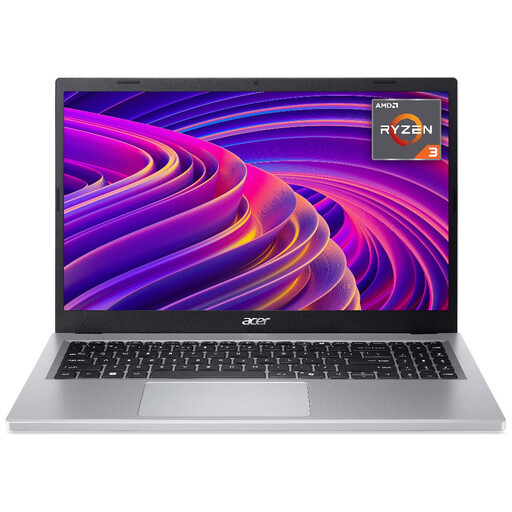 No image available
Consider this model if a 15.6-inch screen suits the way you plan to read and edit the letter.
Its title specifies a Full HD (1920 × 1080) display, AMD Ryzen 3 7320U processor, 8GB RAM and a 256GB SSD.
Check the keyboard layout and any application requirements; assess the exact model’s noise if the study must remain especially quiet.
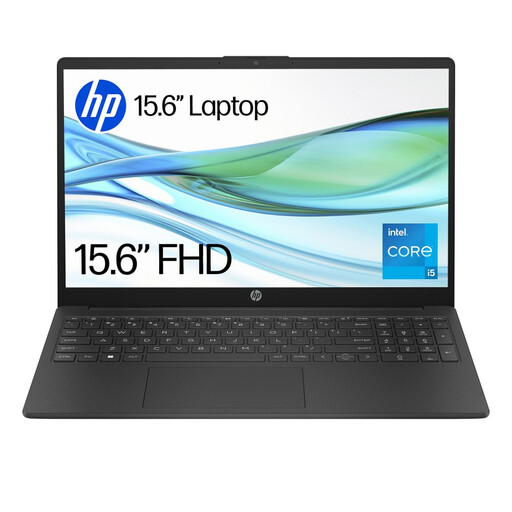 No image available
This 15.6-inch Windows 11 Home laptop is a choice to examine if your letter workflow calls for Windows document tools.
The listed variant has an Intel Core i5-1334U processor, 8GB RAM and a 256GB SSD.
Confirm your application and peripheral requirements and the keyboard layout. Do not rely on a quiet-operation description as a noise measurement.
 No image available
Consider this 14-inch option if you prefer a smaller laptop for reading and editing, subject to your document tools working on its Snapdragon platform.
The listed variant has a Snapdragon X processor, 16GB RAM and a 512GB SSD.
Check required application and peripheral compatibility, keyboard layout and model-specific noise. Quiet Blue is the colour name, not an acoustic specification.
Yes, if the letter and your editing steps work in your chosen browser-based tools. Test the file type and the translation workflow first, then check the specific Chromebook’s Auto Update Expiration date before buying.
Do not assume it will translate text inside a scan: Google Translate Help says text found in images and scanned PDF pages can appear in the output without being translated. Try transcription or optical character recognition on a copy of one page before deciding which laptop or translation workflow to use.
Browser-based translation of an occasional letter does not, by itself, call for gaming-class hardware. Prioritise a usable screen and keyboard, then check the file format, the applications you need and any printer or scanner; Microsoft cautions that individual apps and hardware can require more than Windows 11’s minimum specifications.