Who needs which setup?

Fixed-desk invoice reviewers

If you regularly compare supplier invoices with purchase orders and accounting records at one desk, you may want two external monitors and a repeatable dock connection. Check the complete laptop-and-dock arrangement, not just the dock's advertised display modes.

Hybrid finance administrators

If you check invoices at different desks, a portable laptop that connects to one external monitor may be enough. You can use the laptop panel as the second screen while keeping the desk connection relatively simple.

Security-conscious business buyers

If your work involves supplier and payment information, confirm your organisation's operating-system, authentication and device-management requirements alongside the display setup. Check the precise laptop configuration rather than relying on a business-series name.

What matters when choosing?

Laptop screen plus one monitor

Choose it when: your laptop panel can serve as one of the two work areas, particularly if you move between desks.

Trade-off: the smaller laptop panel remains part of your working space, so its position and the external monitor's placement matter.

Docked laptop plus two external monitors

Choose it when: you want both external screens available at a regular invoice-checking desk.

Trade-off: the laptop, dock, monitors and cables must work together at your required display settings; a dock's stated capability is not a guarantee for every host laptop.

Concern What to check Who this matters to
Screen arrangement Decide whether the second screen is the laptop panel or whether you need two external monitors. For the latter, check the exact laptop-and-dock combination at your intended resolution and refresh rate. If I need invoices and accounting records open on two external monitors, I want to establish that both displays will work before choosing a laptop; roughly 36% of consumers put confirmed screen support first.
Desk comfort Check monitor position, glare, chair adjustment and space for input devices. If you are an employed display screen equipment user, ask about your workplace assessment. For long invoice-review sessions, I need a desk arrangement I can use comfortably rather than simply adding screen area; about 29% of consumers place desk comfort first.
Business requirements Confirm your organisation's operating-system, authentication and device-management requirements against the exact configuration. When I handle supplier and payment information on a managed device, I need the laptop to meet my organisation's requirements; around 21% of consumers make business suitability their primary concern.
Portability Compare the laptop's screen size and carrying requirements, then check how it reconnects to your chosen desk display. If I move between work locations, I need a laptop I can carry and reconnect without changing my invoice workflow; roughly 14% of consumers prioritise portability.

Mistakes to avoid

  • Leaving “two screens” undefined

    The laptop panel plus one monitor is a different connection requirement from two independent external monitors. Deciding after you buy can leave the intended desk arrangement unresolved.

    Write down which screens you will use and the resolution and refresh rate you need before comparing laptop connections.

    A two-external-monitor desk may also involve a dock, adapters, cables and separate input devices.

  • Assuming a dock specification guarantees the whole setup

    Dell lists dual 4K at 60 Hz among the display modes for its Pro Thunderbolt 4 Smart Dock SD25TB4, but that dock specification does not establish support with every laptop.

    Check documentation for the exact host laptop, dock, monitors and cables at the display settings you intend to use.

  • Choosing by screen count alone

    Two visible screens do not settle how an invoice-review workstation should be arranged. The Health and Safety Executive's display screen equipment guidance addresses workstation risks for covered workers.

    Consider screen placement, glare, desk and chair adjustment, and changes of activity. If you are an employee who uses display screen equipment regularly, ask your employer about the assessment process.

  • Assuming every laptop in a series has the same configuration

    Operating system, ports and management options can differ between models and configurations. A product-line description cannot establish the capabilities of the unit you order.

    Compare the full model and configuration with your display requirements and your organisation's IT requirements before ordering.

Relevant brands and product lines

These examples provide specifications to investigate for invoice work; the named laptop and accessory capabilities should not be extended to every model from the same brand.

ASUS

ASUS specifies two display-capable Thunderbolt 4/USB4 ports and HDMI 2.1 for the ExpertBook B5 B5405, alongside a 14-inch 16:10 anti-glare display.

  • The specified B5405 ports give buyers several connection paths to investigate.
  • The port list alone does not confirm how many external displays your full laptop, monitor and dock arrangement can run at the intended settings.

Dell

Dell lists Windows 11 Pro and vPro configuration options for the Pro 14 Premium. Its separate Pro Thunderbolt 4 Smart Dock SD25TB4 documentation includes a dual-4K-at-60-Hz display mode.

  • The dock's documented display modes provide a specific starting point for a fixed-desk setup.
  • Confirm that the selected laptop configuration supports the intended dock, monitors and display mode; the dock listing does not establish this for every host.

HP

HP lists an EliteBook 640 G11 configuration with Windows 11 Pro and shows USB-C display accessories alongside it, including a hub described for dual 4K displays.

  • The laptop and accessory listings give buyers a way to identify specific components for further compatibility checks.
  • An accessory's stated display capability does not confirm the result with every EliteBook configuration.

Lenovo

Lenovo's ThinkPad E-series range includes E14 and E16 options for buyers weighing a smaller laptop against a larger integrated screen.

  • The range offers both 14-inch and 16-inch formats to compare for travel and desk use.
  • Check ports, operating system and external-display support for the exact generation and configuration rather than assuming they are shared across the series.

Joybuy laptop choices

These laptops are choices to consider when using the laptop screen alongside one external monitor. Before buying either for two external monitors, confirm the exact laptop-and-dock display arrangement you need; also check whether Windows 11 Home meets your organisation's requirements.
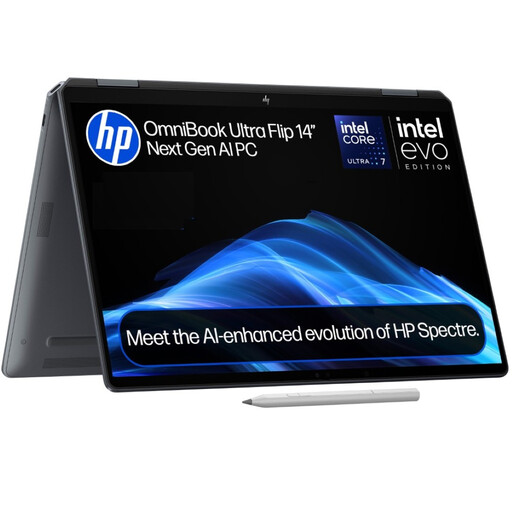
HP OmniBook Ultra Flip 14-fh0006na laptop

HP OmniBook Ultra Flip 14-fh0006na, 2-in-1

Consider this 2-in-1 if you want to keep the laptop screen in use beside an external monitor. Check its connection to your chosen display and confirm its supported display arrangement before committing to a docked setup.

The listed configuration has 16GB RAM, a 1TB SSD and Windows 11 Home. Check the operating-system requirement if the laptop will be managed by your employer.

Joybuy
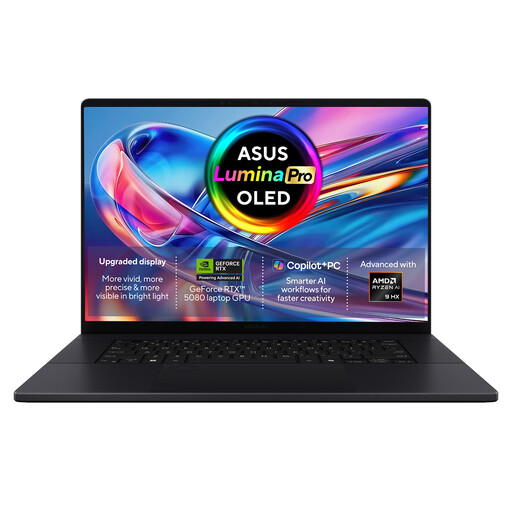
ASUS ProArt P16 H7606WW-SE006W laptop

ASUS ProArt P16 H7606WW-SE006W, 16-inch 4K OLED

Consider the larger integrated screen if you want to keep invoice material visible on the laptop beside an external monitor. Confirm the connection to that monitor, and check the full display arrangement separately if you intend to use two external screens.

The listed configuration includes an AMD Ryzen AI 9 HX 370, NVIDIA GeForce RTX 5080 16GB, 64GB RAM, a 2TB SSD and Windows 11 Home. Check Windows 11 Home against any workplace IT requirements.

Joybuy

Questions about two-screen invoice work

Will any USB-C laptop run two external monitors?

No: the connector alone does not establish support for two external displays. Check the exact laptop, dock or adapter, monitors and cables against the resolution and refresh rate you need. Microsoft Support explains how to arrange multiple monitors in Windows after connection, but those settings do not establish the hardware's capabilities.

Do I need a dock if I only use two screens occasionally?

Not necessarily: if your two screens are the laptop panel and one external monitor, a compatible direct connection may meet your needs. A dock is worth considering when you need two external monitors or want a repeatable desk connection; check compatibility before choosing one.

Must an employer assess a two-screen workstation?

The UK display screen equipment rules apply to workers who use the equipment daily for continuous periods of an hour or more, according to the Health and Safety Executive. For covered workers, employers must assess workstations and reduce risks; ask your employer how this applies to your fixed, home or shared working arrangement.

Can I ask for an eye test if I regularly check invoices on screen?

Yes, if you are a worker covered by the UK display screen equipment rules, the Health and Safety Executive says your employer must provide an eye test when you ask for one. Coverage depends on your pattern of screen use, including daily continuous use of an hour or more.