Choose a Windows laptop if your school requires Windows applications or device management; consider a 13-inch MacBook Air if the organisation supports macOS and your handout workflow works on it. Before buying either, confirm the required accounts, printer and shared-desk connections. For regular display screen equipment use, the laptop also needs to fit a suitable workstation arrangement.
Who needs which setup?
School-office Windows users
If handouts depend on institution-managed Windows software, shared printers or existing desk equipment, establish the school’s requirements before choosing a laptop. A familiar file format alone does not confirm that its sign-in and management processes will work.
People moving between shared desks
A laptop carried between workstations needs a workable connection to the displays, chargers and peripherals at those desks. The Health and Safety Executive also addresses hot-desking in its display screen equipment guidance, so the desk arrangement matters alongside portability.
Mac-supported document users
A 13-inch MacBook Air is an option when the organisation accepts macOS and its required applications, files and printers work with it. Apple lists Thunderbolt 4/USB-C connectivity for the M5 model; check how that connects to the equipment at each desk.
What matters when choosing?
For lesson-handout work in a shared office, establish software and account compatibility first. Then compare how each laptop connects at the desk and whether the screen and workstation suit the time spent editing.
| Concern |
What to check |
Who this matters to |
| Software and account compatibility |
Confirm the school’s operating-system policy, required applications and sign-in method; check printer support before ordering. |
If my handouts depend on managed software or accounts, the laptop must work with those requirements before its other features matter. Around 40% of consumers put this compatibility need first. |
| Shared-desk connections |
Identify the monitor and dock connections at the desks you use, then check the exact laptop ports and any necessary adapter. |
When I move between desks, I need to reconnect to the equipment there without interrupting my work. For around 30% of consumers, that connection need takes priority. |
| Reading and workstation fit |
Compare the selected display configuration and assess screen position, glare and input devices for sustained desk work. |
If I spend long stretches editing and proofreading handouts, I need a readable screen within a suitable desk setup. This is the primary concern for around 30% of consumers. |
What should you avoid overlooking?
-
Buying before checking the school’s software policy
A laptop may handle ordinary documents yet still be unsuitable for a required application, account, printer or managed-device process. Microsoft states that Windows 10 support ended on 14 October 2025, which also matters when choosing a Windows configuration for ongoing work.
Ask the school’s IT team which operating system and edition it accepts, and check the applications, browser, sign-in and printer requirements against the exact laptop.
-
Assuming every USB-C connection serves the same desk equipment
Port layouts differ. Lenovo lists USB-A, USB-C, Thunderbolt 4 and HDMI for the cited ThinkPad E14 Gen 7 configuration, while Apple lists two Thunderbolt 4/USB-C ports for the 13-inch M5 MacBook Air.
Check the monitor inputs, dock model and the selected laptop’s supported display connections together, rather than relying on the shape of a port.
Using an existing HDMI or USB-A accessory with a laptop that lacks that connection may require a compatible adapter, dock or cable.
-
Treating the laptop as the whole workstation
The Health and Safety Executive warns that poorly designed workstations and work environments can contribute to discomfort, fatigue and eye strain. A laptop’s screen specification does not settle how it should be used at a shared desk.
For regular desk work, review the chair, screen position, glare and keyboard and mouse arrangement. Consider separate equipment where the workstation assessment identifies a need.
-
Relying on a model-family name instead of the chosen configuration
Memory, storage, display, operating system and support terms can vary within a commercial laptop family. Dell’s cited Latitude 5450 page also showed the model as unavailable when assessed, so an earlier listing is not a dependable availability check.
Compare the exact part number and configuration, and check current availability and support terms before ordering.
Brands to consider
These models and product lines illustrate different routes for lesson-handout work; a brand name does not determine whether a particular configuration fits your school or shared desk.
Lenovo
The UK-listed ThinkPad E14 Gen 7 is a 14-inch Windows option to examine if the desk uses a mixture of connection types.
- Lenovo lists USB-A, USB-C, Thunderbolt 4 and HDMI, along with an anti-glare display, for the cited configuration.
- The range is configurable: confirm the selected memory, storage and Windows edition rather than applying one listing’s specification to every E14 Gen 7.
HP
HP’s UK business-laptop listings offer configurations to compare when Windows 11 Pro is required by the organisation.
- HP lists a ProBook 4 G1i 14 configuration with Windows 11 Pro, 16GB RAM and a 512GB SSD.
- Those details describe that configuration, not every ProBook or EliteBook; check the exact SKU, ports, display and warranty.
Apple
The 13-inch MacBook Air with M5 is a compact macOS route when the school approves that operating system.
- Apple lists two Thunderbolt 4/USB-C ports and support for up to two external displays for the 13-inch M5 model.
- Confirm school software and printer compatibility, and check whether the shared desk needs an adapter for its equipment.
Dell
The Latitude 5450 provides a 14-inch Windows configuration to compare for desk-based document work.
- Dell lists anti-glare display choices for the Latitude 5450, including a 400-nit, 100% sRGB option.
- The cited product page showed the model as unavailable; check current availability, the chosen display and support terms.
Joybuy laptop choices
These Windows and macOS laptops offer different screen sizes, configurations and ways of working on handouts. Match any choice to your school’s software policy and the equipment at your shared desk.
 No image available
ASUS Vivobook 14 X1407QA-LY003W, Quiet Blue
Consider this 14-inch Windows model if Windows 11 Home meets the school’s requirements. Its named configuration has a Snapdragon X processor, 16GB RAM and a 512GB SSD; confirm required application and shared-desk compatibility before choosing it.
View on Joybuy
 No image available
Acer Aspire Lite AL15-36P-C29Z, Silver
Consider its 15.6-inch Full HD screen if you want a larger laptop display for handout editing. The named configuration has an Intel N150 processor, 8GB RAM, a 128GB SSD and Windows 11 Home; confirm whether the selected device runs in S mode and can use the school’s required applications.
View on Joybuy
 No image available
HP OmniBook Ultra Flip 14-fh0006na
This 2-in-1 is an option if a convertible Windows laptop suits how you review and edit handouts. Its named configuration has Windows 11 Home, 16GB RAM and a 1TB SSD. Check the exact ports against the shared desk before buying, as the connection details associated with this model conflict.
View on Joybuy
 No image available
ASUS Zenbook DUO UX8406CA-QL135W
The dual 14-inch OLED touchscreens may appeal if you want a second display area while working on handouts. The named configuration has an Intel Core Ultra 7 255H processor, 16GB LPDDR5X RAM and a 1TB SSD. Confirm the exact screen resolution and whether its keyboard arrangement suits extended typing.
View on Joybuy
 No image available
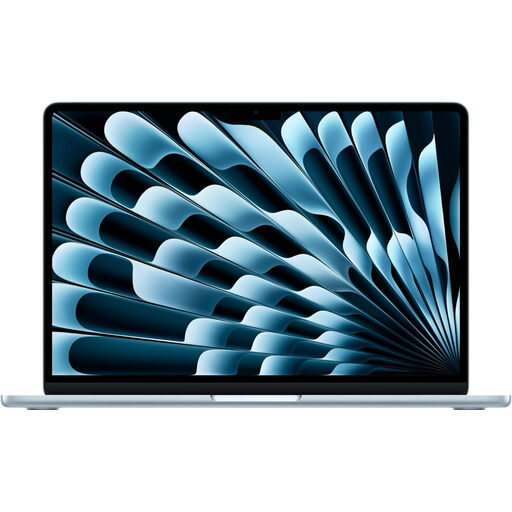
Apple 13-inch MacBook Air with M5, 16GB/1TB, Sky Blue
Consider this macOS model only if the school supports it and the required handout applications, accounts and printers work on it. This Sky Blue configuration has an M5 chip, 16GB memory and a 1TB SSD; check its connections against the particular shared desk.
View on Joybuy
Frequently asked questions
Does using a laptop at different shared desks call for a workstation assessment?
For workers who use display screen equipment daily for continuous periods of an hour or more, the Health and Safety Executive says employers must assess workstation risks and reduce them; its guidance includes hot-desking. If you regularly change desks, review the arrangement at each workstation rather than assuming the laptop alone makes it suitable.
Should I choose Windows 10 for a new school-work laptop?
For an ongoing Windows purchase, check the organisation’s Windows 11 edition and management requirements instead of relying on Windows 10. Microsoft states that Windows 10 support ended on 14 October 2025; ask IT about any organisation-specific arrangement before selecting a device.
Can the 13-inch M5 MacBook Air connect to external displays?
Apple states that the 13-inch MacBook Air with M5 supports up to two external displays alongside its built-in display. Check the selected model’s connections and the office monitors, cables or dock, as well as whether the school supports macOS.
Is a 14-inch screen necessary for preparing lesson handouts?
Choose screen size around your editing time and the available workstation, rather than treating 14 inches as a requirement. The Health and Safety Executive’s guidance focuses on assessing display screen equipment risks and reducing them for qualifying workers; an external display and separate input devices may matter more to the desk arrangement than the laptop diagonal alone.


