Institution-managed Windows markers
If your school or university manages marking software and devices through Windows, check the required applications and the institution's supported dock setup before selecting a laptop.


Choose your screen layout before choosing a laptop: the built-in screen plus one monitor is a different requirement from two external monitors alongside the laptop screen. For institution-managed Windows software, start with a compatible Windows configuration and a documented dock setup; if your marking tools work on macOS, a 15-inch M5 MacBook Air is another option, subject to its stated display limits and your monitor connections.
If your school or university manages marking software and devices through Windows, check the required applications and the institution's supported dock setup before selecting a laptop.
If your marking tools work on macOS and you move between locations, a MacBook Air may suit a desk setup with external monitors. Check display support for the exact model rather than assuming every Air generation works alike.
If you regularly keep a rubric, submission and feedback window open, prioritise an extended-display arrangement you can connect and use consistently over choosing a processor specification in isolation.
Settle the physical screen layout first, then check software compatibility and the complete path from laptop to monitors.
| Concern | What to check | Who this matters to |
|---|---|---|
| Display support | Check the exact laptop's external-display limit for your chosen layout, including the dock and each monitor's resolution and refresh rate. | If I need two external monitors as well as the laptop screen, I want to know the full connection will support that layout before I buy. Around 36% of consumers put display assurance first. |
| Software compatibility | Confirm the operating system and processor architecture supported by your marking platform and any required institutional applications. | When my institution manages the marking tools, I need those applications to work on the laptop I choose. Compatibility comes first for around 29% of consumers. |
| Annotation comfort | Consider whether the screens will keep documents readable at your preferred text scaling and whether their extended-desktop arrangement suits the work. | I spend long sessions moving between submissions, rubrics and feedback, so readable documents and a usable screen arrangement matter most. Around 21% of consumers prioritise annotation comfort. |
| Portability and desk setup | Check what charging equipment is included and which dock, adapters or display cables your existing monitors require. | If I carry the laptop between locations, I want a manageable connection routine when I return to my desk. Portability and setup needs lead for around 14% of consumers. |
A connector alone does not establish the laptop's video-output capability or the display modes available through a dock. Dell documents dual 4K at 60Hz for its SD25TB4 dock but also provides a compatibility check.
Check the exact laptop, dock host connection, monitor inputs, cables and required resolution and refresh rate as one setup.
A different dock, adapter or cable may be needed if the planned connection cannot provide the required display mode.
The laptop screen plus one monitor does not impose the same external-display requirement as two monitors used alongside the laptop screen.
Decide which screens will be in use at the same time, then check the exact laptop's documented support for that arrangement.
Some Dell Pro 14 Plus PB14250 configurations are listed without an AC adapter, while a dock is a separate item. A product-family name does not settle what comes with the configuration you select.
Before checkout, check the selected configuration's adapter, keyboard layout, memory, storage and display, as well as any dock you plan to use.
You may need a separate charger or dock to complete the planned desk setup.
Apple's display guidance makes supported monitor count dependent on the Mac model and the displays' resolution and refresh rate.
Use Apple's technical specifications for the exact MacBook Air generation and size you intend to buy.
ThinkPad T-series models are a Windows business-laptop route for buyers assessing institutional software and a documented docking setup.
Dell Pro is a Windows route for comparing laptop configurations alongside a documented desk dock.
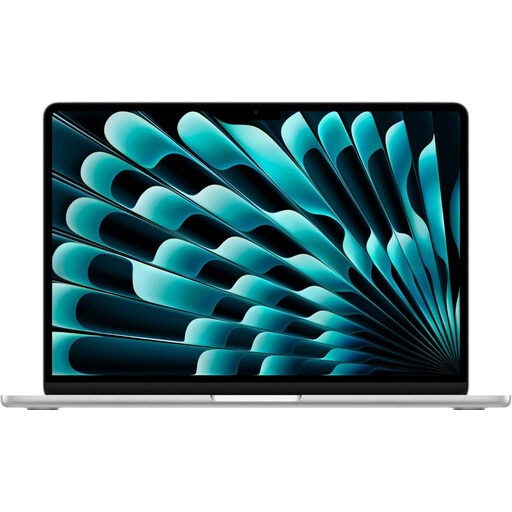
MacBook Air is a macOS option when the required marking software works on macOS; the exact model determines external-display support.
These laptops offer different operating-system routes for marking: an ASUS Windows-on-ARM model and a 15-inch M5 MacBook Air. Match either one to your required software and screen layout before choosing a dock or cables.
 No image available
Consider this Windows laptop if your marking applications and institutional tools work on its Snapdragon X, Windows-on-ARM configuration.
Before planning two external monitors, confirm the exact model's simultaneous display limits and check the intended dock, cables and monitors together.
 No image available
This model is an option for marking with two external monitors if your required tools work on macOS.
Apple Support (UK) specifies up to two external displays at up to 6K and 60Hz for the 15-inch M5 MacBook Air. Check your monitors' resolution and refresh rate, along with the dock and cables you intend to use.
Only if you intend to connect two separate monitors; using the laptop screen beside one monitor requires one external-display connection. If you want both external monitors in use alongside the laptop screen, check the exact model's display limit and the proposed dock, cables and monitor settings.
No: the USB-C connector alone does not establish which video modes the laptop and dock can use together. Check the laptop's video-output specification, the dock's host requirements and compatibility guidance, and your monitors' inputs and resolution settings.
Connect the displays, then open Settings, System and Display to identify and arrange them to match your desk. Microsoft Support advises using Detect in the multiple-display settings if a connected screen does not appear.
Use an appropriate electrical-equipment collection or take-back route rather than putting it in ordinary household waste. GOV.UK describes waste electrical and electronic equipment rules intended to support recovery, reuse and recycling; check the collection options available where you live.