Choose the laptop around your document layout and required software: check whether two texts remain readable at your preferred text size, then confirm the connections needed at the shared desk. A 15- or 16-inch screen can provide built-in workspace, but for longer sessions the Health and Safety Executive advises using separate input devices with a raised laptop screen, or a separate display.
Who this setup suits
Parallel-text desktop workers
If you compare and format two documents at once, the practical question is whether both working panes remain readable without constant resizing. Check the built-in screen with your usual document layout, especially if an external monitor will not always be available.
Shared-desk regulars
If you move between workstations, consider how you will connect a keyboard, mouse and raised or external screen each time. The Health and Safety Executive recommends separate input devices for prolonged laptop use so the screen can be positioned independently.
Software-bound office users
If your work depends on specified applications, templates, plug-ins or organisation-managed access, confirm that the operating system supports that workflow before choosing between a Windows laptop and a Mac.
What to check before buying
Start with the layout you need to see, then check how the laptop will connect at the desk and whether it runs your required document workflow. Screen size alone cannot settle all three decisions.
| Concern |
What to check |
Who this matters to |
| Readable side-by-side workspace |
Try two texts at your preferred size; check screen dimensions, resolution, scaling and reflections on the exact configuration. |
I need to compare two passages without shrinking the type until it is uncomfortable to read. Around 42% of consumers put readable parallel-text workspace first. |
| Repeatable shared-desk setup |
Check the intended monitor connection and whether charging, a separate keyboard and a mouse can be used together. |
When I settle in for a long session, I need to position the screen and input devices comfortably rather than rely on the laptop alone; roughly 33% of consumers make that setup their primary concern. |
| Document-workflow compatibility |
Confirm the required operating system, application versions, templates and plug-ins, plus any essential peripheral connections. |
If a required application or template will not work, a larger screen will not solve my formatting task. About 25% of consumers prioritise workflow compatibility. |
Common buying mistakes
-
Choosing by screen size alone
A larger diagonal does not tell you whether your two document panes will be readable at a comfortable text size or whether reflections will interfere at the intended desk.
Compare the exact panel, try your usual layout and check scaling and lighting conditions. If you will use a desk monitor, confirm the laptop can connect to it.
-
Treating the laptop as the whole workstation
For prolonged laptop use, the Health and Safety Executive advises separate keyboard and mouse input so the laptop screen can be raised, or the use of a separate display.
Plan where those items will sit and be stored at a shared desk, and check that the laptop can charge while connected to the devices you intend to use.
A riser, separate input devices or suitable adapters may also need to be carried or kept at the workstation.
-
Assuming every version of a laptop family is alike
Panel, memory, keyboard, connections and included accessories can differ between configurations. ASUS, for example, describes some Vivobook 16 display features as options or range maximums.
Use the exact model number to check the screen and connections you need, as well as whether a charger is included with the chosen configuration.
-
Choosing the operating system before checking your files
A Windows laptop and a Mac may both offer useful screen space, but required applications, macros, plug-ins and organisation-managed tools need separate compatibility checks.
Confirm your actual applications, templates and files on the intended operating system before purchase. Check any adapters needed for the shared-desk display and peripherals too.
Relevant brands to consider
These examples show different laptop configurations and checks for parallel-text work; a brand name alone does not establish the specification of a particular listing.
Lenovo
Lenovo UK lists a ThinkPad T16 Gen 3 configuration aimed at a Windows workflow with a 16-inch display.
- The specified 21MN00E2UK configuration has a 1920 × 1200 anti-glare IPS display; Lenovo UK also lists 16 GB DDR5 memory, a 512 GB SSD and an English (UK) keyboard with number pad.
- Check the connections, display variant and warranty for the exact ThinkPad configuration you intend to buy.
HP
An HP Store UK OmniBook 5 16-inch configuration offers a Windows route for a desk with several peripherals.
- HP Store UK specifies two USB-C ports, two USB-A ports and HDMI for the cited configuration.
- HP states that a charger is not included with that model. Check included items and connections on the exact listing; these details do not automatically apply to other OmniBook models.
Apple
A 15-inch MacBook Air is a macOS route to consider when the required document software is compatible.
- Apple UK lists 16 GB unified memory on the cited 15-inch configurations and support for up to two external displays.
- Apple lists two Thunderbolt 4 USB-C ports; check whether your HDMI, USB-A or wired-network equipment needs adapters, and confirm application compatibility before buying.
ASUS
The ASUS Vivobook 16 M1605 range offers 16-inch display configurations for readers comparing documents on the built-in screen.
- ASUS describes options reaching a 3200 × 2000, 16:10 OLED display.
- Those are range-level options, not specifications for every Vivobook 16. Check the selected panel, memory and connections by exact model.
Joybuy laptops for this setup
These Windows laptops offer 15.3- to 16-inch built-in screens for parallel-text work. Choose between them using your document layout, required software and intended shared-desk connections; the product names alone cannot establish whether every monitor or peripheral will work.
 No image available
ASUS ProArt P16 H7606WW-SE006W, 16-inch OLED touchscreen
Consider this configuration if you want a 16-inch built-in screen for arranging two texts; try your preferred text scaling before deciding whether the layout works for you.
The product name specifies a 4K OLED touchscreen, AMD Ryzen AI 9 HX 370, NVIDIA GeForce RTX 5080 16 GB, 64 GB RAM, 2 TB SSD and Windows 11 Home. Confirm the display finish and connections needed at your desk.
Joybuy
 No image available
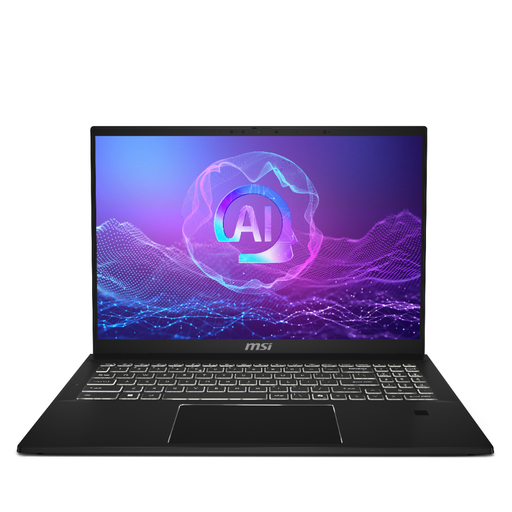
MSI Summit 16 AI Evo, 16-inch QHD+ 165 Hz
This is another 16-inch option for working with two document panes. Check how text looks at your chosen scaling and whether it connects to the shared-desk monitor.
The product name specifies an Intel Core Ultra 7 255H, Intel Arc graphics, 32 GB LPDDR5 RAM and a 1 TB SSD. Confirm the display finish and required application compatibility.
Joybuy
 No image available
HP OmniBook X Flip 16-as0004na, 16-inch touchscreen
Its 16-inch screen gives you a built-in surface on which to assess your parallel-text layout; the 2-in-1 design does not remove the need for a suitable long-session desk setup.
The product name specifies an Intel Core Ultra 5 226V, 16 GB RAM, a 512 GB SSD and Windows 11 Home. Check the display finish, monitor connection and compatibility with your document tools.
Joybuy
 No image available
Lenovo LOQ Essential 15ARP11, 15.6-inch FHD 144 Hz
If you can use an external display at the shared desk, assess this 15.6-inch laptop alongside larger-screen options. Check the built-in layout if you will work without that monitor.
The product name specifies an AMD Ryzen 7 170, GeForce RTX 5050, 16 GB RAM and a 1 TB SSD. Confirm the intended monitor connection, particularly if it requires USB-C video output.
Joybuy
 No image available
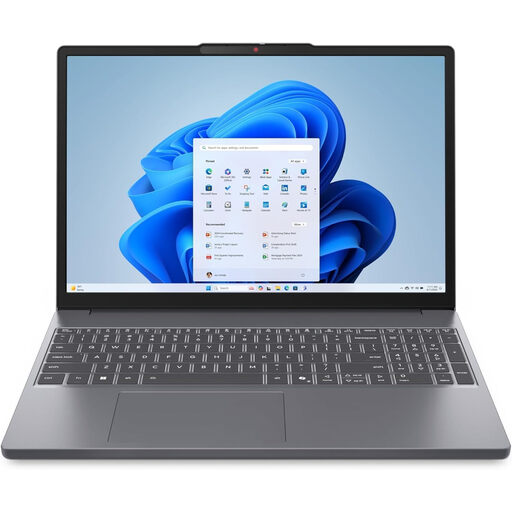
Lenovo IdeaPad Slim 3 83K7009MUK, 15.3-inch WUXGA
This 15.3-inch Windows option is worth assessing if you alternate between the built-in screen and a shared-desk display. Try two documents at your normal text size before relying on the laptop screen alone.
The product name specifies an AMD Ryzen 5 7535HS, 24 GB DDR5 RAM, a 512 GB PCIe SSD and Windows 11 Home. Check the required external-display connection and software compatibility.
Joybuy
Frequently asked questions
Do I need a 16-inch laptop to format parallel texts?
No. A 16-inch screen gives you a larger built-in surface to assess for side-by-side work, but a smaller laptop may suit a shared desk with an appropriate external monitor. Check both documents at your preferred text size, including scaling and reflections, before choosing.
How should I set up a laptop for long sessions at a shared desk?
Use separate input devices with a raised laptop screen, or use a separate display, in line with Health and Safety Executive guidance for prolonged laptop use. Before buying, check the connections and plan where the keyboard, mouse and screen support will go at the shared workstation.
Does a shared workstation need a display screen equipment assessment?
The Health and Safety Executive states that employers must carry out a workstation assessment when workers use display screen equipment daily as part of normal work, continuously for an hour or more. That duty concerns the workstation, including hot-desking arrangements; buying a particular laptop does not replace the assessment.


