Choose the laptop and standing-desk arrangement together: for prolonged report review, the Health and Safety Executive advises raising the screen while using a separate keyboard and mouse. A compact laptop may suit moves between workspaces; if you regularly compare a draft with comments and reference material, consider the screen space and connections you need at your main desk. Check workplace software, monitor connections and charging requirements for the exact model before ordering.
Who is this setup for?
Standing-desk report reviewers
If you spend long periods reading, comparing and annotating drafts, screen and input-device positioning matter alongside the laptop itself. The Health and Safety Executive advises using a separate keyboard and mouse when raising a laptop screen for prolonged use.
Hybrid document workers
If your laptop moves between home, an office and meeting spaces, consider what you are comfortable carrying and how you will reconnect a display and peripherals at your standing desk.
Managed-work-device users
If your reports rely on employer software, security controls or workplace peripherals, establish those requirements with your IT team before choosing an operating system or configuration.
What matters when choosing?
Start with the screen and input-device arrangement you can use comfortably, then decide how much built-in workspace you want to carry and which workplace connections the laptop must support.
| Concern | What to check | Who this matters to |
|---|
| Screen and input position |
Check that your planned riser or display arrangement lets you use a separate keyboard and mouse at a suitable height. |
When I review a long draft while standing, I need to position the screen without raising the keyboard with it. Around 42% of consumers put this workstation arrangement first. |
| Document space and mobility |
Compare the exact model’s screen size and weight; for a desk monitor, check its supported display connection. |
If I carry my laptop between workspaces, I want enough room to read and compare documents without making it awkward to take along. Roughly 33% of consumers prioritise that balance. |
| Workplace compatibility |
Confirm the required operating system, software and peripherals, along with charger and dock requirements. |
For employer-managed reports, I need a laptop that works with the software and equipment my workplace requires. About 25% of consumers place that compatibility first. |
Mistakes to avoid
-
Assuming a larger laptop screen fixes the desk setup
A laptop’s built-in screen and keyboard move together. For prolonged laptop use, the Health and Safety Executive advises a separate keyboard and mouse so the screen can be raised.
Plan where the screen, keyboard and mouse will sit before choosing the laptop and its connections.
A riser and separate input devices also take desk space and may need carrying between locations.
-
Assuming every USB-C port will connect your monitor
Display connections depend on the exact model and port specification. Apple and ASUS state display capabilities for particular MacBook Air and Zenbook configurations, not for every laptop with USB-C.
Match the laptop’s stated display-output support to your monitor input and intended cable or dock.
-
Overlooking the charging equipment
Dell states that the charger is not included with the cited XPS 13 and specifies a 27–65 W charging range for that model.
Check what comes with the exact laptop and whether your intended charger or dock meets its charging requirements.
-
Choosing before checking workplace requirements
A laptop that suits your screen and carrying needs may still conflict with employer-required software, security controls or peripherals.
Ask your employer or IT team about operating-system, device-management, keyboard and accessory requirements before ordering.
Relevant brands to consider
Apple
MacBook Air is relevant if your document workflow uses macOS and you want a compact laptop that can also connect to desk displays.
- Apple specifies a 13.6-inch 2560 × 1664 display, two Thunderbolt 4/USB-C ports and support for up to two external displays for the 13-inch M5 model.
- Confirm that your report-editing apps, monitor arrangement and peripherals work with the macOS setup you intend to use.
ASUS
Zenbook 14 is relevant to a portable Windows setup that needs several types of desk connection.
- ASUS lists a 1.20 kg weight, 14-inch 1920 × 1200 OLED display, Thunderbolt 4, USB-A and HDMI 2.1 for the cited UX3480 specification.
- Check the exact configuration and whether its display suits your longer reading sessions; these specifications do not describe every Zenbook 14.
Lenovo
ThinkPad T-series laptops are relevant where a Windows work setup, UK keyboard option and anti-glare display matter.
- Lenovo lists Windows 11 Pro, 16 GB RAM, a 512 GB SSD, a 14-inch WUXGA anti-glare display and a UK keyboard for the cited ThinkPad T14 Gen 6 configuration.
- Confirm the configuration you are considering rather than assuming another T14 variant has the same features.
HP
EliteBook is relevant when employer-managed Windows work makes operating-system and device-management requirements important.
- HP lists Windows 11 Pro, 16 GB RAM, a 512 GB SSD and a 14-inch WUXGA display for the cited EliteBook 6 G1ah configuration; HP positions its security and management features for IT environments.
- Check the precise configuration and your employer’s requirements rather than treating the product-line name as a compatibility guarantee.
Dell
XPS 13 is relevant if you are considering a compact Windows laptop for moving between desks.
- The cited Dell XPS 13 product page specifies a 27–65 W charging range.
- Dell states that a charger is not included with that cited model, so check the power equipment needed for your intended setup.
Joybuy laptop choices
These laptops include compact options for moving between workspaces, a dual-screen model and a 15-inch option for those considering more built-in document space. Whichever you choose, plan how the screen and separate input devices will sit at your standing desk.
 No image available
ASUS Vivobook 14 X1407QA-LY003W, Quiet Blue
Consider this 14-inch laptop if you move between workspaces and its connections and software compatibility suit your standing-desk arrangement.
The named configuration has a Snapdragon X processor, 16 GB RAM and a 512 GB SSD. Check the exact display and peripheral connections you need, along with compatibility with required work software.
View on Joybuy
 No image available
ASUS Zenbook DUO UX8406CA-QL135W
The dual-screen format is worth considering if you want to keep a draft and supporting material visible at the same desk; check how you would position both screens while standing.
The named configuration has 14-inch dual OLED touch displays, an Intel Core Ultra 7 255H processor, 16 GB RAM and a 1 TB SSD. Confirm the exact panel resolution before buying, and plan for a suitable mouse and screen-positioning arrangement.
View on Joybuy
 No image available
HP OmniBook Ultra Flip 14-fh0006na
This two-in-one model is an option for a portable document-review setup if Windows 11 Home meets your workplace requirements.
The named configuration has 16 GB RAM and a 1 TB SSD. Confirm the exact screen resolution and the display connections you need before choosing it for a docked standing desk.
View on Joybuy
 No image available
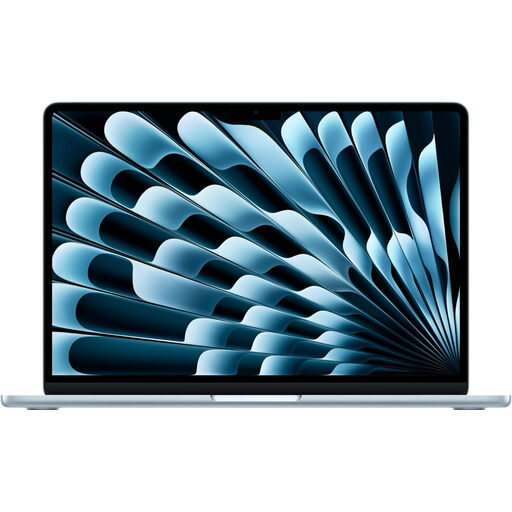
Apple MacBook Air 13-inch (2026, M5), Sky Blue
Consider this compact macOS laptop if your report-editing apps and workplace peripherals are compatible, whether you work from its raised screen or connect desk displays.
The named variant has 16 GB RAM and a 1 TB SSD. Apple specifies a 13.6-inch 2560 × 1664 display, two Thunderbolt 4/USB-C ports and support for up to two external displays for the 13-inch M5 model. Confirm the exact processor configuration if its core count matters to you.
View on Joybuy
 No image available
Microsoft Surface Laptop 7 15-inch, Maya
Consider the 15-inch built-in screen if you want more room for reviewing documents on the laptop itself, while still arranging the screen and input devices separately for prolonged standing use.
The named configuration has a Snapdragon X Elite processor, 16 GB RAM, a 256 GB SSD and a PixelSense touchscreen. If you intend to dock it, confirm the exact external-display connections first.
View on Joybuy
Frequently asked questions
Is a laptop alone suitable for long report-review sessions at a standing desk?
A laptop alone makes it difficult to position its screen and built-in keyboard independently. For prolonged use, the Health and Safety Executive advises a separate keyboard and mouse so the laptop screen can be raised on a riser or similar support.
Do I need an external monitor to review a draft while standing?
Not necessarily: a raised laptop screen with separate input devices can address the screen-and-keyboard positioning issue. If you want to see the draft, comments and reference material at once, consider whether an external monitor would help, then check the exact laptop’s display-output support and the monitor’s connection.
What should I check before buying a compact laptop for this setup?
Check the exact configuration’s screen, weight, operating system, display connections, ports, charger inclusion and compatibility with your workplace software and peripherals. Features can differ between configurations that share a product-line name.


