Training-material planners
If most of your work is preparing slides, handouts, schedules and spreadsheets, concentrate on the applications you use, a comfortable keyboard and enough screen space to work across documents.


Choose a Windows laptop if your organisation requires Windows applications or managed devices. A MacBook Air is an option when your training software and workplace policies support macOS; if you plan to annotate materials or present in different positions, consider a convertible laptop as well. Whichever setup you prefer, check meeting software, memory, working space and the connection to the venue display before choosing a configuration.
If most of your work is preparing slides, handouts, schedules and spreadsheets, concentrate on the applications you use, a comfortable keyboard and enough screen space to work across documents.
If sessions include remote participants, plan for your meeting platform, browser, camera and microphone alongside the documents you need to share. Zoom and Microsoft publish separate requirements for their meeting tools, so check the platform you actually use.
If you move between rooms or client locations, consider what you are comfortable carrying and confirm how the laptop will connect to each venue’s display. Check battery claims against the manufacturer’s stated test conditions rather than assuming they describe a full training day.
Settle workplace operating-system requirements first, then assess your planning and meeting workload. A convertible design is a separate choice: it can be considered alongside the required software platform, not instead of it.
| Concern | What to check | Who this matters to |
|---|---|---|
| Planning materials | Check the required office and training applications, then compare the exact memory configuration and keyboard layout. | When I’m building slides, schedules and attendance sheets together, I need a workspace I can use comfortably; around 33% of consumers put material planning first. |
| Online sessions | Check meeting-platform and browser support, available memory and the venue’s internet connection. Zoom recommends at least 8GB of system memory for its Web App on Windows and macOS. | If I’m hosting remote participants while sharing materials, the call and screen sharing need to work alongside my other applications. Online facilitation is the primary need for around 27% of consumers. |
| Moving between venues | Compare size and carrying needs, then confirm video output against the venue’s display input and any required adapter. | Moving between rooms means I need to carry the laptop and connect it when I arrive; roughly 20% of consumers prioritise mobile delivery. |
| Workplace requirements | Confirm operating-system, device-management and procurement rules with your organisation; check privacy features on the exact model. | If my employer manages training devices, its software and purchasing rules have to come before my preferred design. Around 20% of consumers place workplace compatibility first. |
Microsoft lists 4GB RAM as a baseline for Microsoft 365 business apps. For the Zoom Web App on Windows and macOS, Zoom recommends at least 8GB of total system memory and says an active meeting uses 1GB to 1.5GB. Neither figure describes your complete workload with slides, spreadsheets and browser tabs open.
Compare the exact laptop configuration against the applications you expect to run together.
Microsoft says Teams meetings are fully supported in the latest Microsoft Edge and Google Chrome browsers, while Firefox does not fully support them.
Test the intended browser, camera, microphone and screen sharing with your training account before the session.
Apple lists Thunderbolt 4/USB-C ports and external-display support for the MacBook Air, but the venue’s display input determines what connection you will need.
Ask the venue about its display input and confirm compatible video output for the exact laptop.
Depending on the laptop and venue equipment, you may need to carry a compatible adapter or dock.
MacBook Air is worth considering when required training applications and workplace policies support macOS.
Dell’s business laptop lines are relevant when a Windows-oriented workplace setup, a larger screen or a numeric keypad matters.
ThinkPad models include conventional laptops and convertibles for trainers considering handwritten notes or flexible presentation positions.
These laptops cover different planning setups, including larger screens for documents, compact models to carry between rooms and convertible designs. Check each configuration against your required software and venue connections.
 No image available
Consider the convertible design if you want to switch positions while preparing or presenting materials.
The listed configuration has Windows 11 Home, 16GB RAM and a 1TB SSD. If you intend to annotate by hand, confirm whether the pen you need is included; also check its connection to the venue display.
 No image available
The 15.6-inch format is an option if you prefer a larger laptop screen for reviewing training documents.
This listed variant has an Intel Core 5 120U, 24GB RAM and a 1TB SSD. Confirm the keyboard layout if a numeric keypad matters to your spreadsheet work.
 No image available
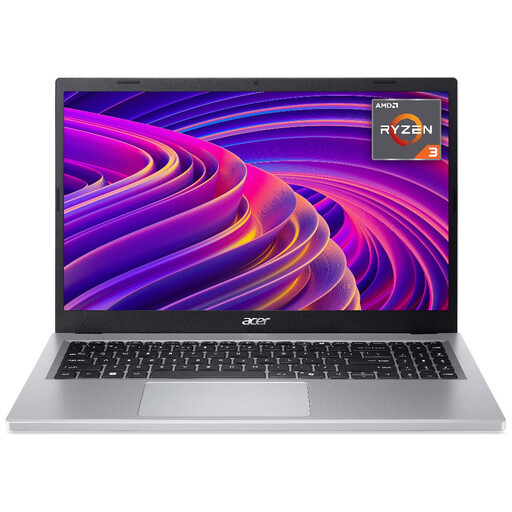
Consider this screen size for preparing and reviewing materials, but assess the memory against everything you will keep open during a live session.
The product title identifies an AMD Ryzen 3 7320U, 8GB RAM and a 256GB SSD. Confirm the exact shipped configuration before buying.
 No image available
The 14-inch format is an option if you will carry your planning laptop between rooms.
This variant lists a Snapdragon X processor, 16GB RAM and a 512GB SSD. Before choosing it, confirm that your required applications, plug-ins, peripherals and employer-managed tools work with this Snapdragon-based Windows configuration.
 No image available
Consider the larger convertible format if you want room for planning documents and the option to change presentation positions.
The product title lists an Intel Core Ultra 5 226V, 16GB RAM, a 512GB SSD and Windows 11 Home. Confirm the exact memory configuration and the display connection you will need at the venue before buying.
It meets Zoom’s recommendation of at least 8GB of total system memory for its Web App on Windows and macOS, but that recommendation does not account for every application you may run alongside a meeting. Compare higher-memory configurations if your session also requires slides, spreadsheets or many browser tabs.
Not necessarily: Microsoft lists Windows 11 and one of the three most recent macOS versions for Microsoft 365 business apps. For Teams meetings in a browser, Microsoft identifies the latest Edge and Chrome versions as fully supported; check any organisation-specific software and device-management rules before choosing macOS.
You may need a compatible adapter or dock. Ask the venue which input its display uses, then check the exact laptop’s video-output capability and the adapter or cable before the session.
GOV.UK says customers ordering online, by mail or by telephone generally have a right to cancel within 14 days of receiving the item. Check the applicable cancellation and return procedure before ordering; remedies for faulty or misdescribed goods are a separate matter from changing your mind.