Readers working away from sockets
If you read, translate and mark up articles where mains power is hard to reach, battery-test conditions, carrying weight and a suitable charging source matter alongside the screen and keyboard.


For mostly highlighted passages and typed comments, start with a portable conventional laptop whose display suits your documents and whose charging requirements you can meet away from a socket. Choose a pen-capable 2-in-1 if handwriting, circling passages or drawing directly on PDFs is central to your work; check the keyboard, pen and power-supply bundle before treating it as a complete setup. Manufacturer battery figures are comparison points, not promises of annotation runtime.
If you read, translate and mark up articles where mains power is hard to reach, battery-test conditions, carrying weight and a suitable charging source matter alongside the screen and keyboard.
If you circle passages, draw connections or handwrite translations on the page, check both pen compatibility and whether the pen comes with the configuration you intend to buy.
If you switch keyboard layouts or need another display language while commenting on documents, check the exact operating-system edition and your required applications. Microsoft Support says Windows offers language and input-layout settings, but a Single Language edition permits only one display language.
Choose it when: Most of your markup is highlighting and typed comments, with frequent switching between an article, dictionary and notes.
Trade-off: Direct handwriting on a PDF calls for another input method; a larger screen may also mean more to carry.
Choose it when: Writing translations, circling text and drawing arrows directly on PDFs are regular parts of your work.
Trade-off: A detachable model may need a separately supplied keyboard, pen or power supply; check how its keyboard arrangement works where you plan to type.
| Concern | What to check | Who this matters to |
|---|---|---|
| Battery and charging | Compare the stated battery-test workload with your use. Check the required charging standard and wattage, and whether a power supply is included. | When sockets are scarce, I need enough working time for reading and notes, plus a charging option I can actually use; around 33% of consumers put untethered working time and charging first. |
| Screen and annotation | Check screen size against your article layout and confirm active-pen compatibility if you write on the page. | If I mark passages by hand, a comfortable view of the PDF and direct pen input matter more than typed comments alone; roughly 25% of consumers prioritise this annotation method. |
| Language and software | Confirm the operating-system edition, required keyboard layout and compatibility of your annotation and dictionary applications. | I need my chosen language and tools to work together before the hardware is useful for my articles; about 25% of consumers place multilingual workflow compatibility first. |
| Carrying and connections | Check the chosen configuration's weight and ports, including what remains available while charging. | If I carry reading materials between workspaces, I want manageable weight without losing connections I regularly use; around 17% of consumers make portability, ports or longer-term ownership their primary concern. |
A manufacturer's stated duration applies to its test workload. Your combination of PDFs, browser tools, screen brightness and other tasks may differ.
Read the test conditions and plan charging around the laptop's documented requirements rather than assuming the quoted duration will cover a full session.
Touch capability alone does not establish that a compatible pen is included. A detachable device may also need a separate keyboard for sustained typed notes.
Check the exact bundle for the keyboard, compatible pen, power supply and any pen-charging accessory you intend to use.
Microsoft Support says a Windows Single Language edition allows only one display language, even though Windows offers keyboard and input-layout settings.
Confirm the edition, your target language and layout, then check your PDF and dictionary applications on that configuration.
The connector shape does not establish that a power source meets a laptop's charging requirements. The intended power supply may not come in the box.
Check the model's supported charging standard, minimum wattage and supplied accessories before choosing a charger or power bank.
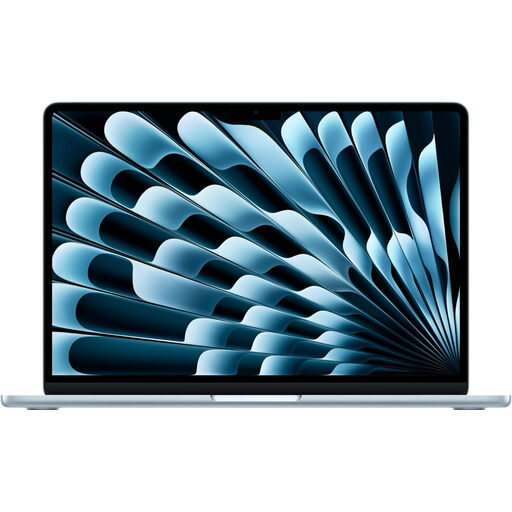
The 13-inch MacBook Air is a conventional-laptop option for readers who mainly type annotations and want documented USB-C Power Delivery charging support.
Surface Pro offers a detachable-keyboard, touchscreen route for alternating between direct pen marks and typed notes.
The ThinkPad X13 Gen 6 is a compact, keyboard-led option for readers who value built-in connections and the possibility of battery replacement.
These choices include conventional laptops for typed annotation and touchscreen models to consider for on-page markup. For any model, confirm your required language tools and charging setup; a touchscreen title alone does not establish pen compatibility or pen inclusion.
 No image available
Consider this conventional laptop if highlighting and typed comments are your main annotation methods.
The listed variant has a 10-core CPU, 10-core GPU, 16GB memory and 1TB SSD. Apple UK specifies USB-C Power Delivery charging with a 30W minimum for the 13-inch M5 MacBook Air.
Apple UK's up-to-15-hour figure is for wireless web use, not a promise for your annotation workload. Check your required language and applications, and confirm what charging equipment comes with this variant.
 No image available
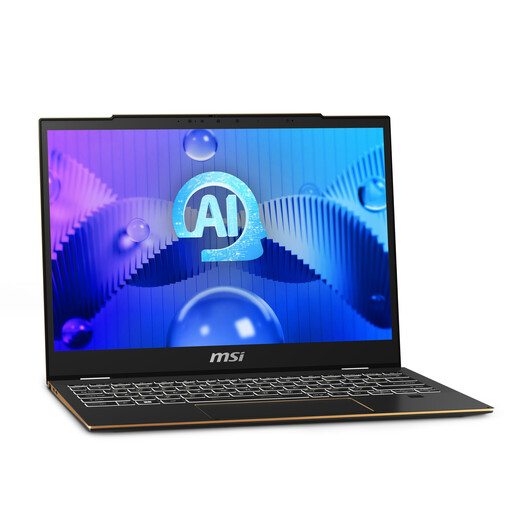
Consider its dual touchscreen layout if viewing an article alongside notes appeals to you; confirm the pen and application setup before relying on handwritten markup.
The title specifies an Intel Core Ultra 7 255H processor, 16GB LPDDR5X memory and a 1TB SSD.
Confirm the exact display resolution, charging arrangement and battery-test conditions for this variant, as well as whether your required language and annotation software will run on it.
 No image available
This touchscreen model is worth checking if you want to move between typed notes and direct interaction with a document.
Its title specifies a 60 Hz display, Intel Core Ultra 7 155H processor, 32GB LPDDR5 memory and a 1TB SSD.
If you need handwriting, confirm compatible-pen support and whether a pen is included. Check the battery-test conditions, charging requirements and your required Windows language and software setup before ordering.
 No image available
Consider this conventional 14-inch laptop if your article workflow centres on reading and typed comments.
The title identifies a Snapdragon X processor, 16GB memory and a 512GB SSD.
Before relying on it away from sockets, check battery endurance and charging requirements. Confirm that your required language features, annotation applications and any extensions work with this exact Windows configuration and processor.
 No image available
This 13-inch laptop is a conventional option to assess for reading articles and entering typed annotations.
The listed variant has an A18 Pro chip with a 6-core CPU and 5-core GPU, 8GB memory, a 512GB SSD and Touch ID.
Check its battery and charging requirements before choosing it for work away from sockets. Confirm the operating system, your language and application needs, and any touch or pen requirements separately.
No: a conventional laptop can serve a workflow based on highlighting and typed comments. Adobe Acrobat documents PDF tools for comments, highlights and drawing; choose a touchscreen with a compatible active pen if handwriting or freehand marks on the page are central to your method.
Windows provides language and keyboard-layout settings, according to Microsoft Support. Check the exact edition if you need to change the display language: Microsoft says a Single Language edition allows only one display language. Confirm your chosen language and annotation applications too.
Check the battery claim's test conditions, charging standard, required wattage and supplied power equipment for the exact laptop. Apple UK specifies a 30W minimum USB-C Power Delivery source for the 13-inch M5 MacBook Air; Microsoft UK says the current 12-inch Surface Pro does not include a power supply and accepts a compatible USB-C source of 45W or higher. Neither detail establishes your runtime while annotating.
Use an appropriate local electrical-waste or battery collection route rather than ordinary household rubbish. GOV.UK warns that lithium-ion batteries can catch fire when discarded, particularly if they are wet or damaged; check local collection instructions for handling a damaged battery.