Choose a wired USB headset if you want a direct laptop connection, a 3.5 mm headset only if your laptop’s jack accepts microphone input, or Bluetooth if cable-free movement matters and you can check pairing before a call. A separate USB microphone and headphones can suit a desk setup, but you must select and test both devices; whichever route you choose, check how your meeting app handles its microphone, speakers and any headset buttons.
Who needs to make this choice?
Seminar participants using an existing laptop
If you join sessions through Zoom, Google Meet or Teams, both your microphone and speakers need to be selected correctly. Zoom describes USB, Bluetooth and compatible 3.5 mm arrangements; the meeting apps also provide device-selection or testing controls.
Students speaking from shared spaces
Nearby conversations or household noise may make microphone choice important. Logitech and HP describe microphone noise handling on particular headset lines, but those product claims do not establish how one model compares with another in your room.
People on frequent tutorials and calls
For repeated sessions, consider fit and how you will mute or handle calls. Microsoft and Zoom describe headset-button functions for compatible devices, so check the exact model and meeting app if those controls matter to you.
What matters when choosing?
Start with the connection your laptop can use, then decide whether an integrated headset or a separate desk microphone fits the way you join calls. Wired USB, compatible 3.5 mm and Bluetooth headsets each have different setup checks; a separate USB microphone also needs a suitable playback device.
Wired USB headset
Choose it when: You want a direct computer connection for regular seminars.
Bear in mind: The plug must suit your laptop, and meeting-app button support depends on the model.
3.5 mm headset
Choose it when: Your laptop has a compatible headset jack and you want a cable-based setup.
Bear in mind: A round audio socket does not, by itself, confirm microphone-input support.
Bluetooth headset
Choose it when: Moving without a headset cable matters more than a direct plug-in connection.
Bear in mind: Pairing, charging and microphone selection need checking before the session.
USB microphone and headphones
Choose it when: You work at a desk and are comfortable selecting separate input and output devices.
Bear in mind: Google Meet warns that mismatched microphone and external-speaker setups can cause echo.
| Concern |
What to check |
Who this matters to |
| Connection and app compatibility |
Check your laptop’s USB ports or combined headset jack, then confirm microphone and speaker selection in your meeting app. |
I need my existing laptop to pick up my voice as well as play the seminar audio. About 33% of consumers put connection and app compatibility first. |
| Voice clarity in a shared space |
Check the exact model’s microphone description, then make a test call from the room you will use. |
When other people are talking nearby, I want classmates to understand me without relying on a listening-focused noise-cancellation feature. For about 27% of consumers, outgoing voice clarity is the primary need. |
| Comfort and controls |
Consider the wearing style and check whether the exact model’s mute or call controls work with your meeting app. |
Long tutorials make fit important to me, and I want to know whether a physical button will control the call. About 20% of consumers chiefly need comfort and convenient controls. |
| Simple participation |
Choose a connection you can set up readily and run the app’s microphone and speaker test before class. |
I mainly want to join and speak without managing charging, pairing or separate audio devices. A straightforward setup comes first for about 20% of consumers. |
What should you avoid overlooking?
-
Choosing by plug shape alone
A 3.5 mm connection needs a laptop jack that accepts the headset microphone; a USB headset needs a suitable port or compatible adapter.
Identify your laptop’s ports and jack type before choosing a connection, then test both audio directions in the meeting app.
If the chosen connection cannot carry microphone input, you may need a suitable adapter or a different headset.
-
Confusing listening noise cancellation with microphone performance
Reducing the noise you hear and handling the noise sent through your microphone are different functions. Logitech and HP describe microphone features on named models, not comparable call-quality results across brands.
Check the exact model’s microphone information and make a short recording or test call in your usual space.
-
Overlooking echo with a separate microphone
Google Meet warns that a mismatched microphone and external-speaker setup can cause echo during a call.
Use headphones for playback where possible, select the USB microphone and headphones explicitly, and test the combination before joining.
-
Assuming headset buttons work in every app
Microsoft describes call controls for certified devices in installed Teams on Windows and Mac, while Zoom lists compatible devices for particular USB headset-button functions.
If physical mute or call handling matters, check the exact model against the meeting app and operating system you use.
Brands and product lines to consider
Jabra
Its call-focused Evolve, Evolve2 and Engage lines are relevant if supported Zoom headset controls are part of your decision.
- Zoom lists named Jabra models, including Evolve2 40 and Evolve2 65, for USB HID device support.
- Check the exact model and function; the list says nothing about every Jabra headset’s fit or microphone performance.
Logitech
Zone Wired and Zone Wired 2 are wired USB lines to examine if you take calls in a shared study or work space.
- Logitech describes microphone noise-handling features on both lines and wearer-focused active noise cancellation on Zone Wired 2.
- Those manufacturer descriptions are not a like-for-like test of what other call participants will hear.
Poly
The Blackwire 5200 series is worth examining when you need to choose among USB-C, USB-A adapter and 3.5 mm connections.
- HP describes these connection options for the series and lists Windows 10/11 and macOS compatibility for the Blackwire 5220.
- Confirm the exact product number and included adapter: connection options vary by version.
Joybuy headset selections
These options cover wired USB, Bluetooth and wired headset choices for seminars and remote calls on an existing laptop. Match the connection to your laptop, then test microphone and speaker selection in your meeting app.
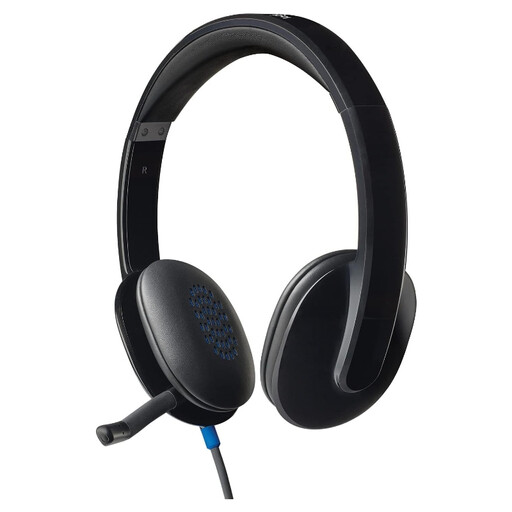 Image unavailable
Logitech H540 wired headset
Consider this for laptop calls if a wired USB headset suits your setup. Confirm the connector fits your computer, then select and test the microphone and speakers in your meeting app.
View on Joybuy
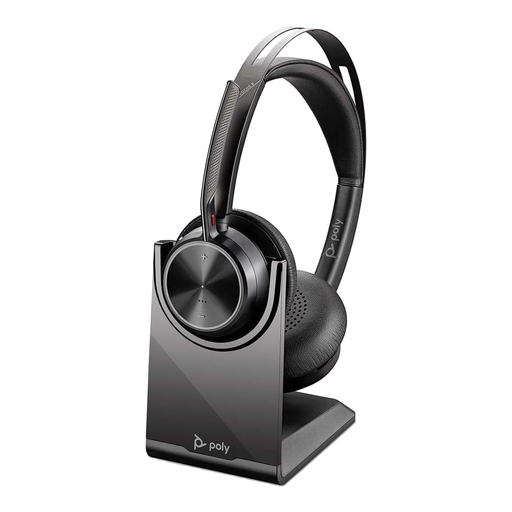 Image unavailable
Poly Voyager Focus 2-M USB-C-C headset with USB-C/A adapter and charging stand
Consider this if you want a Bluetooth headset for calls and can check its connection before each important session. The named bundle includes a USB-C/A adapter and charging stand; confirm how you intend to connect it and whether any meeting-app controls you need support this exact model.
View on Joybuy
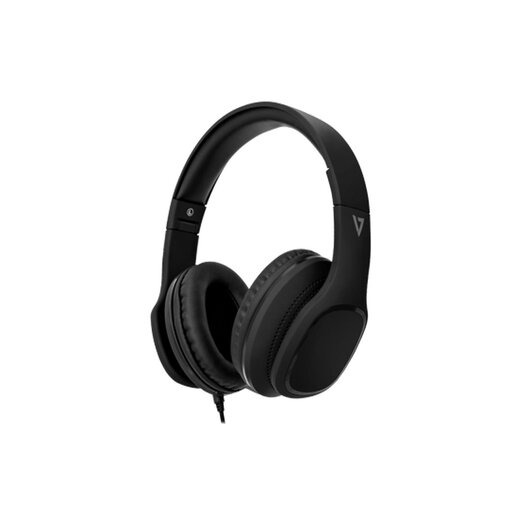 Image unavailable
V7 HA701-3EP wired over-ear headphones with inline MEMS mic
Consider this cable-based option only after confirming that your laptop’s 3.5 mm jack accepts headset microphone input. The product name specifies 40 mm drivers, passive noise cancellation and an inline MEMS microphone; test two-way audio rather than assuming that a matching-looking socket is sufficient.
View on Joybuy
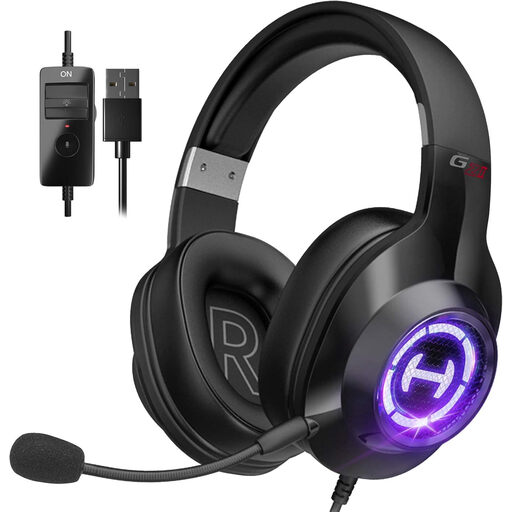 Image unavailable
Edifier G2II black USB gaming headset
Consider this gaming-oriented headset for computer calls if its USB connection suits your laptop. Its name specifies 50 mm drivers, 7.1 surround sound, RGB lighting and a microphone described as noise-cancelling; none of those details establishes how your voice will sound in a seminar, so test it in the intended app.
View on Joybuy
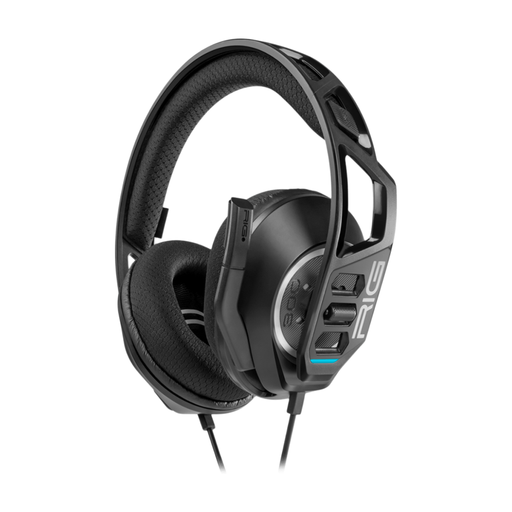 Image unavailable
Nacon RIG 300 PRO HN wired headset, black
Consider this wired option if you can confirm that its connector and your laptop’s headset jack support microphone input together. Check whether the cable reaches your usual seating position, and test the microphone and speakers in the app you use for calls.
View on Joybuy
Questions about setup and compatibility
Will a 3.5 mm headset microphone work with my laptop?
It will work only with a compatible laptop audio jack and headset arrangement. Zoom describes integrated-microphone earphones working as both speaker and microphone through a supported 3.5 mm jack, so identify your laptop’s socket type before buying.
How should I test a headset before an online seminar?
Select the intended microphone and speaker in your meeting app, then run its audio test before the session. Zoom provides speaker and microphone tests, while Google Meet provides device selection and tests in its pre-join preview.
Can I use a USB microphone with separate speakers?
Yes, Zoom supports testing a USB microphone with speakers or headphones, but Google Meet warns that a mismatched microphone and external-speaker setup may cause echo. Use headphones for playback where possible and test both selected devices before the call.
Will headset call buttons work across Teams and Zoom?
Do not assume the same buttons will work in both apps. Microsoft describes certified-device call controls for installed Teams on Windows and Mac, while Zoom identifies compatible devices and supported USB HID functions separately; check your exact headset model and intended setup.


