Bright-window content editors
If you format knowledge-base pages near a window, reflections can make small interface text and layout controls harder to see. The Health and Safety Executive advises arranging screens and lighting to avoid glare.


Choose the exact screen configuration and a laptop that supports your help-centre workflow before paying for processor performance you may not need. An anti-glare Windows business-laptop configuration is worth considering for Windows-managed work; a MacBook Air is another route if the required tools support macOS, while a specialist high-brightness laptop is more relevant to unusually strong daylight. Whichever route you take, check reflections at the intended desk: the Health and Safety Executive recommends adjusting screens and lighting to avoid glare.
If you format knowledge-base pages near a window, reflections can make small interface text and layout controls harder to see. The Health and Safety Executive advises arranging screens and lighting to avoid glare.
If access, sign-in, browser extensions or device management depend on Windows, confirm those requirements before choosing a screen. Dell UK and Lenovo UK list anti-glare business-laptop configurations, but the selected configuration matters.
If your help-centre tools are approved for macOS, a portable MacBook Air may suit work across locations or with an external display. Apple lists a 500-nit display and Thunderbolt 4/USB-C connectivity; assess reflections and accessory needs separately.
Start with the operating system your work requires, then compare the precise display option and how you will position it at the desk. A brightness figure alone cannot tell you whether window reflections will be manageable.
Consider when: Work tools or employer management require Windows and the chosen configuration specifies an anti-glare screen.
Watch for: Dell UK lists different display options within the Latitude 7450 family, so the model name alone does not identify the panel.
Consider when: Your help-centre platform, sign-in tools and employer policies all support macOS.
Watch for: Apple lists Thunderbolt 4/USB-C ports but does not describe the cited display as anti-glare; check reflections and connections for existing accessories.
Consider when: Strong daylight regularly makes an ordinary office setup difficult to use even after adjusting the workspace.
Watch for: Dell UK lists a 1,400-nit anti-glare display on the Latitude 7330 Rugged Extreme, a specialist configuration rather than a default requirement for an indoor desk.
| Concern | What to check | Who this matters to |
|---|---|---|
| Screen legibility | Check the exact panel’s stated brightness and anti-glare or anti-reflection description; assess reflections at your intended desk. | Small text and layout controls need to remain readable beside the window. Around 37% of consumers put screen legibility first. |
| Workflow compatibility | Confirm supported operating systems, browsers, sign-in tools and employer device-management requirements. | If access to the help centre depends on particular software, I need that workflow to run before display features matter. For around 27% of consumers, compatibility is the primary concern. |
| Extended desk work | Consider screen position, lighting and whether an external monitor and separate input devices would suit the desk. | For repeated editing sessions, I need a workstation I can use comfortably, not just a brighter panel. That is the leading need for around 18% of consumers. |
| Mobility and connections | Check the laptop’s weight and whether its ports or a compatible dock connect to your monitor and peripherals. | Moving between desks or using an external screen makes carrying weight and connections important. Around 18% of consumers place that flexibility first. |
Dell UK lists 250-, 300- and 400-nit display options for the Latitude 7450. Buying by family name alone could mean choosing a different panel from the one you intended.
Match the complete configuration code to the display description, including brightness, surface treatment and whether it is touch-enabled.
A brighter panel does not eliminate reflected window light. The Health and Safety Executive recommends adjusting screen position and lighting to avoid glare.
Try changing the screen angle or desk position and controlling window light before deciding whether the display itself needs to change.
A screen you like is of little use if the required help-centre platform, authentication method or employer management cannot run on the device.
Confirm browser, extension, sign-in, file-sharing and peripheral requirements with your employer or help-centre administrator before ordering.
Dell UK lists selectable anti-glare displays in the Latitude business range and a specialist high-brightness panel in the Latitude 7330 Rugged Extreme.
Lenovo UK specifies a 14-inch, 1920 × 1200, non-touch anti-glare display at 400 nits for the cited ThinkPad T14 Gen 5 configuration.
Apple lists MacBook Air display and connection specifications that are relevant if the required editing workflow supports macOS.
These laptops offer different screen sizes and operating-system routes for help-centre work. Check the exact display at your desk and confirm that your required tools work on the selected device; their inclusion here does not establish that they perform equally well beside a bright window.
 No image available
Consider this 14-inch laptop for browser-based editing if your required work tools support the selected configuration.
Snapdragon X processor, 16GB RAM and 512GB SSD are specified in the product name. Check screen readability and reflections at your intended desk before choosing it for bright-window work.
 No image available
Consider this Chromebook for browser-based formatting only if your help-centre tools, sign-in and employer policies support ChromeOS.
The product name specifies a 14-inch 1920 × 1200 display, Intel Core i3-1315U processor, 8GB RAM and 256GB SSD. Confirm screen brightness and assess reflections in your working position.
 No image available
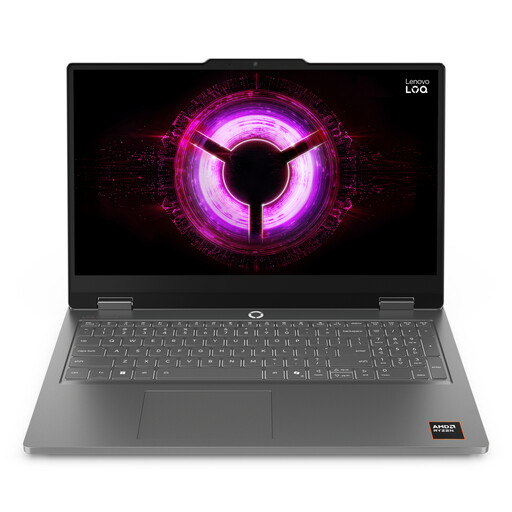
The 15.6-inch format may suit a desk-based editor who wants a larger laptop screen, provided the required work tools run on this configuration.
The product name specifies a 144Hz Full HD display, AMD Ryzen 7 170 processor, GeForce RTX 5050 graphics, 16GB RAM and 1TB SSD. Assess window reflections at the desk and consider the stated 2.30 kg weight if you will carry it regularly.
 No image available
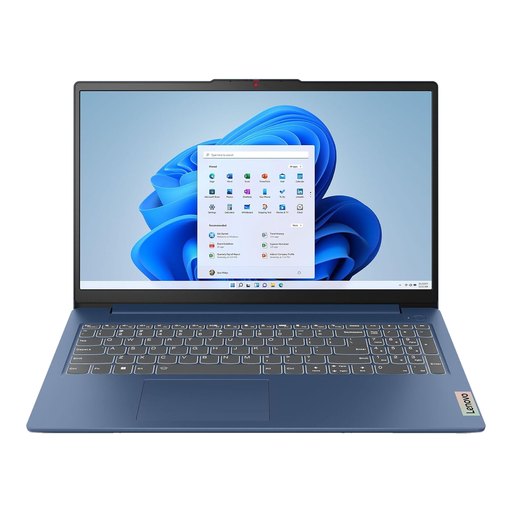
Consider this 15.6-inch laptop if you prefer more screen area for formatting controls and its configuration supports your workplace tools.
The product name specifies an Intel Core i7 processor, 16GB RAM and 512GB SSD. Confirm the exact panel’s brightness and check its readability beside your window.
 No image available
This 14-inch Chromebook is a possible route for web-based editing when ChromeOS is approved for your help-centre workflow.
The product name specifies an Intel Core i3 N305 processor, 8GB RAM and 256GB eMMC storage. Confirm panel brightness, reflections and any external-monitor connections you need.
Check both the exact panel’s brightness rating and whether it is described as anti-glare or anti-reflective. Dell UK and Lenovo UK list 400-nit anti-glare business-laptop configurations, while Apple lists a 500-nit MacBook Air display without an anti-glare description; none of those figures guarantees readability under your particular lighting.
Not necessarily: a brightness rating does not tell you how reflected light will look at your desk. The Health and Safety Executive advises adjusting screens and lighting to avoid reflections and glare, so try changing the screen position and controlling window light as well as assessing the panel.
For workers who use display screen equipment daily as part of normal work, continuously for an hour or more, the Health and Safety Executive says employers must carry out a workstation assessment. It considers the equipment, furniture, work conditions, task and individual requirements.
Compare the laptop’s exact port list with your monitor inputs, dock, charging arrangement and wired accessories before buying. Apple lists two Thunderbolt 4/USB-C ports for the cited MacBook Air specification, so equipment using other connections may need a compatible adapter or dock.