What matters when choosing?
Decide how you will view an original record beside your notes, then check the chosen laptop’s multitasking capacity, portability and software compatibility.
| Concern | What to check | Who this matters to |
|---|
| Side-by-side viewing |
Check the exact screen size and resolution. For a desk monitor, confirm the laptop’s display-output support and required connections. |
If I need to read a scan beside my transcription, I want enough room to inspect the image rather than rely on searchable text alone. Around 36% of consumers put viewing space first. |
| Tabs and local files |
Check RAM and SSD capacity against the tabs, PDFs and images you use. Microsoft’s general multitasking guidance suggests 8–16 GB RAM; its guidance for substantial local files suggests 512 GB–1 TB storage. |
With records, spreadsheets and notes open together, I need room for the work in progress and the files I keep. For around 29% of consumers, multitasking and local storage are the primary concern. |
| Portability |
Compare the exact laptop’s weight, screen dimensions and charger before choosing it for regular trips. |
When I carry my research between a library and home, a manageable laptop matters more to me than a larger built-in screen. Portability comes first for around 21% of consumers. |
| Service and software access |
Check current browser and operating-system requirements for essential sites, plus support for any specialist desktop software. |
If my research depends on particular record sites or desktop tools, I need them to keep working on the new laptop. Around 14% of consumers prioritise that compatibility. |
Windows laptops for record research
These Joybuy laptops cover 14-inch portable use and 15.3–15.6-inch built-in screens for comparing records. Match each configuration to your files, software and any planned monitor; a larger screen does not by itself confirm external-display support.
 No image available
ASUS Vivobook 14 X1407QA-LY003W, Snapdragon X, 16 GB RAM, 512 GB SSD, Quiet Blue
A 14-inch option to consider when carrying research between locations matters.
The named configuration has a Snapdragon X processor, 16 GB RAM and a 512 GB SSD.
If you use specialist Windows software, check its compatibility with this Windows on ARM setup before buying.
View on Joybuy
 No image available
Lenovo LOQ Essential 15ARP11, Ryzen 7 170, GeForce RTX 5050, 16 GB RAM, 1 TB SSD
Consider this 15.6-inch configuration if you work mainly at a desk and keep many downloaded records locally.
Its name specifies a 144 Hz Full HD screen, 16 GB RAM and a 1 TB SSD. The listed 2.30 kg weight is worth considering if you regularly visit archives.
Check its exact external-display modes if your comparison layout depends on a monitor.
View on Joybuy
 No image available
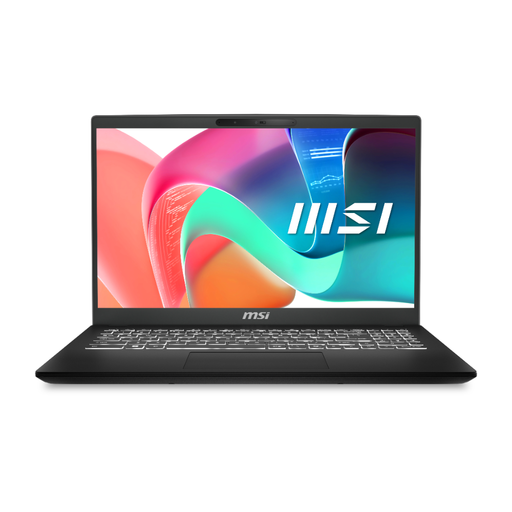
MSI Modern C2RMG-282UK, Intel Core 5, 16 GB RAM, 512 GB SSD, 9S7-15H431-282
This 15-inch model is an option for keeping browser records and documents open together.
The product name specifies a Full HD display, 16 GB DDR IV RAM and a 512 GB SSD.
If you plan to use its USB-C connection with a monitor, confirm the supported display modes for this model.
View on Joybuy
 No image available
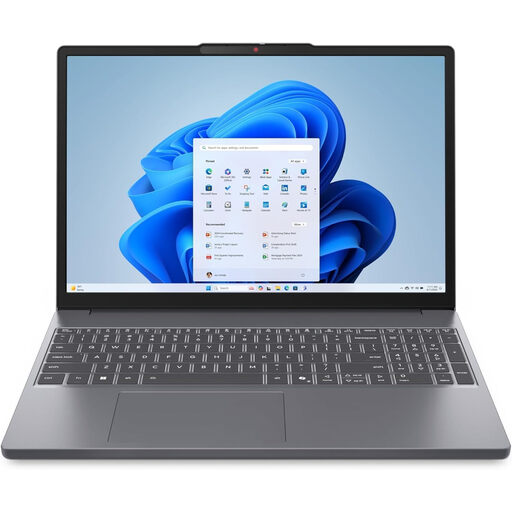
Lenovo IdeaPad Slim 3 83K7009MUK, 15.3-inch WUXGA, 24 GB RAM, 512 GB SSD
Consider the 15.3-inch built-in screen if you want to compare documents on the laptop itself.
This configuration specifies an AMD Ryzen 5 7535HS processor, 24 GB DDR5 RAM, a 512 GB PCIe SSD and Windows 11 Home.
Check its ports and display-output support before planning an external-monitor setup.
View on Joybuy
 No image available
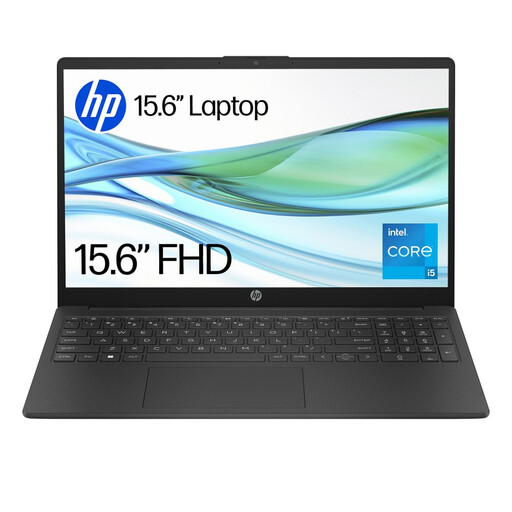
HP 15-fd0064na, Intel Core i5-1334U, 8 GB RAM, 256 GB SSD
This 15.6-inch Windows laptop is worth considering if you mainly access records online rather than storing a large image collection locally.
The product name specifies 8 GB RAM, a 256 GB SSD and Windows 11 Home. Its storage is below the 512 GB–1 TB range Microsoft suggests for substantial local files, so consider how many scans and PDFs you intend to keep on the laptop.
View on Joybuy
Common questions
Do I need a gaming laptop to compare historical records online?
Not for browser, document and spreadsheet work alone: start with the screen space, memory and storage your workflow needs. Microsoft’s general laptop guidance suggests 8–16 GB RAM for multitasking; specialist graphics hardware is a separate consideration if other software you use requires it.
Can I use OCR text instead of checking the scan?
Use OCR to find likely passages, but check important names, dates and wording against the original image. The Library of Congress notes that OCR quality is often insufficient for its text to replace a scanned item.
Will an older laptop work with FamilySearch and Ancestry?
It may, if it can run versions of the operating system and browser those services support. FamilySearch supports current Windows and Mac operating systems and one version back; Ancestry warns that features may not work properly in an unsupported browser. Check both services’ current requirements before buying refurbished hardware.
What should I do with my old laptop when replacing it?
Ask the retailer about electrical-equipment take-back when you order the replacement. GOV.UK guidance says retailers must offer take-back of waste equipment of the same type as the item purchased, subject to the applicable retailer obligations and scheme conditions; confirm the arrangements for handing over your laptop.


