For comparing digitised records, PDFs and notes in a student room, a Windows laptop with at least 8GB RAM and a 256GB SSD is a sensible starting point when course software is unconfirmed. That capacity reflects guidance from the University of York and UCL, while UWE Bristol identifies Windows as the most compatible choice for university and specialist software. Consider a MacBook after confirming macOS support, or a Chromebook only when all required work can be done in ChromeOS or a browser; whichever route you choose, check the screen and monitor connection if you plan to view documents side by side.
Who needs which setup?
Students comparing archives and PDFs
If you work with scanned records, notes and spreadsheets at a desk, weigh screen space, memory and local storage alongside whether you can connect a monitor. The University of York and UCL provide student-laptop specification baselines, but the most useful screen arrangement depends on how you lay out your documents.
Students with unconfirmed course software
Check your module or dissertation software requirements before settling on Windows, macOS or ChromeOS. UWE Bristol warns that some specialist applications are unavailable on macOS and that many cannot be installed on a Chromebook.
Browser-first, room-based researchers
If your archives, catalogues and coursework tools run in a browser, a Chromebook is worth considering once your university confirms that no required application depends on a different operating system. Browser access alone does not establish compatibility with every part of a course.
What should you check before choosing?
Windows laptop
Choose when: Course software is unconfirmed or may include installed specialist applications; UWE Bristol identifies Windows as the most compatible university option.
Keep in mind: Memory, screen and ports vary between configurations, even within the same laptop family.
MacBook Air
Choose when: Your department confirms macOS support and you want a compact laptop to carry as well as use at your desk.
Keep in mind: UWE Bristol cautions that some specialist applications are unavailable on macOS and that Apple-silicon Macs cannot install Windows.
Chromebook
Choose when: Your university confirms that required archive and coursework tools work in ChromeOS or a browser.
Keep in mind: UWE Bristol does not recommend Chromebooks as primary study devices where specialist applications need to be installed.
| Concern |
What to check |
Who this matters to |
| Course-software compatibility |
Ask your department which applications are required and which operating systems or browser versions they support. |
If a module might require an installed application, I need to know it will run before choosing a laptop. Around 36% of consumers put course-software compatibility first. |
| Space for records and notes |
Compare the exact display size and resolution; check the laptop’s display output if you plan to use a monitor. |
When I compare a scan with a transcription and citations, I want enough room to see what I am working on. For around 29% of consumers, that workspace is the primary concern. |
| Memory and file storage |
Use the University of York and UCL’s 8GB RAM and 256GB SSD guidance as a baseline, then consider your local files and heavier applications. |
If I keep downloaded records and course files locally, I need capacity for them alongside my everyday documents. Around 21% of consumers place memory and storage first. |
| Room setup and ongoing use |
Check the ports you need for accessories, the warranty terms and whether the operating system remains supported. |
I want my laptop to work with the equipment in my room and remain usable for coursework. Keeping that setup practical comes first for around 14% of consumers. |
Buying mistakes to avoid
-
Choosing a Chromebook before checking course software
Web archives may work well in a browser, but UWE Bristol warns that many specialist applications cannot be installed on a Chromebook.
Ask for the course software list and confirm ChromeOS or browser support before choosing one as your primary laptop.
If a required application cannot run on it, you may need access to a campus computer or an available remote-access service.
-
Assuming a laptop family has one fixed specification
Memory, storage, screens and ports can differ between configurations in the same family, as Lenovo, Acer and ASUS product information illustrates.
Check the exact model or part number and its specification table rather than relying on the family name or product image.
-
Assuming any laptop will connect to your monitor
A second screen can give records and notes separate space, but the laptop output and monitor input must be compatible.
Check the HDMI, USB-C or DisplayPort functions of the exact laptop and the input on your monitor; a USB-C socket alone does not establish display support.
Your setup may also need a suitable adapter, dock or cable.
-
Overlooking software support after purchase
An operating system or browser left without support or updates can put university accounts and research files at greater risk. The National Cyber Security Centre recommends using the latest version of Windows.
Check support information when considering an older laptop, and keep its operating system and browser updated.
Relevant laptop brands
Lenovo
The cited IdeaPad Slim 3 15 configuration is a Windows option for desk-based comparison of archives and PDFs.
- Lenovo lists a 15.6-inch FHD IPS anti-glare display, 8GB RAM and a 512GB SSD for that configuration.
- Its cited 8GB memory is soldered; check whether that fixed capacity suits your anticipated workload.
Apple
The cited 13-inch MacBook Air configuration is a compact option if your department confirms macOS compatibility.
- Apple lists 16GB unified memory, a 512GB SSD, a 13.6-inch display and two Thunderbolt 4 USB-C ports for the cited configuration.
- UWE Bristol notes that some specialist applications may be unavailable on macOS and that Apple-silicon Macs cannot install Windows.
Acer
The cited Chromebook Plus 514 configuration illustrates the browser-first route when required course tools are confirmed for ChromeOS or the browser.
- Acer lists 8GB RAM, a 512GB SSD and a 14-inch 1920 × 1200 anti-glare display for the cited configuration.
- Those specifications do not resolve UWE Bristol’s warning about specialist applications that cannot be installed on a Chromebook.
ASUS
The Vivobook 14 X1404 line is relevant if you want to compare compact Windows configurations and ports for room-based accessories.
- ASUS lists configurations with a 14-inch FHD display and HDMI, USB-C and USB-A connections.
- Processor and memory options vary within the X1404 family, so check the specification of the exact configuration.
Joybuy laptops for this research setup
These choices cover Windows laptops for students weighing course-software compatibility, a MacBook Air for confirmed macOS coursework, and a Chromebook for confirmed browser-first work. Compare each model’s screen and connections against the way you plan to arrange records and notes.
 No image available
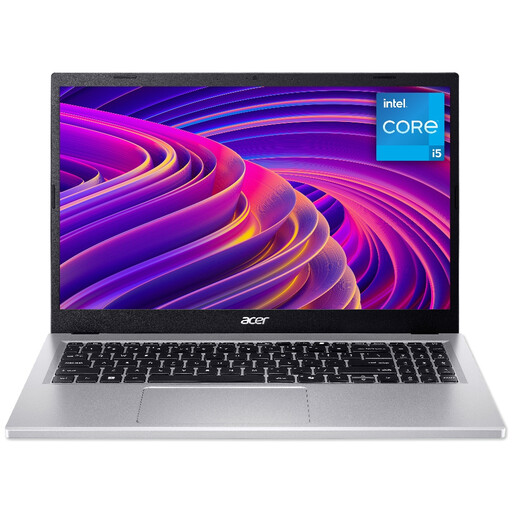
Acer Aspire Go AG15-71P, 15.6-inch, Intel Core i5-13420H, 8GB/512GB, Silver
Consider this Windows-route laptop if course software is uncertain and you want a larger built-in screen for desk work.
The named configuration has a 15.6-inch Full HD display, 8GB RAM and a 512GB SSD. Confirm the exact memory upgrade options before relying on an expansion later.
View on Joybuy
 No image available
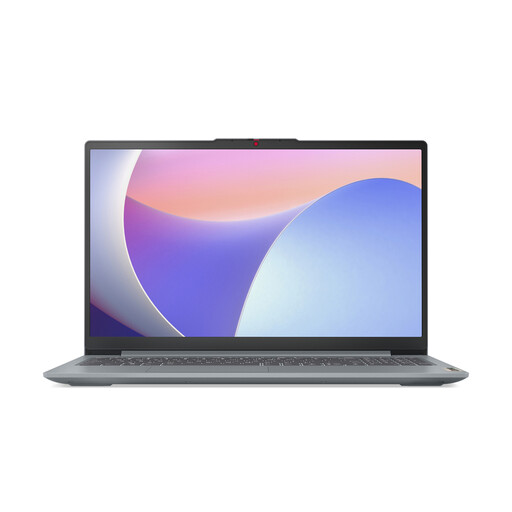
Lenovo IdeaPad Slim 3 15IAH8 (83ER00G4UK), 15.6-inch, Intel Core i5, 8GB/512GB
This Windows-route model suits a desk setup where built-in screen space and local file storage matter.
The named configuration has a 15.6-inch display, 8GB RAM and a 512GB SSD. Check battery runtime if you will carry it regularly, and confirm USB-C display capability before planning a monitor connection through that port.
View on Joybuy
 No image available
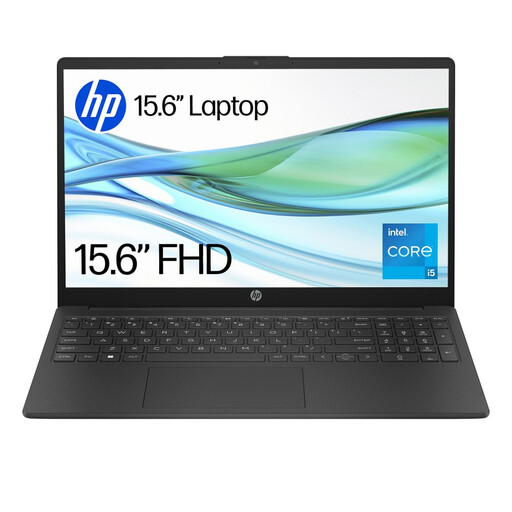
HP 15-fd0064na, 15.6-inch, Intel Core i5-1334U, 8GB/256GB, Windows 11 Home
This Windows laptop meets the University of York and UCL’s stated memory and storage baseline for student work, subject to any additional course requirements.
Its named configuration has a 15.6-inch display, 8GB RAM and a 256GB SSD. Before building a two-screen setup around it, confirm the available display-output ports.
View on Joybuy
 No image available
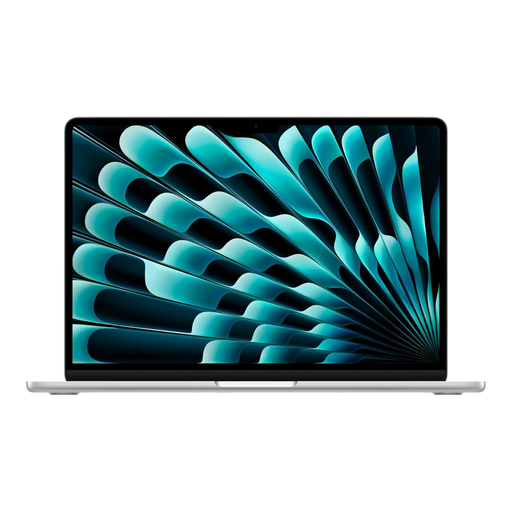
Apple 13-inch MacBook Air (2026), M5 10-core CPU/8-core GPU, 16GB/512GB, Silver
Consider this compact route only after your department confirms that essential coursework applications run on macOS.
The named configuration has an M5 chip with a 10-core CPU and 8-core GPU, 16GB memory and a 512GB SSD. If you compare several documents at a desk, check how you will arrange them on its 13-inch screen or connect your intended monitor.
View on Joybuy
 No image available
Acer Chromebook Plus 514 CB514-5H, 14-inch 1920 × 1200, Intel Core i3-1315U, 8GB/256GB, Iron
Consider this Chromebook for browser-first archive work only after your university confirms that all required applications work in ChromeOS or the browser.
The named configuration has a 14-inch 1920 × 1200 display, 8GB RAM and a 256GB SSD. If you plan to attach a monitor, check the connections needed for your particular display.
View on Joybuy
Common questions
What laptop specification do I need for archive research and ordinary coursework?
For a Windows laptop, start with at least 8GB RAM and a 256GB SSD, then check your course’s application requirements. The University of York specifies an Intel i3 or AMD Ryzen 3 processor with that memory and storage; UCL cites an i5 processor with 8GB RAM and a 256GB SSD as its Windows minimum. Specialist work may call for a different configuration.
Can I use a Chromebook for historical-record research?
Yes, if your university confirms that every required archive service and coursework application works in ChromeOS or a browser. UWE Bristol does not recommend Chromebooks as primary study devices where specialist applications must be installed, so confirm the software list before deciding.
Do I need an external monitor to compare records?
No, but one can give a record image or PDF and your notes separate screen space. If that arrangement matters to you, check the laptop’s display-output capability, the monitor’s input and whether you need a compatible adapter or cable before buying either device.
How should I look after a laptop used for university research?
Keep its operating system and browser supported and install updates. The National Cyber Security Centre recommends using the latest version of Windows; when considering an older laptop, check the manufacturer’s support information as well as its hardware specification.


