Who this choice affects

Teachers using a school Microsoft workflow

If lesson plans depend on desktop Microsoft 365 applications or a school-managed Windows setup, confirm the required applications, account access and device policy before choosing a laptop. The Department for Education advises schools to assess devices against their educational and technical needs.

Shared-desk lesson planners

If you connect a monitor, keyboard, mouse or dock each time you sit down, check the desk equipment against the exact laptop configuration. Screen size and the space available on the desk matter alongside connection options.

Google Workspace-first planners

If you prepare resources mainly in a browser and use Google Docs or Slides, ChromeOS may fit an approved school workflow. Google Chromebook Help advises setting up offline access in advance and notes limits for some apps and services.

What to check before buying

Windows laptop

Choose when: the school requires Windows desktop applications or manages devices through a Windows-based setup.

Keep in mind: Windows models differ in configuration, and school IT still needs to confirm that a personal device can use the required accounts and tools.

Chromebook Plus

Choose when: the school permits ChromeOS and lesson planning is mainly browser-based or uses Google Workspace.

Keep in mind: offline access needs preparation; Google says some apps and services do not work offline in Incognito or guest mode.

MacBook Air

Choose when: you already use macOS and the school confirms support for its applications, accounts and management arrangements.

Keep in mind: Apple lists USB-C/Thunderbolt display connections rather than built-in HDMI, so check how the shared monitor connects.

Concern What to check when buying Who this matters to
School workflow Confirm the permitted operating system, required applications and school-account access with IT. If my plans depend on school software and accounts, I need a laptop the school will let me use for that work. Around 40% of consumers put school-workflow compatibility first.
Shared-desk setup Match the exact laptop's display output and charging connections to the monitor and dock. At a desk used by others, I want to connect my screen and peripherals without finding that the available cables do not fit. Shared-desk connections come first for around 40% of consumers.
Flexible planning Check how required files work offline and what activities any battery claim measures. When I work away from the desk, I need my research and documents available even if the connection drops. Around 20% of consumers prioritise flexible or offline planning.

Common buying mistakes

  • Choosing an operating system before checking school requirements

    Capable hardware does not establish that a school application, sign-in method or device-management arrangement will work on it.

    Ask school IT or the digital lead which operating systems and applications are supported before ordering. Follow the school's rules when using accounts or handling pupil information.

  • Assuming every USB-C connection does the same job

    A matching connector shape alone does not confirm video output, charging or dock compatibility.

    Compare the exact laptop, monitor and dock specifications, including their video, power and cable requirements.

    The desk setup may require a compatible adapter or dock.

  • Planning around an advertised battery maximum

    A manufacturer's battery figure applies to its stated test activity, which may differ from browsing resources, making calls and using an external display.

    Compare claims on their stated test basis and keep access to charging at the shared desk.

  • Expecting cloud documents to be available offline automatically

    Offline work needs advance setup. Google Chromebook Help notes that some apps and services do not work offline in Incognito or guest mode.

    Set up the required files on the account you will use, then test opening, editing and syncing them before relying on offline access.

Relevant brands to consider

Dell

The Dell Pro 14 line is a Windows business-laptop route to examine if your school requires a Windows workflow.

  • Dell UK shows a Dell Pro configuration with Windows 11 Pro, 16GB DDR5 memory and a 512GB SSD.
  • Those details apply to that configuration, not every listing. Check the processor, ports and support arrangement for the model you intend to buy.

HP

HP ProBook is a business-laptop family to consider for a work-oriented Windows setup.

  • HP positions the ProBook family around office work and IT manageability.
  • That family positioning does not establish compatibility with a particular school's applications or device policy; check the individual model with IT.

Acer

The Acer Chromebook Plus 514 line is relevant to an approved, browser-first ChromeOS workflow.

  • Acer describes 14-inch WUXGA variants and lists HDMI, USB-A and dual USB-C connections for the product line.
  • Configurations differ. Confirm the ports on the exact model and whether the school supports ChromeOS and the applications you need.

Apple

MacBook Air is relevant if you already use macOS and the school supports it.

  • Apple UK lists 13-inch and 15-inch options, USB-C/Thunderbolt connections and external-display support.
  • Check any Windows-only school tools and the shared monitor connection; the listed port set does not include built-in HDMI.

Joybuy laptops for these workflows

These Windows, ChromeOS and macOS laptops offer different starting points for planning at a shared desk. Choose the school-supported workflow first, then compare each model's size and configuration with the equipment you use.

ASUS Vivobook 14 X1407QA-LY003W in Quiet Blue

ASUS Vivobook 14 X1407QA-LY003W, Snapdragon X, 16GB, 512GB SSD, Quiet Blue

A 14-inch Windows option to consider if the school permits this configuration; confirm that required applications work with its Snapdragon processor and that its connections fit the desk.

The product name specifies a Snapdragon X processor, 16GB RAM and a 512GB SSD.

View on Joybuy

Acer Chromebook Plus 514 CB514-5H in Iron

Acer Chromebook Plus 514 CB514-5H, Core 5 120U, 8GB, 512GB SSD, Iron

A ChromeOS option for school-approved, browser-first planning; check your required apps, offline files and shared-desk connections.

The product name specifies a 14-inch WUXGA (1920 x 1200) display, Intel Core 5 120U processor, 8GB RAM and a 512GB SSD.

View on Joybuy

Acer Chromebook Plus 514 CB514-5H in Iron

Acer Chromebook Plus 514 CB514-5H, Core i3-1315U, 8GB, 256GB SSD, Iron

Another ChromeOS configuration for approved, browser-first planning; arrange offline access before working without Wi-Fi and check the desk connections.

The product name specifies a 14-inch WUXGA (1920 x 1200) display, Intel Core i3-1315U processor, 8GB RAM and a 256GB SSD.

View on Joybuy

Apple 13-inch MacBook Air (2026) M5 in Midnight

Apple 13-inch MacBook Air (2026), M5 10-core CPU and GPU, 24GB, 1TB SSD, Midnight

A compact choice for an existing macOS workflow that the school supports; check application access and how the shared monitor will connect.

The product name specifies an M5 chip with a 10-core CPU and 10-core GPU, 24GB memory and a 1TB SSD.

View on Joybuy
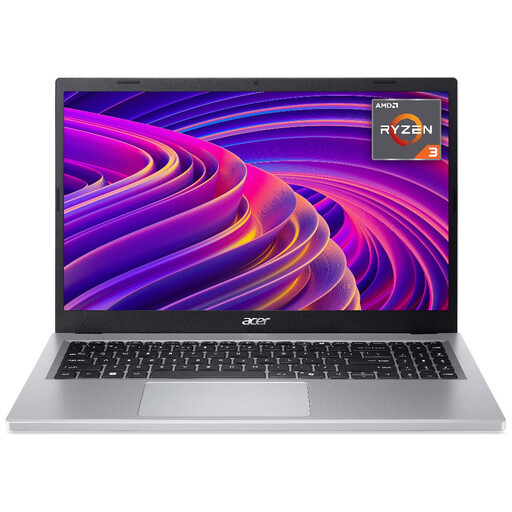
Acer Aspire Go 15 AG15-21P in Silver

Acer Aspire Go 15 AG15-21P, Ryzen 3 7320U, 8GB, 256GB SSD, Silver

A larger-screen Windows option if the school supports this configuration and the shared desk has room for it; check its connections against the monitor.

The product name specifies a 15.6-inch Full HD (1920 x 1080) display, AMD Ryzen 3 7320U processor, 8GB RAM and a 256GB SSD.

View on Joybuy

Frequently asked questions

Can I use a personal laptop for school lesson planning?

Check the school's device and data-handling policy before using one with school accounts or personal data. Department for Education guidance says staff are responsible for protecting personal data and should follow local policies or seek advice when unsure.

Can a Chromebook handle lesson planning without Wi-Fi?

A Chromebook can handle some work offline if you set it up beforehand. Google Chromebook Help notes that some apps and services do not work offline in Incognito or guest mode, so test the documents and school applications you need.

Is 4GB RAM enough for Microsoft 365 lesson planning?

Microsoft lists 4GB RAM in its Windows and Mac desktop-app system requirements, but that is a compatibility minimum, not a promise of smooth performance with browser research, PDFs, slides and calls open together. Assess the applications you will run at the same time.

What should I check before connecting a laptop at a shared desk?

Identify the monitor input, peripherals and power connection already at the desk, then compare them with the exact laptop's display-output and charging specifications. If you plan to use a dock, check compatibility with both the laptop and display.