Choose around the way you plan lessons: a conventional laptop can work for extended standing-desk sessions if you also plan how to position the screen, keyboard and mouse, while a compact model is easier to consider when you regularly move between rooms. A touch-capable 2-in-1 is worth considering if handwritten source annotation is a regular task, but touch alone does not establish pen support. Before settling on macOS or Windows, confirm what your school supports for accounts, software, displays and peripherals.
Who is this for?
Standing-desk lesson planners
If you spend long periods researching sources, writing plans and preparing slides, consider the whole workstation rather than the laptop alone. The Health and Safety Executive’s display screen equipment guidance addresses the screen, keyboard and other parts of the setup together.
Classroom-to-home teachers
If one laptop travels between teaching spaces and home, its size, weight, connections and battery-test conditions deserve attention alongside the screen you will use for longer planning sessions.
Source-annotation planners
If handwriting on scans, maps or timelines is part of your regular work, check for a touch-and-pen-capable configuration and confirm which accessories come with it.
What matters when choosing?
Start with your standing-desk arrangement and your school’s IT requirements. Then decide whether carrying the laptop frequently or writing directly on historical sources changes the format you need.
| Concern |
What to check |
Who this matters to |
| Standing-desk setup |
Plan where the screen, keyboard and mouse will sit during extended work; check connections for any external display or peripherals you intend to use. |
For long stretches of research and writing at a standing desk, I need to position the screen and input devices comfortably rather than rely on the attached keyboard. Around 33% of consumers put workstation fit first. |
| Portability |
Compare the exact model’s weight, screen size, charger and stated battery-test conditions. |
When I carry lesson plans between home, meetings and classrooms, a manageable laptop matters more to me than a larger built-in screen. For around 27% of consumers, portability is the primary need. |
| School compatibility |
Ask school IT about supported operating systems, managed accounts, required applications, display connections and peripherals. |
I need my teaching tools and classroom display to work with the laptop I choose, even if another model appeals on hardware alone. School compatibility comes first for around 27% of consumers. |
| Source annotation |
Confirm touch and active-pen support on the exact configuration, accessory inclusion and compatibility with the annotation software you use. |
If I regularly mark up scanned documents or maps by hand, direct pen input has a purpose that ordinary touch may not meet. Around 13% of consumers prioritise handwritten annotation. |
Buying pitfalls
-
Treating the laptop as the whole standing-desk setup
Raising a laptop screen also raises its attached keyboard, which may make the typing position unsuitable for an extended session. The Health and Safety Executive advises considering the display screen equipment workstation as a whole.
Work out where your screen, keyboard and mouse need to go before choosing the laptop and its connections.
-
Choosing an operating system before checking school support
A laptop may suit lesson writing but still conflict with the school’s managed accounts, applications or classroom equipment.
Ask school IT which operating systems and software are supported and what connection the classroom display requires.
-
Assuming USB-C connects directly to every classroom device
Apple lists two Thunderbolt 4 USB-C ports for the cited 13-inch MacBook Air, while the equipment you use may have different connectors.
Identify the connections on your display, document camera and other essential equipment; check the exact adapter or dock arrangement before ordering.
-
Assuming pen support means a pen is supplied
A pen-capable screen describes a configuration’s input capability, not necessarily the contents of its package.
Check the exact model and bundle for the pen, keyboard and screen specification if handwriting is central to your planning.
Brands to consider for these laptop formats
Apple
The 13-inch MacBook Air illustrates a compact macOS option for research, documents and presentations where the school supports macOS.
- Apple lists a 13.6-inch display, MagSafe charging and two Thunderbolt 4 USB-C ports for the cited model.
- Check school software and display connections. Apple’s UK buying information says a power adapter is not included with the cited model.
Lenovo
The ThinkPad X13 Gen 6 illustrates a compact Windows business-laptop route for frequent movement between workspaces.
- Lenovo describes the X13 Gen 6 line as weighing less than 1 kg; its cited UK configuration has a 13.3-inch anti-glare display and UK keyboard.
- Memory is soldered in that cited configuration, so check the capacity you need before choosing it.
Dell
The Latitude 7350 2-in-1 illustrates a Windows option for planners who regularly use handwritten annotation.
- Dell lists a 13.3-inch QHD+ touch configuration with pen support.
- Check the exact screen, included keyboard and pen, warranty and current availability before treating a configuration as suitable.
Joybuy laptop choices
These laptops cover conventional sizes and touch-enabled formats for lesson planning. Match a model to your school’s requirements and intended standing-desk connections; a touchscreen should not be mistaken for confirmed pen support.
 No image available
ASUS Vivobook 14 X1407QA-LY003W, Snapdragon X, 16GB RAM, 512GB SSD, Quiet Blue
A 14-inch option to consider if you move between planning locations and want to arrange a separate desk display. Confirm that its Windows setup, school accounts and required connections suit your workplace before buying.
Joybuy
 No image available
Apple 13-inch MacBook Air (2026), M5, 24GB, 1TB SSD, Midnight
A compact macOS choice for documents and presentations if your school supports the operating system. Check managed accounts, required applications and the adapters your standing desk and classroom displays would need.
Joybuy
 No image available
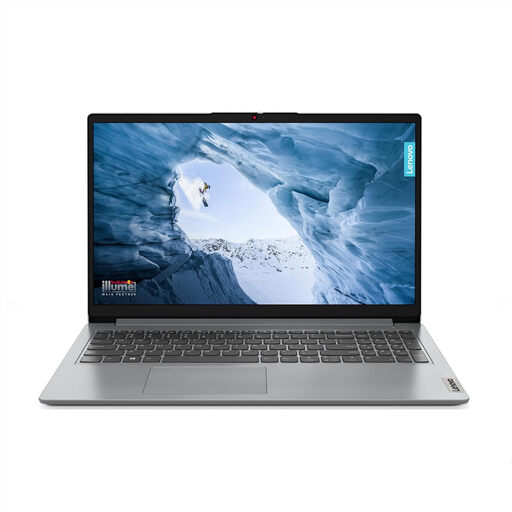
Lenovo IdeaPad 1, 15-inch Full HD, Ryzen 3 7320U, 8GB RAM, 128GB SSD, Cloud Grey
The larger built-in screen may appeal if you write plans and browse sources without always using a separate monitor. This variant lists Windows 11 Home in S Mode: confirm that your required school applications work with it, and check external-display connectivity before planning a separate screen.
Joybuy
 No image available
HP OmniBook X Flip 16-as0004na, 16-inch touchscreen, Core Ultra 5 226V, 16GB RAM, 512GB SSD
Consider its convertible touchscreen if direct screen interaction is useful while reviewing teaching materials. Confirm pen support and accessory inclusion before choosing it for handwriting, and check its weight and display connections if you will carry it or use an external screen.
Joybuy
 No image available
Apple 13-inch MacBook Neo (2026), A18 Pro, 8GB, 512GB SSD, Silver
A 13-inch option for documents and browsing when a smaller laptop suits your movement between locations. Confirm the operating system with school IT, check whether its USB-C connections meet your display needs, and verify the 512GB variant when ordering.
Joybuy
Frequently asked questions
Does UK display screen equipment guidance specify a laptop for a standing desk?
No particular laptop model or screen size is prescribed in the cited Health and Safety Executive guidance. The HSE says display screen equipment regulations apply to workers who use it daily for continuous periods of an hour or more; consider the desk, screen and input devices together rather than assuming a laptop alone completes the setup.
Should I choose a laptop stand before the laptop?
Plan them together if you expect extended standing-desk sessions. Raising the laptop screen also raises its attached keyboard, so check how you will position a separate keyboard and mouse and whether the laptop can connect to the equipment you intend to use.
Is macOS or Windows better for planning school lessons?
Choose the system your school supports for its accounts, required applications, printing and classroom displays; neither is a universal choice. Ask school IT about its specific requirements before committing to a laptop.
Does a pen-capable 2-in-1 come with a stylus and keyboard?
Do not assume both are included. Dell identifies a pen-capable display option for the Latitude 7350, but the exact accessories depend on the configuration and bundle; check what the seller supplies.
Can a manufacturer’s battery figure tell me how long lesson planning will last?
Treat it as a figure from the manufacturer’s stated test, not a guaranteed lesson-planning runtime. Apple lists up to 15 hours of wireless-web use for the cited MacBook Air specification; your use of video calls, screen brightness and peripherals may differ from those test conditions.


