What matters when choosing?
Start with the editor and footage you will actually use, then decide how much you need to carry the laptop and how much media you want to keep on it. The concerns below distinguish consumers by the need they would put first; other needs can still matter to the same person.
| Concern |
What to check |
Who this matters to |
| Editing workload |
Match the exact RAM and GPU memory to your editor and footage. For Premiere 25.x, Adobe recommends 16GB RAM for HD media, versus at least 32GB RAM and 8GB GPU memory for 4K or higher. |
If regular 4K footage or effects are central to my projects, I need to prioritise editing specifications over a smaller chassis. Around 36% of consumers put this workload first. |
| Carrying and quiet use |
Compare the configured laptop’s weight, charger, ports and fan design. Do not treat a video-streaming battery claim as editing or export runtime. |
When I take my laptop to class and edit in my room, carrying it and keeping the space quiet come first; roughly 29% of consumers share that primary concern. |
| Storage and workspace |
Check SSD capacity against clips, cache and exports, then consider screen size and the connections needed for a drive or room display. |
I want room for project files and a usable timeline without making storage an afterthought. For around 21% of consumers, that is the main priority. |
| Software and connections |
Confirm the editor version, operating system, required plug-ins and the ports or adaptors your existing devices need. |
If my course tools or plug-ins dictate the operating system, compatible hardware is useful only after those tools work. That requirement comes first for roughly 14% of consumers. |
Joybuy laptop choices
These laptops cover compact options for lighter editing and larger Windows configurations to compare for more demanding projects. Choose by your editor and footage first: a product family name or a discrete GPU alone does not settle whether a particular configuration meets your requirements.
 No image available
Apple MacBook Air 13-inch M5, 24GB, 1TB SSD, Midnight
Consider this compact macOS option for shorter edits when your required software and footage formats are compatible.
The listed 2026 configuration has a 10-core CPU, 10-core GPU, 24GB memory and a 1TB SSD. Apple describes the 13-inch M5 Air as fanless and lists it at 1.23kg.
For Premiere 25.x at 4K or higher, its 24GB memory is below Adobe’s recommendation of at least 32GB; check your workload rather than treating the larger SSD as a substitute for memory.
View on Joybuy
 No image available
ASUS ProArt P16 H7606WW-SE006W, 64GB, 2TB SSD
Compare this larger Windows configuration if regular 4K editing or effects make memory and GPU capacity a priority.
Its listed components include an AMD Ryzen AI 9 HX 370, NVIDIA GeForce RTX 5080 with 16GB graphics memory, 64GB RAM, a 2TB SSD and a 16-inch 4K OLED touchscreen.
Check whether the larger chassis, charger and your required applications suit use between your room and classes. Specifications for other ProArt P16 suffixes do not describe this variant.
View on Joybuy
 No image available
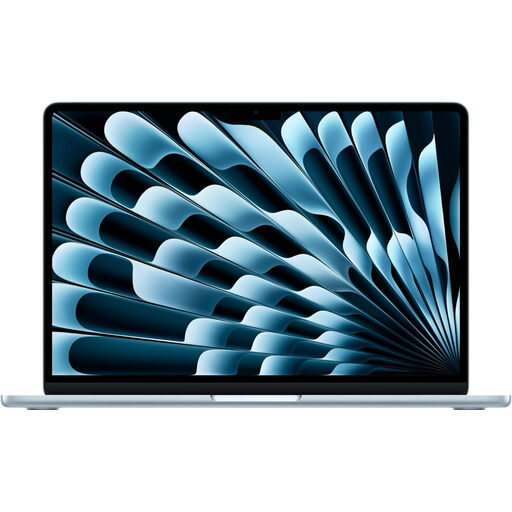
Apple MacBook Air 13-inch M5, 16GB, 1TB SSD, Sky Blue
This compact macOS configuration is a starting point for HD holiday-video edits if your editor and course tools are compatible.
The listed 2026 variant has a 10-core CPU, 10-core GPU, 16GB memory and a 1TB SSD. Apple describes the 13-inch M5 Air as fanless and lists it at 1.23kg.
Adobe recommends 16GB RAM for HD media in Premiere 25.x, but at least 32GB RAM and 8GB GPU memory for 4K or higher; the 16GB configuration does not meet that memory recommendation.
View on Joybuy
 No image available
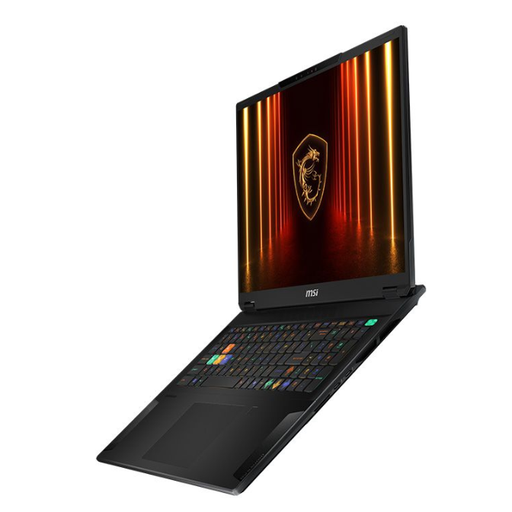
MSI Stealth 18 AI Studio A1VGG-001UK, 2TB SSD
Consider the large-screen Windows format if most editing happens at a desk rather than between classes.
The product name identifies an 18-inch model with an Intel Core Ultra 9 processor, NVIDIA GeForce RTX 4070 graphics and a 2TB SSD.
Check the exact memory and GPU-memory configuration against your editor’s requirements, and consider whether an 18-inch laptop is practical for your journeys.
View on Joybuy
 No image available
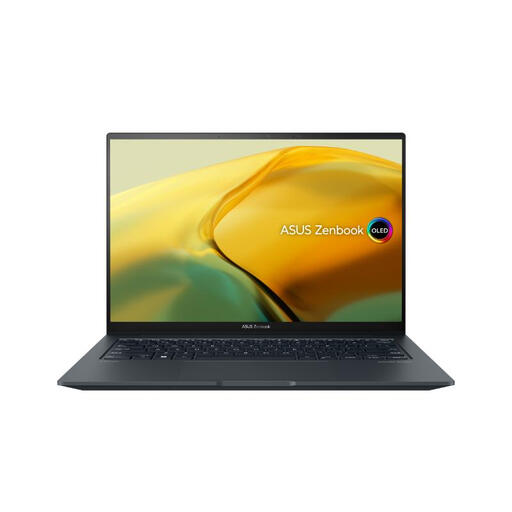
ASUS ZenBook UX3404VC-M3130W, 16GB, 1TB SSD
This 14.5-inch Windows option is worth comparing if you want a smaller screen format alongside a discrete GPU for your editing setup.
The listed configuration has an Intel Core i9, 16GB RAM, a 1TB SSD, RTX 3050 graphics and an OLED touchscreen.
For 4K-or-higher Premiere 25.x work, check the GPU-memory capacity and bear in mind that Adobe recommends at least 32GB RAM and 8GB GPU memory; this model’s listed 16GB RAM is below the memory recommendation.
View on Joybuy
Frequently asked questions
Is 16GB of RAM enough for holiday-video editing?
It is a reasonable starting specification for HD editing in Premiere 25.x: Adobe recommends 16GB RAM for HD media. For 4K or higher, Adobe recommends at least 32GB RAM and 8GB GPU memory. Check your footage, effects and other applications before treating either figure as a performance guarantee.
Should I choose a MacBook Air or a Windows creator laptop?
Choose between them by software compatibility and editing workload, not the operating system alone. A fanless MacBook Air M5 may suit shorter projects and carrying to class if your tools run on macOS; a Windows configuration with more memory and dedicated graphics is worth comparing for regular 4K or effects work, or when a course requires Windows.
How much SSD storage should I allow for holiday videos?
Allow space for original clips, working files, cache and exports, then plan a separate backup. Apple UK lists a 512GB starting SSD configuration for the MacBook Air M5 and larger options, but the right capacity depends on the projects you intend to keep locally.
Will a laptop’s advertised battery life cover an editing session?
Do not assume it will: a video-streaming or general battery-life figure does not specify editing or export runtime. Check the activity behind the claim and whether you will have access to mains power for longer projects.


