Start with the part of regular laptop work that is causing difficulty: screen position, usable display space, reconnecting devices or calls. For prolonged use, Health and Safety Executive guidance supports separating the keyboard and mouse from the laptop or using a separate display. Add a hub or dock only after checking your laptop’s video, charging and operating-system support, and plan socket use safely.
Who this setup is for
Long-session laptop workers
If you work at the same home desk for hours, you may want to position the screen and input devices separately rather than relying on the laptop alone. The Health and Safety Executive’s guidance on display-screen work covers workstation setup for home workers.
Hybrid desk reconnectors
If you move your laptop between workspaces, check whether its supported video and charging functions match the hub or dock you plan to use. A USB-C port’s shape alone does not confirm those capabilities.
Meeting-heavy home workers
If virtual meetings are a regular part of your routine, camera position and your listening and speaking setup may matter. Ofcom also notes that virtual meetings and voice calls share household broadband capacity with other activities.
What to prioritise when choosing home-office equipment
For regular home or hybrid laptop work, start with the part of your desk routine that causes the most friction, then check that each accessory fits your laptop and available space.
| Concern |
What to check when buying |
Who this matters to |
| Screen and input-device positioning |
Check screen height and distance, room for a separate keyboard and mouse, and—if choosing a monitor—the laptop’s video output. |
If I work at one desk for long sessions, I want to position my screen without keeping the keyboard attached to it. Around 29% of consumers put workstation positioning first. |
| Usable screen space |
Compare display size, resolution, adjustment and inputs with your desk; check USB-C video and charging separately. |
If I regularly work across documents, a separate or more positionable display may suit my routine better. Around 22% of consumers prioritise usable screen space. |
| Reconnecting devices |
Match the laptop’s video protocol, supported display arrangement and charging needs to the dock, cable and operating system. |
If I reconnect my laptop to a screen and peripherals often, I want the connections to work with my specific device. Around 21% of consumers prioritise dependable reconnection. |
| Equipment for calls |
Check the computer connection, camera position, microphone or headset arrangement, calling application and any software needed for desired features. |
If calls are a regular part of my work, I want camera, listening and speaking equipment that suits my setup. Around 14% of consumers put meeting equipment first. |
| Charging and socket use |
Check what power accessories are included and, when using an extension lead, its rating and the combined load of connected appliances. |
If several devices need power in a small workspace, I want to plan their socket use rather than add connections without checking. Around 14% of consumers prioritise safe charging and socket use. |
Buying pitfalls to avoid
-
Choosing a monitor by screen size alone
Similar-looking models can differ in their upstream video connection and laptop power delivery. Dell specifies DisplayPort Alt Mode and up to 90 W power delivery for the P2425HE specifically; those details should not be assumed for another monitor.
Compare the full model name and the labelled upstream port with your laptop’s requirements.
-
Assuming every dock output gives you another independent display
Display behaviour depends on the dock, laptop and operating system. Anker says both external displays connected through its A210C hub show identical content on macOS.
Check the exact product and laptop combination, including whether you need extended or mirrored displays, before ordering.
-
Assuming a pass-through hub includes a charger
Anker says its 565 hub requires a separate charger for pass-through charging and that the charger is not included.
Check the included accessories and whether the charging arrangement meets your laptop’s requirements.
-
Adding equipment without planning socket use
Electrical Safety First warns that exceeding an extension lead’s maximum current rating can cause overheating and fire, and advises against connecting extension leads to one another.
Plan which devices will use each socket or lead, and check the lead’s rating against the appliances connected.
Brands as product references
Dell
The P2425HE is a reference for a monitor with an integrated USB-C hub at a fixed laptop desk.
- Dell specifies a 23.8-inch 1920 × 1080 display, an adjustable stand, USB-C DisplayPort Alt Mode input and up to 90 W laptop power delivery for this model.
- These features are specific to the P2425HE; check the exact model and connection requirements before choosing a monitor.
Lenovo
The ThinkPad Universal USB-C Dock 40AY0090UK is a reference for a Windows laptop desk with multiple device connections.
- Lenovo describes multiple display and peripheral ports and up to 100 W charging, subject to the connected laptop.
- Lenovo describes compatibility with most USB-C laptops running Windows 10 or above and notes that some management features may be unavailable on other systems. “Universal” does not confirm compatibility with every laptop.
Anker
The 565 USB-C Hub is a portable, pass-through-charging reference; the separate A210C illustrates why display behaviour needs checking by model and operating system.
- Anker lists HDMI, DisplayPort and peripheral connections for the 565.
- Anker says the 565 requires a separate charger for pass-through charging, and its stated display modes depend on the laptop’s DisplayPort version. On the A210C, both external displays show identical content on macOS; this limitation is specific to that model.
Logitech
The MX Keys S keyboard and Brio 500 webcam are distinct references for typing and video-meeting routines.
- Logitech lists device switching for the MX Keys S and 1080p video for the Brio 500.
- Logitech says basic keyboard functions are available without software on some other operating systems, while the Brio 500’s auto-framing uses Logi Tune. These manufacturer descriptions do not establish comfort or call quality.
HP
The USB-C 100W G6 Dock is a reference for comparing display and peripheral connections at a fixed desk.
- HP lists an HDMI port, two DisplayPorts, two USB-C ports and three USB-A ports for this model.
- The listed ports do not establish which display arrangement a particular laptop can use; check the host’s compatibility conditions.
Joybuy product choices for laptop desk setups
These Joybuy choices cover raising a screen, adding a separate display, reconnecting desk devices and equipping a workspace for calls.
 No image available
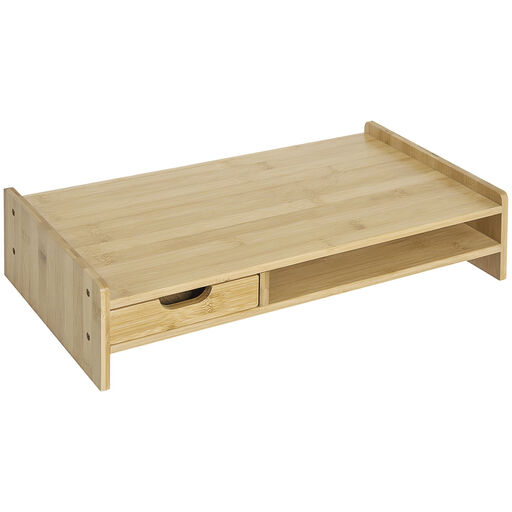
HOMCOM Bamboo Monitor Riser with Drawer
A riser option if you want to elevate a laptop or monitor and keep a separate keyboard and mouse underneath.
Dimensions: 49 × 25.5 × 11.5 cm. The product name specifies bamboo; the product description lists a drawer and storage cube.
View on Joybuy
 No image available
JBL Tune 780NC Wireless Over-Ear Headphones – Black
A headset option for a desk routine that includes work calls and listening through headphones.
The product information lists two beamforming microphones, multipoint Bluetooth, adaptive noise cancelling, Smart Ambient modes and a foldable design.
View on Joybuy
 No image available
BenQ MA270UP 27-inch 4K USB-C Mac Monitor
A separate display option for a laptop desk where screen space and adjustable positioning are priorities.
The product information lists a 27-inch 4K display, USB-C video and 90 W power delivery, plus height, pivot, swivel and tilt adjustments. Check the connection and charging requirements for your specific laptop.
View on Joybuy
 No image available
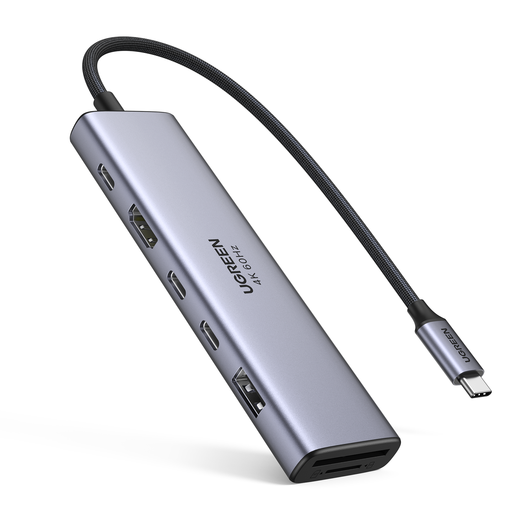
UGREEN 7-in-1 USB-C Docking Station
A hub option when you want to connect a compatible laptop to a display and desk peripherals.
The product name lists HDMI, two USB-C 3.2 ports, one USB-A 3.2 port, SD/TF card readers and PD charging. Check the laptop’s supported video and charging functions before choosing a hub.
View on Joybuy
 No image available
Targus 2K Webcam with Autofocus
A webcam option if your meeting routine calls for a separate camera that can be clipped to a laptop or monitor.
The product information lists USB connectivity, an adjustable clip, a tripod thread and a noise-reduction microphone. Check the connection and camera position for your workspace.
View on Joybuy
Home-office equipment FAQs
If I use a laptop at home for hours, is a stand enough?
Not by itself if you need a separate keyboard and mouse arrangement. The Health and Safety Executive advises separating the keyboard and mouse so the laptop screen can be elevated, or using a separate display; consider how the whole workstation will be positioned.
Will any USB-C dock run my planned monitors and charge my laptop?
No: the USB-C connector shape alone does not confirm video or charging support. Check your laptop’s video protocol, display support and charging requirements against the exact dock and cable. Lenovo lists host and operating-system conditions for its 40AY dock; Anker says the 565’s display modes depend on the laptop’s DisplayPort version and that pass-through charging requires a separate charger.
Do I need extra software for a Mac docking setup?
Only if the particular dock or feature depends on software. DisplayLink says its macOS Manager needs Screen Recording permission to function, but this is not a requirement for every dock. Check your device’s display behaviour and any employer software policy before choosing a setup that needs an installation.
How should I power several desk devices safely?
Plan the connections and check the rating of any extension lead you use. Electrical Safety First advises against overloading sockets or connecting extension leads to one another; appliances connected to an extension lead should not together exceed its maximum current rating.
Who assesses a home workstation if I am an employee?
The Health and Safety Executive says an employer must assess a workstation where an employee uses display-screen equipment daily, continuously for an hour or more as part of normal work. HSE guidance also says home and routinely hybrid workers can fall within the rules; this depends on the worker’s circumstances, not on buying a particular accessory.


