For prolonged laptop work, start by arranging the screen and input devices to suit your desk: that may mean raising the laptop and using a separate keyboard and mouse, or adding a separate display, in line with Health and Safety Executive posture guidance. Add a monitor when you need a separate screen, and choose a dock only after checking your exact laptop’s video, display-count, charging and operating-system support. If an employer DSE assessment identifies equipment that should be provided, check the relevant process before paying yourself; Great Britain and Northern Ireland have separate DSE guidance and regulations.
Who this setup suits
Laptop-only regular workers
If you spend long periods working on a laptop, consider how to position its screen and your hands independently before deciding whether you need another display. The Health and Safety Executive’s posture guidance recommends separating the keyboard and mouse when raising a laptop screen.
Document-and-call multitaskers
If you need a separate screen for documents and communication, match its size, position and connection to your desk and laptop. Check the laptop’s supported display output before choosing a monitor.
Hybrid workers who reconnect at a desk
If you regularly move between home and another workplace, decide whether a direct display connection is enough or whether a compatible dock would simplify reconnecting several devices.
What to check before buying
Start with the screen-and-input arrangement you can use comfortably at your actual desk; then check the laptop connections and any employer equipment process before choosing accessories.
| Concern |
What to check when buying |
Who this matters to |
| Screen and input position |
Check the laptop stand’s size fit and adjustment, plus room for a separate keyboard and mouse. |
If I raise my laptop for prolonged work, I want to position the screen and my hands separately. Around 36% of consumers put screen and input position first. |
| Separate screen for work |
Check desk depth, screen adjustment, native resolution, inputs and the laptop’s documented display output. |
If I need space for documents and calls, I want a separate screen that fits my desk and laptop. Around 29% of consumers prioritise a separate workspace. |
| Daily reconnection |
Compare the exact laptop and dock for video support, display limits, charging, operating system, cable and power supply. |
If I repeatedly connect displays and peripherals, I want to know the whole setup will work with my laptop. Around 21% of consumers prioritise reconnecting several devices. |
| Fit on a small or shared desk |
Measure usable desk space and check the monitor’s mount pattern and weight against any arm’s limits. |
If I share a compact work surface, I want an adjustable setup that fits without obstructing the space I use. Around 14% of consumers prioritise desk fit. |
Buying pitfalls
-
Buying a riser but typing on the raised laptop
The screen and built-in keyboard move together, so raising the laptop does not let you position them independently during prolonged use.
Plan the screen and input arrangement as a whole before choosing a riser. If you raise the laptop, allow space for a separate keyboard and mouse.
-
Assuming any USB-C port guarantees dock compatibility
Video support, display limits and charging depend on the laptop and dock configuration. A dock cannot add display capability that the laptop does not support.
Check the exact laptop model against the dock documentation, including operating system, display settings, cable and supplied power adapter.
-
Choosing a monitor arm by screen size alone
Fit also depends on the monitor’s mount pattern and weight, the desk attachment and the arm’s movement limits.
Compare the exact monitor and desk with the specifications and mounting requirements of the exact arm before ordering.
-
Assuming you must pay for all home-work equipment
Equipment needs depend on the individual assessment and applicable employer arrangements, rather than a universal equipment list.
If you are covered by employer DSE arrangements, raise the workstation issue and check the equipment process before making a personal purchase.
Relevant brands for these setup options
BenQ
BenQ’s GW2790QT is a 27-inch QHD USB-C hub monitor option for a separate work display.
- BenQ specifies 65 W USB-C power delivery and height, tilt, pivot and swivel adjustment for this model.
- The one-cable features depend on laptop compatibility; these specifications do not establish a particular comfort or productivity outcome.
Dell
Dell’s P2725HE is a 27-inch FHD USB-C monitor option with multiple connections and an adjustable stand.
- Dell lists HDMI, DisplayPort, USB-C upstream, Ethernet and height adjustment for this model.
- Its 1920 × 1080 native resolution differs from the cited QHD BenQ model; choose according to your display needs and connections rather than assuming either specification is preferable for everyone.
Lenovo
The ThinkPad Universal USB-C Dock 40AY0090UK is a docking option for a desk where a laptop is repeatedly reconnected.
- Lenovo lists multiple display and peripheral ports for this dock.
- Check system compatibility and display configuration. Lenovo lists 65 W charging and a supplied 90 W adapter for this part; do not assume broader “up to 100 W” line wording applies to this package.
Logitech
The MX Keys S is an example of a separate keyboard for a setup where the laptop screen is raised.
- Logitech specifies switching among up to three devices and broad basic operating-system compatibility for MX Keys S.
- Check the keyboard layout, permitted connection methods and fit at your desk; multi-device features do not replace those checks.
Kensington
The SmartFit Easy Riser Go is an adjustable laptop-riser option.
- Kensington specifies the cited variant for laptops up to 17 inches.
- Check the fit for the exact laptop. If you raise the screen for prolonged work, plan where a separate keyboard and mouse will go.
Ergotron
The LX desk arm is one option for repositioning an existing or planned monitor.
- Ergotron specifies a 3.2–11.3 kg capacity for this LX model.
- Ergotron notes that vertical travel may be reduced above 9.1 kg. Check the monitor’s mount and weight and the desk’s mounting suitability; these limits do not apply to every Ergotron arm.
Joybuy product choices
These choices cover external displays, USB-C connections and separate keyboard-and-mouse input for laptop-based work setups.
 No image available
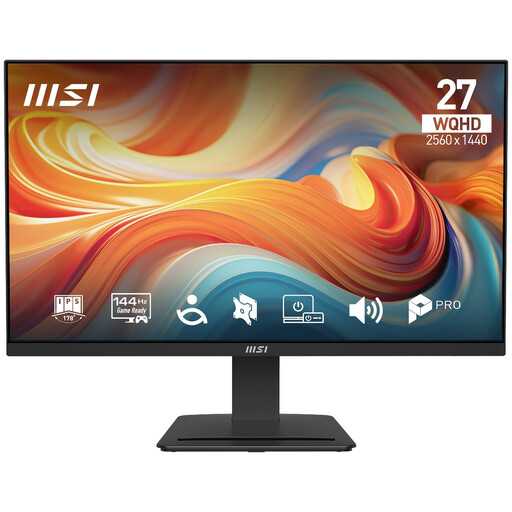
MSI PRO MP273Q E14 27-inch WQHD Monitor
A separate display option for work tasks where a 27-inch screen suits the desk and laptop connection.
2560 × 1440 (WQHD) resolution; 144 Hz; IPS; tilt adjustment; HDMI and DisplayPort.
Joybuy
 No image available
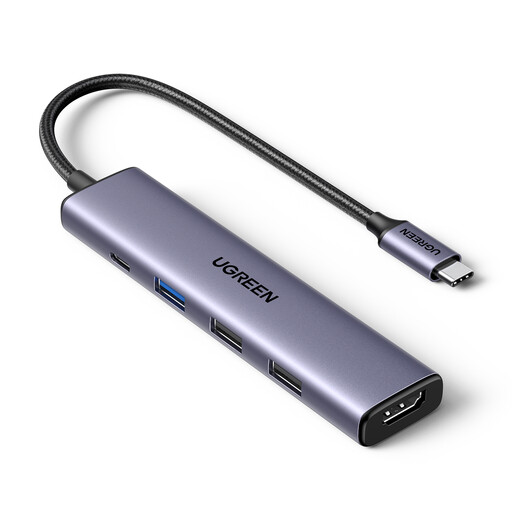
UGREEN Revodok 5-in-1 USB-C Hub
A laptop connection option when the intended display and peripheral setup is supported by the laptop.
Lists HDMI, three USB-A data ports and 100 W Power Delivery pass-through. Check the laptop’s video output and charging requirements before choosing a hub.
Joybuy
 No image available
ASUS ZenScreen MB249C
A separate display option for a flexible desk arrangement, subject to laptop connection compatibility.
23.8-inch Full HD display; USB-C with 60 W power delivery and HDMI. The listed mounting options include a kickstand, C-clamp and partition mounting; check the exact connection and mounting requirements for your setup.
Joybuy
 No image available
Targus USB-C Universal Dual HDMI Docking Station
A desk-connection option when you repeatedly connect displays and peripherals and the laptop supports the intended setup.
Two HDMI 2.0 outputs, USB-A ports, Ethernet and up to 100 W Power Delivery pass-through. Video output uses USB-C Alt. Mode; check the laptop’s supported display configuration and charging needs.
Joybuy
 No image available
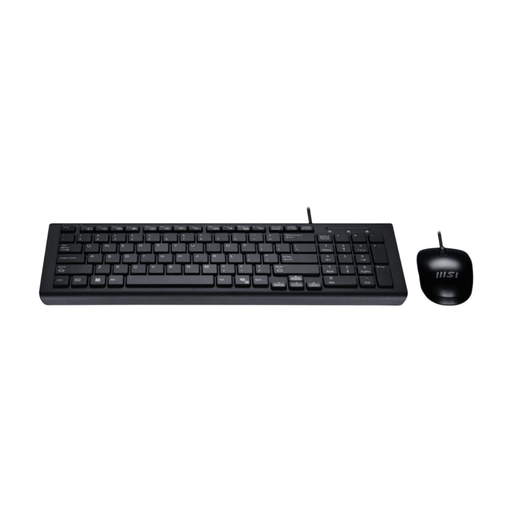
MSI GK-701 Office Keyboard and Mouse Set, UK Layout
A separate input option for a setup where the laptop screen is raised or a separate display is used.
Full-size UK-layout keyboard and optical mouse; both use wired USB-A connections.
Joybuy
Frequently asked questions
Can I use a laptop stand without another keyboard?
For prolonged laptop work, the Health and Safety Executive’s posture guidance pairs an elevated laptop screen with a separate keyboard and mouse, or suggests using a separate display. Check that the resulting screen and input positions work together at your desk.
Will any USB-C dock run two monitors and charge my laptop?
No: the USB-C connector alone does not establish that a dock will support two displays or charge a particular laptop. Check the exact laptop’s video method, supported display number and settings, charging requirements, operating system, cable and dock supply against the dock documentation.
What should I check before fitting a monitor arm or laptop stand?
For a monitor arm, compare the monitor’s mount pattern and weight with the arm’s capacity and movement limits, and check that the mounting method suits your desk. For a laptop riser, check the stated laptop fit and leave room for separate input devices if you are raising the screen for prolonged work.
Must I buy home-working equipment myself?
Not automatically. In Great Britain, the Health and Safety Executive says that when an applicable DSE assessment identifies equipment the employer needs to provide, workers cannot be charged for it. Northern Ireland has separate DSE regulations; the Health and Safety Executive for Northern Ireland says assessments should identify individual needs and whether extra home equipment is required. Raise the issue through your employer’s process before buying on the assumption that you must pay.


