Buying priorities
Start with the workstation finding, then check whether the chosen equipment can be positioned and connected as required. A USB-C connector alone does not confirm video output or charging support.
| Priority |
What to check |
Your needs |
| Workstation assessment |
Review the whole workstation, work activity and individual requirements. Check whether the screen, keyboard, mouse or available connections are the issue to address. |
I want equipment that solves the identified workstation problem, rather than adding accessories that do not change my working position. |
| Raised laptop setup |
Check the display height once the laptop is raised. For sustained typing and pointing, plan space for a separate keyboard just below elbow height and a mouse in line with the elbow. |
I need the laptop screen higher without leaving the built-in keyboard or trackpad too high for regular work. |
| Monitor and dock compatibility |
Confirm the exact laptop model, video-output protocol, supported external-display count, monitor input, cable capability and operating-system limits. Check charging requirements where one-cable power is expected. |
I need the display, peripherals and charging arrangement to work with my particular laptop, not simply fit its USB-C socket. |
| Assessment-identified equipment |
Keep the assessment result and use the employer’s DSE or homeworking process where equipment has been identified as necessary. |
If my assessment identifies additional DSE equipment, I want to raise it with my employer before paying personally. Health and Safety Executive guidance for Great Britain and Health and Safety Executive for Northern Ireland guidance say workers cannot be charged where provision is indicated. |
Joybuy product options
Joybuy product options for assessment-led external-display and connectivity setups for regular home or hybrid laptop work.
 No image available
ASUS ZenScreen MB249C IPS USB-C
For home or hybrid work that needs a separate display at a workable position.
23.8-inch IPS display, USB-C with stated 60W power delivery, HDMI, kickstand, C-clamp arm and partition hook. Confirm that the laptop supports USB-C DisplayPort Alt Mode and that 60W meets its charging requirement.
Joybuy
 No image available
Targus USB-C Universal Dual HDMI 4K Docking Station
For a compatible one-cable desk that needs two external displays and several peripherals.
Two HDMI 2.0 outputs, Gigabit Ethernet, USB ports, card readers and stated 100W power-delivery pass-through. A separate 100W-or-higher power adapter is stated as the power source; check host display support and operating-system behaviour.
Joybuy
 No image available
ASUS ProArt PA278CV IPS WQHD
For a fixed workstation that needs a larger separate display and adjustable screen position.
27-inch WQHD IPS display with height, tilt, swivel and pivot adjustment, plus HDMI, DisplayPort, USB-C, USB hub and VESA support. Check desk space, cable routing and the laptop’s intended video connection.
Joybuy
 No image available
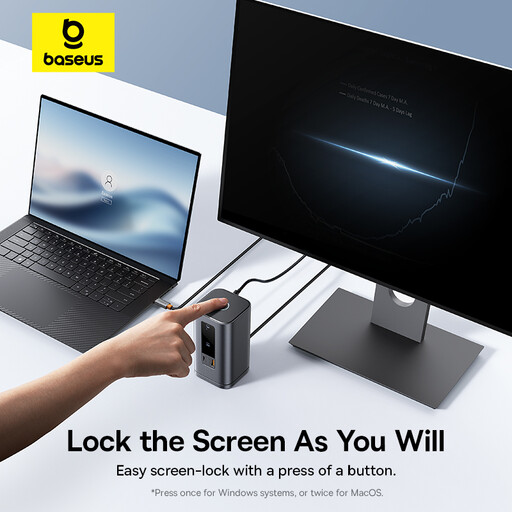
Baseus Wisdom Series 11-in-1 WIN Workstation
For a workstation requiring several display and peripheral connections from a compatible laptop.
Two HDMI ports, two DisplayPort connections, Ethernet, USB ports and stated USB-C PD input up to 100W. The 100W figure is input rather than confirmed laptop charging output; verify independent-display support, operating-system limits and cable capability.
Joybuy
 No image available
Dell P2425H 24-inch Full HD IPS Monitor
For regular home-office work needing a separate screen without a large desk footprint.
24-inch Full HD IPS display, 100Hz refresh rate, height, tilt and swivel adjustment, with USB-C, DisplayPort, HDMI and VGA inputs. Check which input suits the laptop; charging capability is not confirmed here.
Joybuy
Frequently asked questions
Does every home worker need a monitor, laptop stand, keyboard, mouse and dock?
No. The workstation assessment should consider the whole workstation, the work being done and individual requirements, then address the risks it identifies. The Health and Safety Executive notes that home workers may not need office-type equipment to achieve a suitable posture, while their own equipment may also be unsuitable or insufficient.
When is a laptop stand or riser appropriate?
A riser is appropriate when the assessment identifies that the laptop screen needs raising for a more suitable viewing position. For sustained typing and pointing, plan a separate keyboard and mouse as well, because a raised built-in keyboard and trackpad may no longer sit at a suitable working height and position.
What should I check before buying a USB-C dock or monitor?
Check the exact laptop model’s port specifications, supported external-display count, operating-system support, display outputs, charging requirement, dock or monitor power delivery, cable specification and monitor input. USB-C is a connector type; video through it depends on supported functions such as DisplayPort Alt Mode, Thunderbolt or USB4.
Can a display splitter create two independent external desktops from one laptop output?
Not necessarily. Microsoft says a splitter duplicates the same signal rather than creating two independent signals. Confirm the laptop and dock documentation if you need an extended multi-monitor desktop.
Can my employer charge me for DSE equipment identified as necessary for home working?
No, where a DSE workstation assessment indicates action such as providing additional DSE equipment, Health and Safety Executive guidance for Great Britain and Health and Safety Executive for Northern Ireland guidance say the worker cannot be charged. Discuss the assessment finding and employer process before paying personally.


