Start with what makes your laptop difficult to use at home: limited screen space, repeated reconnection, awkward typing or calls. Choose only the accessories that address that need, then check your laptop’s video output, display limits and charging requirements before relying on a USB-C monitor, hub or dock as a one-cable setup.
Who a laptop-centred home workstation suits
Laptop workers who need more screen space
If documents or applications feel cramped on a laptop display, a separate screen may help create a more workable desk layout. Check the laptop’s video output and the space available before choosing a monitor.
People who reconnect their laptop at home
If you move between a workplace and home, a hub or dock can bring several desk connections together, provided its display and charging features match your exact laptop.
People focused on typing, pointing or calls
If screen space is already sufficient, consider whether separate input devices or a camera better address the specific difficulty in your routine. Logitech’s compact keyboard option, for example, differs from its full-size option by omitting a dedicated number pad.
What to prioritise when choosing workstation accessories
| Concern |
What to check when buying |
Who this matters to |
| Screen space and positioning |
Check laptop video output, monitor inputs, desk dimensions and screen adjustment. |
If I need a more usable main display for documents or applications, I would start with screen space and positioning. Around 29% of consumers put those needs first. |
| Reconnection and compatibility |
Check the laptop, cable and hub or dock for video support, display limits and delivered charging power. |
When I reconnect several devices at home, I want their connections to work with my laptop rather than relying on the USB-C socket alone. About 23% of consumers prioritise reliable reconnection and compatibility. |
| Typing and pointing |
Check keyboard layout, connection method, mouse space and where the devices will sit. |
If my screen or laptop position makes the built-in keyboard awkward, separate input devices may suit my desk better. Roughly 18% of consumers focus first on comfortable typing and pointing. |
| Meeting camera and audio |
Identify what is lacking in the current setup, then check connection, placement and any software needed for optional features. |
For meetings, I would replace or add equipment only if the current camera or audio arrangement does not meet my needs. Around 18% of consumers put their call setup first. |
| Power and desk space |
Check connected equipment against the extension lead’s rating, and plan cable reach without chaining extension leads. |
If desk space and existing sockets constrain what I can add, I need to plan the layout and power arrangement before buying more devices. About 12% of consumers make space and power their primary concern. |
Buying pitfalls to avoid
-
Assuming every USB-C port carries video
USB-C video over DisplayPort Alt Mode depends on compatibility across the host, cable and connected accessory. A USB-C connector by itself does not confirm that the whole connection will display a picture.
Check the exact laptop port’s video capabilities and the accessory’s supported display modes before choosing a one-cable setup.
A separate compatible charger may be needed if the setup does not include one that meets your requirements.
-
Adding extension sockets without checking the load
Electrical Safety First warns that overloading sockets can cause overheating and fire, and advises against plugging one extension lead into another.
Check the connected equipment against the lead’s stated rating, use one extension device per socket and do not daisy-chain extension leads.
Relevant brands to consider
Dell
Dell’s P2725HE illustrates a monitor designed to combine a display with desk connections.
- Dell specifies a 27-inch FHD panel, adjustment, Ethernet and up to 90 W power delivery for this model.
- Those specifications do not establish that a particular laptop supports USB-C video or the monitor’s charging arrangement. Check the exact laptop and monitor requirements.
Lenovo
The ThinkPad Universal USB-C Dock 40AY is an example of a dock for a fixed desk with several connections.
- Lenovo documents display connections and USB-C docking for the model.
- Lenovo specifies USB-C Alt Mode or Thunderbolt support on the host; some ThinkPad-oriented features may not be available on other notebooks. The stated maximum 100 W notebook charging requires a separately available 135 W adapter.
Anker
The 555 USB-C Hub (8-in-1) is an example of compact port expansion for a laptop.
- Anker lists an HDMI output, USB data connections and Ethernet for this hub.
- Port count alone does not confirm support for multiple independent displays or the charging arrangement you need. Check the hub against the exact laptop.
Logitech
Logitech’s examples include separate keyboard and video-call accessories.
- Logitech offers the MX Keys Mini in a compact form and a separate full-size version with an integrated number pad. The Brio 500 is listed as a 1080p webcam.
- Logitech says Brio 500’s optional auto-framing requires Logi Tune. Consider whether the feature and separate camera address a need your current setup does not meet.
StarTech.com
StarTech.com’s USB-C guidance is relevant when checking a dock or adapter’s video connection path.
- Its documentation explains that DisplayPort Alt Mode video needs compatible components across the connection path.
- That compatibility guidance does not establish that every dock suits every laptop. Check the exact host and accessory combination.
Joybuy product choices for a laptop-centred workstation
These choices cover laptop positioning, separate keyboard and mouse input, USB-C connections, an external display and a work-call webcam. Check your laptop’s compatibility, desk layout and power requirements before combining accessories.
 No image available
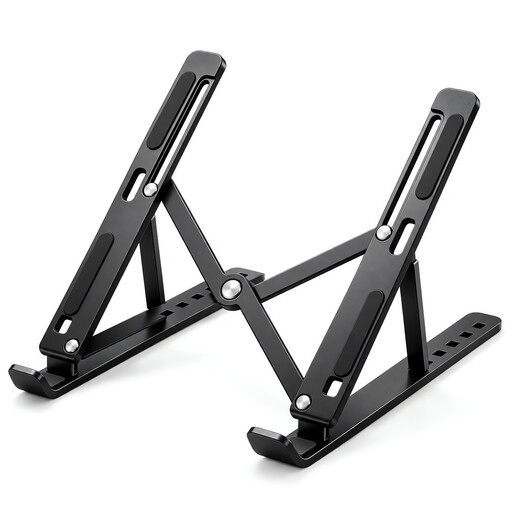
Foldable Carbon-Steel Laptop Stand, 10–17-inch
For raising and positioning a laptop screen at a home desk; it folds flat for storage between work sessions.
Seven angle settings; stated fit for 10–17-inch laptops; ventilated panel and anti-slip pads.
Joybuy
 No image available
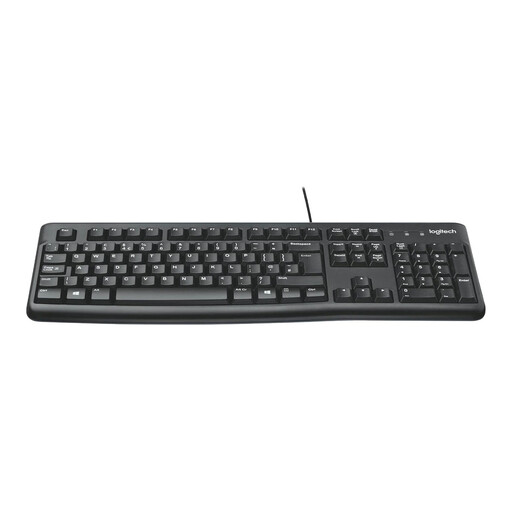
Logitech MK120 Wired Keyboard and Mouse Combo
For adding separate keyboard and mouse input to a home workstation.
Wired keyboard and mouse combo.
Joybuy
 No image available
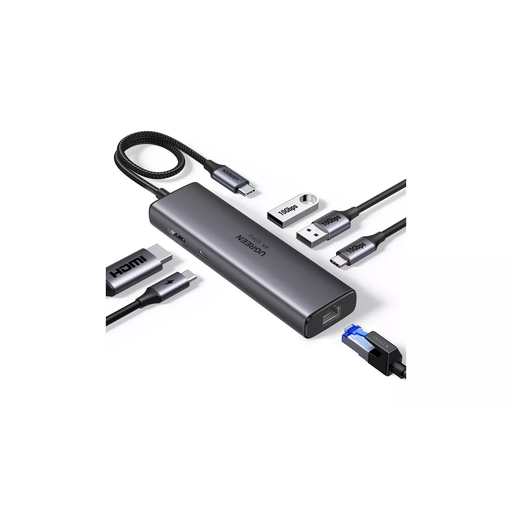
UGREEN USB-C Multi-function Docking Station
For a desk setup that needs USB-C connections for a display and peripherals; check the laptop’s video support and charging requirements before relying on the dock.
HDMI, 2xUSB-A3.2, 1xUSB-C3.2, RJ45 and PD4K/60, as stated in the product name.
Joybuy
 No image available
MSI MD272UPSW Smart Monitor, 27-inch 4K UHD
For a laptop-based desk setup that needs a separate display; check the laptop’s video output and whether the stated USB-C power delivery suits its charging needs.
IPS; Google TV; Dolby Audio; USB-C 65W power delivery; Multi-Control, as stated in the product name.
Joybuy
 No image available
Targus 2K Webcam with Autofocus
For a separate camera in a work-call setup; check that its connection and placement suit your desk.
2K webcam with autofocus, as stated in the product name.
Joybuy
Frequently asked questions
Will any USB-C hub or monitor show my laptop’s picture?
No. DisplayPort Alt Mode video needs compatible support across the laptop, cable and connected device. Check the exact laptop port and the accessory’s supported display arrangement before buying.
Can I charge my laptop through a hub without another charger?
Not necessarily. Power-delivery input and power delivered to the laptop are different specifications. Check the accessory’s output, your laptop’s charging requirements and whether a compatible charger is included.
What should I consider when raising my laptop on a stand?
Assess the whole workstation, including the screen and input positions. If raising the screen makes the built-in keyboard or trackpad awkward to use, consider separate input devices and a workable desk layout.
Can I plug one extension lead into another to reach my desk?
Electrical Safety First advises against daisy-chaining extension leads because of overheating and fire risk. Check connected loads against the lead’s rating and arrange the workstation within reach of an appropriate socket.


