Choose a compact USB-C hub if you need a few ports and one compatible display connection; consider a powered dock if you regularly reconnect charging, monitors, Ethernet and peripherals at a fixed desk. Check your exact laptop’s video output, external-display limit, operating-system support and USB-C charging capability before choosing either. DisplayLink may offer another route when native video connectivity is limited, but it requires compatible software and, on macOS, permission to access the screen.
Who each setup suits
One-cable fixed-desk workers
If you move your laptop between locations but return to the same desk, a dock can leave monitors, wired networking and peripherals connected. Check that your laptop accepts the dock’s video connection and charging method before relying on one host cable.
People carrying a small port kit
If you need one external display and a few extra connections away from your main desk, a compact hub or adapter may be enough. Plugable notes that a USB-C port must support DisplayPort Alternate Mode for a native USB-C video connection.
People working around display limits
An older USB-A laptop, a data-only USB-C port or a Mac with a model-specific display limit calls for a closer compatibility check. Apple says supported external-display counts depend on the Mac model; a DisplayLink accessory is another possibility if its software requirements are acceptable.
What matters when choosing
Start with the connections your laptop can provide, then decide whether your desk needs a repeatable one-cable setup or just a few extra ports.
Compact USB-C hub
Choose it when: You carry your connections and usually need one external display with a small number of peripherals.
Allow for: Native video still depends on the laptop’s USB-C capability; a hub cannot create display bandwidth the laptop lacks.
Powered USB-C or Thunderbolt dock
Choose it when: Monitors, Ethernet and USB devices stay at a desk that you reconnect to frequently.
Allow for: Charging and display capabilities depend on the host laptop; Thunderbolt features require a compatible host.
DisplayLink USB graphics
Consider it when: Native USB-C video is unavailable or the intended display arrangement exceeds the laptop’s native options.
Allow for: DisplayLink software, operating-system compatibility and, on macOS, Screen Recording permission.
Separate adapters or a connected monitor
Choose them when: You need one missing connection, or your monitor already provides the ports your desk requires.
Allow for: Separate connections may mean reconnecting several cables, while the laptop’s own display limit still applies.
| Concern | What to check | Who this matters to |
|---|
| Laptop and display compatibility |
Check the exact laptop model’s USB-C video mode and native external-display limit, then compare the intended screen count, resolution and refresh rate with the accessory’s supported configuration. |
If my desk needs particular monitors, I want to know they will work with my laptop before choosing a hub or dock. Around 37% of consumers put that compatibility need first. |
| Repeatable desk connection |
Count the devices that will stay connected; check the dock’s charging arrangement against the laptop’s USB-C Power Delivery needs and whether the required power supply is included. |
At a desk I return to often, I would rather reconnect charging, screens, Ethernet and peripherals without rebuilding the setup. Roughly 27% of consumers prioritise that routine. |
| Portable connections |
Choose the display and peripheral ports you need away from the desk; check whether charging must pass through the accessory. |
When I carry my laptop between workspaces, I need a small set of useful connections instead of a full desk dock. About 18% of consumers make portability their primary concern. |
| Display expansion on a constrained laptop |
For a DisplayLink product, check operating-system and software support; on macOS, account for DisplayLink Manager and Screen Recording permission. |
If my laptop lacks the native video connection I need, I want a display route I can actually set up and maintain. Around 18% of consumers put that constraint first. |
Compatibility mistakes to avoid
-
Assuming every USB-C port carries video and charging
A USB-C connector can be limited to data or charging. A USB-A-to-USB-C adapter does not add DisplayPort Alternate Mode or Thunderbolt capability to a laptop that lacks it.
Check the exact laptop model for USB-C DisplayPort Alternate Mode, USB4 or Thunderbolt as applicable, and check Power Delivery separately if you expect charging through the accessory.
-
Buying for a single headline display figure
A dock’s stated maximum output does not necessarily describe what your laptop can run across two monitors. Screen count, resolution and refresh rate depend on the complete host and display configuration.
Write down both monitors’ intended resolutions and refresh rates, then compare that combination with the laptop maker’s and dock maker’s guidance.
-
Expecting the same dual-monitor result on Mac and Windows
Apple says native external-display support depends on the Mac model. Plugable says its UD-MSTH2 USB-C MST dock is not recommended for macOS users who need dual extended displays.
Check your Mac model’s display support and the dock’s stated macOS display arrangement before buying; assess DisplayLink’s software requirements separately if considering that route.
-
Overlooking DisplayLink setup
DisplayLink uses software-based USB graphics, so installing or maintaining its software can be part of using the accessory. DisplayLink says macOS also requires Screen Recording permission.
Check operating-system support and, for a managed work laptop, whether required software and permissions are allowed.
Brands to consider
These brands offer different dock approaches; compare the requirements of a particular model with your laptop rather than treating a brand name as a compatibility guarantee.
Lenovo
Lenovo’s business dock range includes USB-C and Thunderbolt models for fixed desks and ThinkPad setups.
- Lenovo specifies up to four displays and up to 100W dynamic power delivery for the ThinkPad Universal Thunderbolt 4 Dock (40B00135UK), subject to the host configuration.
- Lenovo says functions including MAC-address pass-through, Wake-on-LAN and mirrored power-button behaviour may be unavailable on non-Lenovo systems.
Plugable
Plugable offers USB-C MST docks as well as products using DisplayLink USB graphics.
- For the UD-MSTH2, Plugable specifies two HDMI connections supporting up to 4K at 60Hz on compatible systems, alongside 65W laptop charging and Gigabit Ethernet.
- The UD-MSTH2 needs suitable USB-C DisplayPort Alternate Mode support and display bandwidth; Plugable does not recommend its MST design for macOS users needing dual extended displays.
Anker
Anker’s Prime TB5 is a Thunderbolt 5 option for a desk with a compatible high-bandwidth host.
- PCMag UK reports up to 80Gbps transfers, up to 240W charging and 2.5Gbps Ethernet for the Anker Prime TB5.
- Those reported capabilities depend on compatible Thunderbolt 5 hardware; they do not describe what an ordinary data-only USB-C port can provide.
Dell
Dell’s Pro Thunderbolt 4 Smart Dock is a business-desk option, particularly where the host laptop is also a Dell.
- PCMag UK reports Thunderbolt 4, USB-A and USB-C ports, 2.5Gbps Ethernet and multiple display outputs for this model.
- PCMag UK says full power-delivery support requires a Dell laptop; users of other brands should check their expected charging and display configuration.
Joybuy products for different desk needs
These choices cover fixed-desk docks, a single-display adapter and compact USB-C hubs. Match the connections you need to your laptop’s video and charging support before choosing a product.
 No image available
Targus USB-C Universal Dual HDMI 4K Docking Station, Retail Packaging
Consider this for a desk where two HDMI display connections and charging pass-through are part of the plan.
The product name specifies dual HDMI 4K and 100W Power Delivery pass-through. Check your laptop’s supported two-display arrangement and whether the external power adapter you need is supplied.
View on Joybuy
 No image available
V7 V7UC-U3CRJ45HDVG-BLK USB-C Adapter
Consider this when you need a display connection, wired networking and USB ports without a full desk dock.
The product name lists 4K HDMI, VGA, Gigabit Ethernet, 100W Power Delivery and dual USB 3.0 ports. Check whether its display outputs can be used in the arrangement you intend and whether your laptop supports USB-C video and charging.
View on Joybuy
 No image available
USB-C Multiport Adapter with 2 HDMI, DP and RJ45
Consider this for a fixed desk that needs several connection types, provided the complete display arrangement suits your laptop.
The product name lists 2 HDMI, DP, 2 USB 3.0, 2 USB 2.0, RJ45, PD, SD/TF and audio connections. Check the supported screen configuration, operating-system behaviour and charging wattage before relying on those connections together.
View on Joybuy
 No image available
Baseus Metal Gleam Series 7-Port USB-C Hub, Grey
Consider this if you want to carry a hub between workspaces rather than leave a dock at one desk.
The product name identifies a seven-port USB-C hub. If you need a monitor, laptop charging or wired networking, check the exact port configuration, your laptop’s support and any separate charger requirement before buying.
View on Joybuy
 No image available
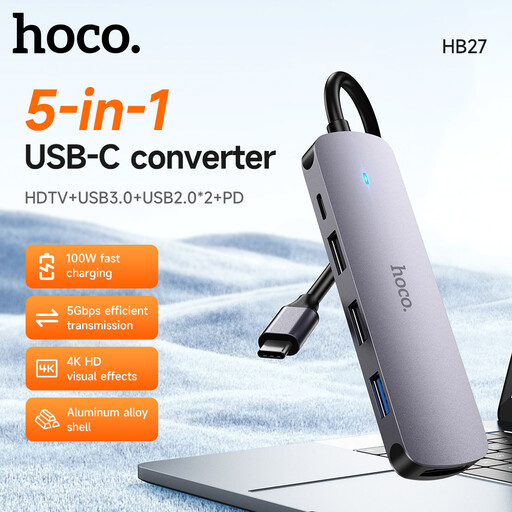
HOCO HB27 USB-C Hub, Metal Gray
Consider this for a simpler desk or portable setup where a USB-C hub matches the connections you use.
Check its HDMI configuration and charging pass-through against your laptop and monitor, including the supported display resolution and charging wattage. Check the port arrangement if wired networking is essential.
View on Joybuy
Common questions
Will any USB-C port work with a monitor dock?
No. For a dock that uses native USB-C video, check whether your exact laptop supports the required DisplayPort Alternate Mode, USB4 or Thunderbolt connection. The laptop’s display bandwidth and external-display limit also affect what the dock can show.
Can I use any dual-monitor dock with a Mac?
Not for every two-screen arrangement. Apple says external-display support depends on the Mac model, while Plugable does not recommend its UD-MSTH2 MST dock for macOS users needing dual extended displays. Check both the Mac’s native limit and the particular dock’s macOS guidance.
What setup does a DisplayLink dock need?
A DisplayLink dock needs compatible USB graphics software rather than relying solely on a native video signal. Check operating-system support and driver requirements; DisplayLink says macOS users need DisplayLink Manager and must grant Screen Recording permission for extended or mirrored displays.
What should I do if a dock is faulty or not as described?
Keep the listing, receipt and any specific laptop or display compatibility claims, then raise the issue with the seller. Citizens Advice says broken, damaged or misdescribed goods can give rise to legal rights; a retailer’s change-of-mind returns policy is a separate matter.
How should I dispose of an old dock?
Use an appropriate electrical-equipment recycling or retailer take-back route where available. GOV.UK describes waste electrical and electronic equipment rules as encouraging recovery, reuse and recycling rather than disposal in landfill or by incineration.


