For language exercises beside a bright window, compare the exact screen configuration before paying for processor upgrades: check its normal brightness, panel finish and how reflections fall at your desk. Then choose Windows, macOS or ChromeOS according to the websites, apps, input methods and assessment tools your course requires; an HDR peak-brightness figure alone cannot establish how readable ordinary text will be.
Who is this for?
Bright-window writers
If daylight makes exercise text hard to see, compare the selected screen’s stated normal brightness and surface finish. Apple, ASUS and Lenovo specifications illustrate why these details need checking for the exact model or configuration.
Language learners with required course tools
If your school or tutor specifies an app, browser extension, input method or assessment tool, confirm that it works on your chosen operating system before settling on a screen or battery preference.
People studying in several locations
If you carry your laptop between home, class and the library, consider its listed weight and charging arrangements. Microsoft cautions that battery runtime varies with settings, so a published figure is not a promise for sessions at higher screen brightness.
What matters when choosing?
Start with any course software requirement, then compare the exact display and keyboard you will use beside the window. These platform routes answer different compatibility needs; none establishes that a particular screen will be readable at every window angle.
MacBook Air
Consider it when: Your exercises work in a browser or are confirmed for macOS, and you want the 500-nit display stated in Apple’s MacBook Air specifications.
Check first: Confirm every required app, extension and assessment tool; the brightness specification does not settle reflections at your desk.
Windows laptop
Consider it when: Your course requires Windows software, and compare an anti-glare or low-reflection option on the exact configuration you intend to buy.
Check first: Panel specifications vary: Lenovo lists 300-nit anti-glare examples, while ASUS lists a 400-nit Zenbook A14 specification and separate HDR peak brightness.
Chromebook
Consider it when: Your exercises and required tools are confirmed to work through ChromeOS-compatible web or Android apps.
Check first: Google’s description of web and Play Store app availability does not confirm that a particular offline program, extension or assessment system will work.
| Concern | What to check | Who this matters to |
|---|
| Daylight readability |
Compare normal or SDR brightness and the exact panel’s anti-glare or low-reflection finish; do not substitute an HDR peak figure. |
If reflected daylight obscures exercise prompts, I need a screen I can assess in a similar seating position. Around 40% of consumers put daylight readability first. |
| Writing comfort |
Check the keyboard layout and typing space, then consider whether the screen leaves enough room for prompts and answers. |
For long writing sessions, I want keys and working space that suit repeated typing. Comfortable writing is the primary need for roughly 30% of consumers. |
| Course compatibility |
Confirm each required website, desktop app, extension, input method and assessment tool on the chosen platform. |
If my course depends on a particular tool, I cannot choose by display specifications alone. About 20% of consumers place confirmed access to course tools first. |
| Portability and charging |
Compare the listed weight and charging requirements; assess battery claims against use at your preferred screen brightness. |
When I move between study locations, carrying the laptop and finding a workable charging setup matter most. That is the leading need for around 10% of consumers. |
Mistakes to avoid
-
Treating HDR peak brightness as normal brightness
An HDR peak figure describes a different condition from the normal brightness used when reading exercise text. ASUS lists separate 400-nit and 600-nit HDR peak figures for Zenbook A14 configurations.
Record normal brightness and panel finish separately for each configuration, then assess reflections in a comparable position if you can.
-
Assuming every laptop in a range has the same screen
Size and configuration can change the display specification. Lenovo’s listings include 300-nit anti-glare panels, while ASUS specifies different Zenbook A14 display options.
Check the technical details for the exact model you are considering rather than relying on its family name.
-
Planning around headline battery life
Microsoft says actual battery life varies with settings and usage; a published Surface battery test uses a screen brightness of 150 nits.
Plan charging around your own window-side brightness setting, and check the exact laptop’s charging requirements before choosing a spare charger.
Working at a brighter setting may mean charging more often or carrying an appropriate charger.
-
Choosing an operating system before checking course tools
Access to web and Android apps on a Chromebook does not establish that a particular offline application, extension or assessment tool will run.
List the tools your course requires and confirm each one with the course provider or software publisher before ordering.
Relevant brands to compare
Apple
MacBook Air is worth comparing when your language-study tools support macOS and you want a portable laptop with a stated display-brightness specification.
- Apple lists a 13.6-inch Liquid Retina display at 500 nits for MacBook Air.
- That specification does not show how reflections will look beside your window; confirm macOS compatibility with every required tool.
ASUS
Zenbook configurations give Windows users display options to compare when reflections are a concern.
- ASUS lists a 400-nit Zenbook A14 display specification and an anti-glare or low-reflection option on listed variants.
- Its separate 600-nit HDR peak figure is not the normal brightness figure; confirm the panel fitted to the chosen variant.
Lenovo
Lenovo is relevant when comparing conventional Windows laptops with specified anti-glare display options.
- Lenovo’s UK listings include 14-inch models with 300-nit anti-glare IPS panels.
- A family name alone does not identify the panel in the configuration you are buying.
Microsoft
Surface Laptop is relevant if a conventional Windows laptop with a full-size keyboard and a taller display suits your writing workflow.
- Microsoft describes a full-size backlit keyboard and a 3:2 display for documents and web pages.
- Microsoft says battery life varies with settings; a test at 150-nit brightness cannot establish runtime at your preferred window-side setting.
Joybuy laptop choices
These Windows and ChromeOS laptops offer different screen sizes and platform choices for language exercises. Check each exact screen in lighting similar to yours and confirm that your course tools work before choosing.
 No image available
ASUS Vivobook 14 X1407QA-LY003W, Snapdragon X, 16GB RAM, 512GB SSD, Quiet Blue
Consider this Windows-route laptop if you want a 14-inch model for exercises and can confirm your course tools work with its configuration.
Check how its screen handles reflections where you sit; a panel description alone cannot establish readability beside your window.
View on Joybuy
 No image available
Acer Chromebook Plus 514 CB514-5H, 14-inch WUXGA, Core i3-1315U, 8GB RAM, 256GB SSD, Iron
Consider this Chromebook for browser-based exercises only after confirming that your required apps, extensions and assessments work on ChromeOS.
The named variant has a 14-inch WUXGA (1920 × 1200) display. Check its normal brightness and assess reflections for your window position.
View on Joybuy
 No image available
Lenovo LOQ Essential 15ARP11, Ryzen 7 170, 16GB RAM, 1TB SSD, RTX 5050, 15.6-inch 144Hz FHD
Consider this larger Windows laptop if you write mainly at a desk and want to compare a 15.6-inch screen with smaller options.
Its gaming specifications do not establish better exercise-writing or bright-window performance. Check the exact panel in comparable daylight and confirm course-tool compatibility.
View on Joybuy
 No image available
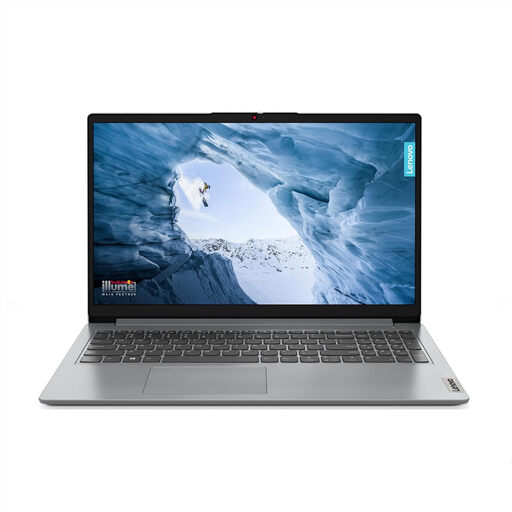
Lenovo IdeaPad 1, 15-inch Full HD, Ryzen 3 7320U, 8GB RAM, 128GB SSD, Windows 11 Home in S Mode, Cloud Grey
Consider this 15-inch laptop if its writing space suits you, but check that every required course tool works with Windows 11 Home in S Mode.
Confirm the exact screen’s normal brightness and inspect the keyboard layout if key placement matters to your language exercises.
View on Joybuy
 No image available
Acer Aspire Lite AL15-36P-C29Z, 15.6-inch Full HD, Intel N150, 8GB DDR4 RAM, 128GB SSD, Windows 11 Home, Silver
Consider this Windows laptop if a 15.6-inch screen suits your writing setup and your required course tools run on its configuration.
Check normal screen brightness for your window position. Its keyboard is not backlit, which may matter if you also study in dimmer light.
View on Joybuy
Frequently asked questions
Does a 600-nit HDR figure mean exercise text will be easy to read beside a sunny window?
No: an HDR peak figure does not establish normal brightness or how much of the window will reflect in the screen. ASUS lists 400 nits separately from a 600-nit HDR peak figure for Zenbook A14 configurations; check the exact panel finish and assess it in similar daylight.
Is a Chromebook suitable for language exercises?
A Chromebook can suit exercises whose required tools are confirmed to work on ChromeOS. Google says Chromebooks can use web and Play Store apps, but check your particular course website, offline software, extensions and assessment requirements before buying.
Will advertised battery life apply when I increase screen brightness?
Do not count on a published runtime at your own brightness setting. Microsoft says battery life varies significantly with settings and usage, and its cited test uses a screen brightness of 150 nits; plan charging around how and where you actually study.


