Café-based lesson planners
Teachers carrying a laptop between home, school and cafés who need enough screen and keyboard space for extended writing without making the device awkward to carry.


For regular lesson planning in a café, start with a 13- or 14-inch laptop that you can carry comfortably and use for documents; check your school’s required software and accounts before choosing an operating system. A smaller screen takes less space in your bag, while a larger one gives planning documents more room. Battery claims need their test conditions, and work involving pupil information must follow your school’s data-handling procedures.
Teachers carrying a laptop between home, school and cafés who need enough screen and keyboard space for extended writing without making the device awkward to carry.
Teachers whose operating-system choice depends on required applications, accounts, printers or device-management rules. Those requirements come before preferences about laptop size or ports.
Teachers who may handle personal information while working remotely. Department for Education guidance places responsibility for protecting that information on school staff, so the device and working method need to follow school procedures.
Check school-system compatibility first, then weigh the space you need for writing against what you are willing to carry. Treat power and secure remote access as part of the same café-working decision.
| Concern | What to check | Who this matters to |
|---|---|---|
| Carrying and writing space | Compare the exact model’s weight, keyboard and screen size. Which? identifies 13- and 14-inch laptops as smaller alternatives to bulkier 15-inch models. | If I carry my laptop between lessons and a café, I want room to write without a cumbersome bag. Around 40% of consumers put this balance first. |
| School-workflow compatibility | Confirm the required operating system, applications, accounts and peripherals with your school; compare memory and SSD storage for the exact configuration. | When I need to open shared planning files and use school systems, compatibility takes priority over a lighter chassis. For around 30% of consumers, it is the main concern. |
| Power and secure access | Read the battery claim’s test basis and check the charger requirements. Confirm your school’s approved device, network and data-handling procedures. | Without a dependable socket or an approved way to access school work, I need a plan for both charging and protecting information. This is the primary concern for around 30% of consumers. |
Apple’s figure of up to 15 hours for the 13-inch MacBook Air measures wireless-web use, while Microsoft’s figure of up to 22.5 hours for the 13-inch Surface Laptop measures video playback. They do not describe the same test or establish lesson-planning runtime.
Read the test activity and charging requirements for the exact model, and take a compatible charger when a session may run long.
Operating systems and connections differ. Apple lists two Thunderbolt 4/USB-C ports for the cited MacBook Air, while ASUS lists USB-A, HDMI and USB-C connections for the cited Zenbook 14 UX3480 Intel configuration.
Ask your school about required applications, printing, displays and device management, then check the exact laptop and any adapters those requirements call for.
An incompatible port may mean carrying an adapter; an incompatible school application may require access to another approved device.
The National Cyber Security Centre warns that attackers on public or insecure networks can intercept or modify data. Department for Education guidance also says school staff are responsible for protecting personal information.
Follow your school’s approved remote-access and data-handling process, keep the device updated and lock its screen when stepping away. Do not access sensitive material through an unapproved device or network.
MacBook Air is a macOS option when school applications, accounts and policies support it. Apple lists 13-inch and 15-inch versions; its cited 13-inch specification includes a 13.6-inch display, 16GB unified memory and a 512GB SSD.
The ASUS Zenbook 14 UX3480 Intel specification illustrates a 14-inch Windows option. ASUS lists this configuration at 1.20kg, with 16GB memory and a 512GB SSD.
Dell XPS 13 DX13260 is a compact Windows line to consider when a smaller device suits document work away from a desk.
ThinkPad X1 Carbon Gen 13 Aura Edition is a 14-inch business-oriented option for teachers considering low carry weight and formal support. Lenovo describes the model as weighing just over 1kg.
These laptops offer different screen sizes and configurations for document-focused planning: compact Windows and Apple models sit alongside a larger-screen MSI option. Check school-system compatibility and the exact charging requirements before choosing.
 No image available
Consider this 14-inch model if you want a smaller screen format for carrying lesson documents. Its named configuration has a Snapdragon X processor, 16GB RAM and a 512GB SSD; confirm that your school’s required software supports the exact device before buying.
 No image available
The 2-in-1 format is worth considering if you want a convertible laptop for planning. This named configuration has 16GB RAM, a 1TB SSD and Windows 11 Home; check school-software compatibility, charging and the required accessories for this model.
 No image available
Consider this MacBook Air for a compact planning setup if your school supports macOS. This variant names 24GB memory and a 1TB SSD; confirm application and printer compatibility, and assess battery claims against your own workload rather than assuming a full café-session runtime.
 No image available
This 13-inch Apple model is another smaller-format choice for planning documents, distinct from MacBook Air. The named variant has 8GB memory, a 512GB SSD and Touch ID; confirm its operating-system fit with school applications and check its weight and charging arrangement before purchase.
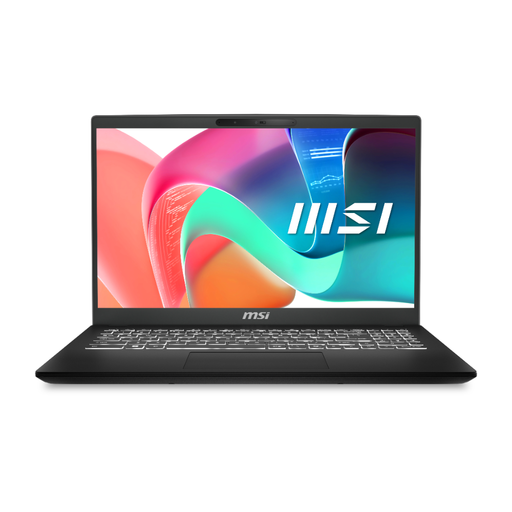 No image available
Consider the larger screen if document workspace matters more to you than a compact café setup. The named configuration has an Intel Core 5 processor, 16GB RAM and a 512GB SSD; check its carrying weight, school-software fit and charging needs before choosing it for regular travel.
Only when you can follow your school’s approved procedures for the device, connection and information involved. Department for Education guidance says school staff are responsible for protecting personal data; the National Cyber Security Centre warns that public or insecure Wi-Fi can expose data to interception or modification. Ask your school’s designated contact if the permitted way to work is unclear.
Not necessarily: the published figure depends on its test activity and conditions. Apple’s cited MacBook Air figure measures wireless-web use, whereas Microsoft’s cited Surface Laptop figure measures video playback. Check the basis for the exact model and plan how you will charge it during longer sessions.
A Chromebook can suit browser-based planning if your school confirms that its applications, files, accounts, printing and device-management arrangements work on ChromeOS. Check the specific model’s supported update lifetime too; Google recommends automatic ChromeOS updates for security fixes.
Check the marking and documentation applicable to the specific product, rather than assuming one marking rule covers every device. Great Britain guidance from the Office for Product Safety and Standards says recognition of certain goods meeting EU requirements, including CE marking, has been extended indefinitely. Northern Ireland has different provisions under the Windsor Framework, so confirm the applicable documentation with the seller or manufacturer if buying for use there.