What matters when choosing
Start with the school’s software and account requirements, then compare the desk connections and the way you use lesson materials. Treat memory, storage and screen size as configuration choices for that workflow, not substitutes for compatibility.
| Concern |
What to check |
Who this matters to |
| School compatibility and multitasking |
Confirm the approved operating system, required applications and accounts. Check memory and storage against the files and tasks you actually use. |
If I need school applications alongside lesson files, I cannot choose by screen or storage alone. Around 31% of consumers put compatibility and multitasking first. |
| Shared-desk fit and connections |
Check the available desk space and match the exact laptop’s display and peripheral connections to the equipment already there. |
When I change desks or rooms, I want to reconnect without disrupting preparation. For around 31% of consumers, desk fit and connections are the primary concern. |
| Privacy and handover |
Confirm the school’s account and storage rules, and how to lock the device or sign out before another person uses the space. |
If lesson materials include personal information, I need to leave the desk without exposing my session. Keeping that handover secure comes first for around 23% of consumers. |
| Annotation and movement |
For regular pen use, check touch and active-pen support, plus whether the pen and keyboard come with the chosen configuration. |
If I mark up resources or present away from the desk, touch input may change how I work. Around 15% of consumers prioritise annotation and portability. |
Joybuy product choices
These laptops offer different ways to work with lesson resources: conventional laptop use, touch-enabled layouts and a larger-screen option. Check each configuration against school requirements and the equipment at your shared desk before choosing.
 Image unavailable
ASUS Vivobook 14 X1407QA-LY003W, Snapdragon X, 16 GB RAM, 512 GB SSD, Quiet Blue
Consider this for a compact shared-desk setup if the school approves the operating system, applications and account arrangements for this configuration.
Check its connections against the desk display and peripherals. Its non-touch display makes it a less direct choice for regular on-screen annotation.
View on Joybuy
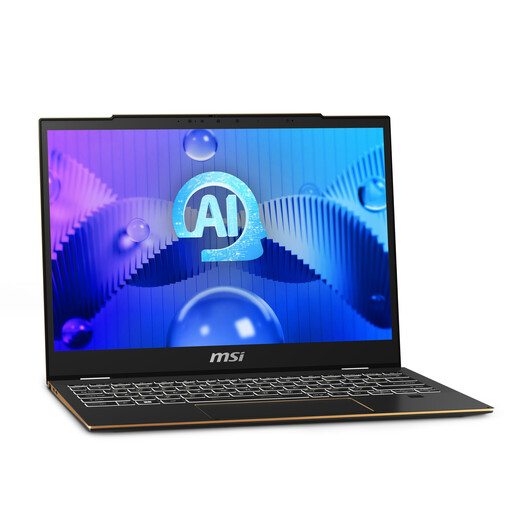 Image unavailable
MSI Summit E13 AI Evo, Core Ultra 7 155H, 32 GB RAM, 1 TB SSD, touch display
Consider a touch-enabled laptop if annotation is a regular part of preparing lesson resources, alongside typing and file organisation.
Check the exact display size and whether a pen is included. Confirm school application and device-management compatibility before buying.
View on Joybuy
 Image unavailable
ASUS Zenbook DUO UX8406CA-QL135W, Core Ultra 7 255H, 16 GB RAM, 1 TB SSD
The dual-screen layout is worth assessing if you need resources visible alongside the document you are editing.
Check that its desk footprint works in the shared space, and confirm the exact display configuration and school compatibility.
View on Joybuy
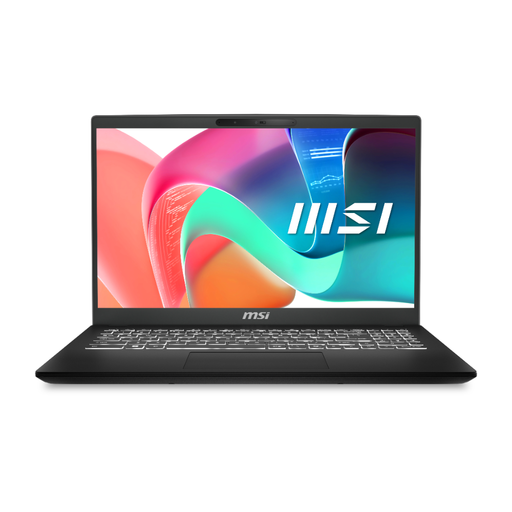 Image unavailable
MSI Modern C2RMG-282UK, 9S7-15H431-282, 15-inch FHD, 16 GB RAM, 512 GB SSD
Consider the larger display if viewing lesson files on the laptop matters more to you than keeping its desk footprint small.
Confirm the exact operating-system version with the school and check the display-output connection needed for your monitor or dock.
View on Joybuy
 Image unavailable
HP OmniBook Ultra Flip 14-fh0006na 2-in-1, 16 GB RAM, Windows 11 Home
Consider this 2-in-1 if switching between touch interaction and routine typing fits the way you prepare resources.
Check the exact screen size, storage configuration and desk footprint. If pen annotation matters, confirm pen support and bundle contents, as well as school compatibility.
View on Joybuy
Common questions
Should I choose the operating system or the specifications first?
Choose the operating system and school compatibility first. The Department for Education advises schools to select devices that support their digital technology strategy, so check required applications, accounts, printing and management arrangements before comparing memory or storage.
Can a Chromebook work for organising lesson resources?
Yes, if the work is primarily browser and cloud based and the school confirms support for its learning platform, printing, required applications and offline tasks. A Chromebook’s hardware specification does not establish compatibility with those workflows.
Will I need a dock at a shared desk?
You may need a dock if the laptop’s built-in connections do not match the monitor, projector, wired accessories or charging setup. Compare the exact laptop’s ports with the equipment at the desk before choosing an adapter or dock.
What should I do with the laptop when I leave the desk?
Lock it when stepping away, and save your work before signing out when the session is finished or another user needs the device. Microsoft explains that unlocking a Windows device requires authentication, while signing out closes applications; follow the school’s rules for accounts and storing lesson materials.


