For a library event with limited plug sockets, choose a laptop around the required software, the venue’s display connections and a realistic plan for working away from power. Built-in HDMI and USB-A can reduce adaptor dependence if the library uses those connections; a MacBook Air can suit an existing macOS workflow, while a Chromebook needs a ChromeOS-compatible one. No advertised battery figure guarantees runtime during the event, so rehearse the presentation and connection setup from a full charge.
Who needs to consider what?
Event coordinators with limited socket access
If you prepare schedules and communications away from a charger, plan for the time you will actually spend unplugged. Check the charging requirements and rehearse with the applications and equipment you will use at the event.
Projector and peripheral users
If you will connect to a library display, USB device or card media, check the venue’s connections against the exact laptop and test any necessary adaptor beforehand.
Users of organisation-managed Windows systems
If event files, accounts or support arrangements require Windows Pro or particular organisational software, confirm the operating system and exact configuration before choosing a laptop.
What matters when choosing?
Establish the event’s software and display requirements before weighing battery figures against portability. A laptop is only useful away from a socket if it can also run the required work and connect to the venue equipment.
| Concern |
What to check |
Who this matters to |
| Unplugged work and charging |
Compare battery figures for the exact configuration and test conditions; confirm its charging method and charger requirements. Rehearse the event workload from a full charge. |
If socket access is brief, I need enough working time for my presentation and administration without relying on a manufacturer’s test result as a promise; around 36% of consumers put unplugged work first. |
| Display and peripheral connections |
Ask which display input the library provides, then check the laptop’s ports and test the actual cable or adaptor. |
I cannot leave a projector connection to chance when I need to show material to attendees; dependable venue connectivity comes first for around 29% of consumers. |
| Portability |
Compare the exact configuration’s weight and screen size, including whether its charger and any needed adaptors are practical to carry. |
Moving between planning and event spaces with materials in hand makes carrying weight important to me; around 21% of consumers make portability their primary concern. |
| Workflow and support |
Confirm the required operating system, applications, files and accounts, as well as who will provide device support. |
If the organiser’s tools or managed accounts require a particular system, I need the laptop to fit that workflow before considering other features; compatibility is the first priority for around 14% of consumers. |
Mistakes to avoid
-
Treating a battery figure as an event-duration guarantee
A wireless-web test does not reproduce a presentation with the event’s applications, screen settings and connected equipment. Microsoft Support also notes that Windows power settings affect battery use.
Start with a full charge and time a rehearsal using the presentation, network and display connection you expect to use.
-
Finding a display-port mismatch on the day
The MacBook Air specification cited by Apple lists Thunderbolt 4/USB-C ports, while the IdeaPad Slim 5x Gen 9 specification cited by Lenovo UK lists HDMI and USB-A among its connections. Neither port layout tells you what the library provides.
Ask for the display input and test the exact laptop, cable and adaptor together before the event.
A suitable display adaptor or hub may need to be obtained separately.
-
Assuming the laptop includes the whole event kit
HP Store UK states that the charger is not included with its cited EliteBook 630 G11 configuration. A laptop may therefore need additional charging hardware before it fits a limited-socket plan.
Check what comes with the exact configuration, then account for the charger and any display or USB accessories your setup requires.
-
Assuming a warranty replaces consumer rights
Citizens Advice explains in its England guidance that warranties and guarantees add to legal rights; the appropriate guidance and claim route depend on where you bought the laptop and what went wrong.
Keep proof of purchase, check who provides the warranty and consult guidance for the relevant UK nation if a fault occurs.
Relevant brands for reference
Lenovo
Lenovo UK specifications illustrate two different Windows routes: an IdeaPad Slim 5x Gen 9 with a 57Wh battery and HDMI, USB-A and USB-C connections, and a ThinkPad X1 Carbon Gen 13 configuration with Windows 11 Pro, a 65W USB-C adaptor and a stated weight below 1kg.
- The cited IdeaPad’s built-in connections may reduce adaptor needs where the venue uses matching equipment.
- Check the ports, charger and other specifications of the exact configuration rather than assuming they carry across the range.
Apple
Apple’s cited 13-inch MacBook Air M5 specification lists USB-C/USB PD charging and up to 15 hours of wireless-web use under Apple’s test conditions.
- Its listed connections include MagSafe and two Thunderbolt 4/USB-C ports.
- The listed expansion ports do not include native HDMI or USB-A. Confirm macOS software compatibility and test any adaptor needed for the library display.
HP
HP Store UK lists a business-focused EliteBook 630 G11 configuration with Windows 11 Pro, an Intel Core Ultra 5 processor, 16GB RAM, a 512GB SSD and a 13.3-inch display.
- That configuration gives organisations requiring Windows Pro a specific model to assess against their software and support needs.
- HP states that a charger is not included with the cited configuration; check the charging hardware and venue connections needed for your setup.
Dell
Dell UK’s cited Latitude 7450 configuration illustrates a 14-inch Windows 11 Pro business-laptop option with a low-power display variant.
- The display variant is a specification to compare when assessing a portable Windows setup.
- Confirm the current configuration, ports, charger and availability before relying on it for an event.
Laptops for event planning on Joybuy
These ChromeOS and macOS laptops are options for event-planning workflows that work with those systems. Check your applications, the library’s connections and the charging arrangement for the exact model before choosing.
 No image available
Acer Chromebook Plus 514 CB514-5H, Core 5 120U, 8GB, 512GB SSD, Iron
Consider this 14-inch Chromebook for event planning if the required applications and files work with ChromeOS. Its listed WUXGA resolution is 1920 × 1200; confirm the exact display connections and test unplugged runtime with your event setup.
View on Joybuy
 No image available
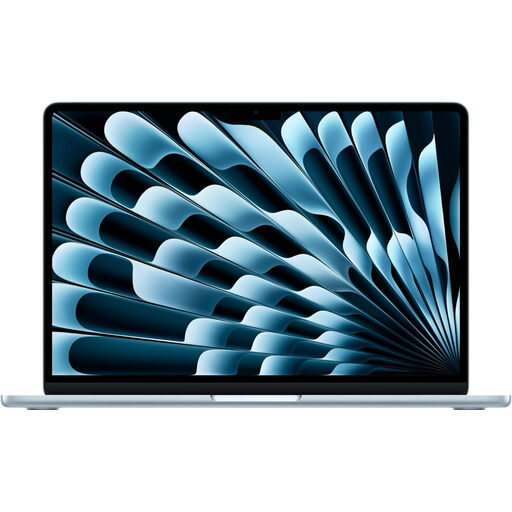
Apple 13-inch MacBook Air M5, 10-core CPU and GPU, 16GB, 1TB SSD, Sky Blue
This 2026 model is an option if the organiser’s event applications, files and accounts work with macOS. Apple lists two Thunderbolt 4/USB-C ports and USB-C/USB PD charging for the cited 13-inch M5 specification; test an appropriate adaptor if the library uses HDMI or USB-A. Apple’s up-to-15-hour wireless-web figure is not a live-event runtime guarantee.
View on Joybuy
 No image available
Acer Chromebook Plus 514 CB514-5H, Core i3-1315U, 8GB, 256GB SSD, Iron
Consider this 14-inch Chromebook for a ChromeOS-compatible planning workflow. Its listed WUXGA resolution is 1920 × 1200; confirm whether its display connections and charging arrangement match the library setup before relying on it at the event.
View on Joybuy
 No image available
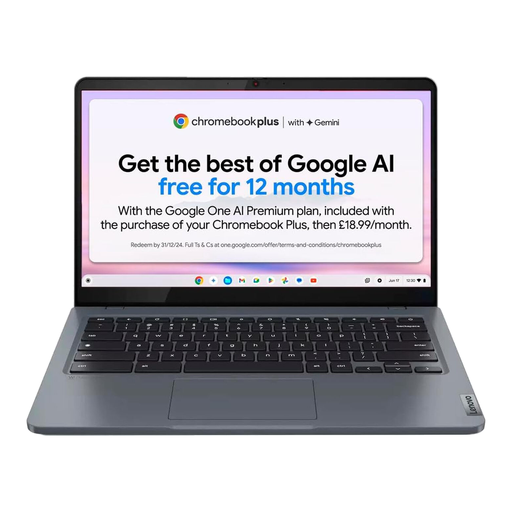
Lenovo IdeaPad Slim 3 Chromebook 14IAN8, i3-N305, 8GB, 256GB eMMC, Grey, 83BN001EUK
This 14-inch Chromebook is worth considering if the event workflow works with ChromeOS. Check the exact model’s display ports, charger and charging support against the venue plan, then rehearse the workload away from a socket.
View on Joybuy
Common questions
Will the stated battery life cover the whole library event?
Not necessarily: a manufacturer’s figure describes particular test conditions, not your presentation and connected equipment. Rehearse from a full charge with the actual applications, Wi-Fi and display setup; on a compatible Windows laptop, Microsoft Support’s Energy Saver guidance may help you manage power use.
What should I ask the library before choosing a laptop?
Ask which display or projector input is available, whether you need audio or USB peripherals, what network access you will have and when a socket will be available. Match those answers to the exact laptop and test the cable or adaptor you intend to bring.
Can I charge any laptop through its USB-C port?
No: confirm that the exact laptop accepts USB-C charging and that the power source meets its requirements. Apple lists USB-C/USB PD charging with a minimum 30W requirement for its cited 13-inch MacBook Air M5 specification, while Lenovo UK lists a 65W USB-C adaptor with the cited ThinkPad X1 Carbon configuration; those details do not establish the requirements of other models.
Does a manufacturer’s warranty replace my rights if the laptop is faulty?
No. Citizens Advice explains in its England guidance that a warranty or guarantee adds to legal rights rather than replacing them. Keep proof of purchase and consult the guidance for the relevant UK nation and the circumstances of the fault.


