Choose the operating system around the software and devices you use to publish the newsletter: macOS for a confirmed Mac workflow, conventional Windows for required Windows desktop tools, Windows on Arm only after checking apps and drivers, or ChromeOS for a fully browser-based workflow. Then compare keyboard and screen comfort, connections for your study and the exact memory and storage configuration; none of these routes should be assumed quiet without checking the particular laptop.
Who is this laptop for?
Home-study newsletter writer
You draft articles, research local information, manage email and assemble documents mainly at a desk. A keyboard you can use comfortably, a readable display and access to your publishing tools matter more to this task than gaming features.
Software-dependent local publisher
Your newsletter relies on a particular layout application, template, plug-in, printer or scanner. Check that the complete workflow works on the laptop before weighing its size or battery claim.
Occasional mobile contributor
You also take the laptop to meetings or reporting locations. Carry weight and charging convenience matter, but the keyboard and screen still need to suit writing at home.
What matters when choosing?
For a newsletter written mainly in a quiet study, establish whether your publishing workflow will run on macOS, conventional Windows, Windows on Arm or ChromeOS before comparing the physical setup. Microsoft says Windows 11 on Arm can emulate x86 and x64 applications, but driver-dependent devices still need compatible Arm64 drivers.
| Concern |
Buying checks |
Who this matters to |
| Workflow compatibility |
Check each required publishing app, template, plug-in and printer or scanner against the chosen operating system; check drivers separately for Windows on Arm. |
If I cannot run a tool needed to finish an edition, the other laptop features will not solve the problem. Around 31% of consumers put workflow compatibility first. |
| Writing comfort |
Try the keyboard where possible, and compare screen size, resolution and reflections in your study. |
Long drafting and editing sessions make the keyboard and display my main concern. For around 31% of consumers, writing comfort comes first. |
| Desk connections and files |
Count devices used together, then check the exact ports and whether the selected storage capacity suits your offline files. |
I need room for newsletter files and a practical way to connect the devices on my desk. Desk connections and file capacity lead the choice for around 23% of consumers. |
| Portability |
Compare the selected model’s stated weight and charging options; read battery claims alongside their test conditions. |
Taking the same laptop to meetings makes carrying and charging it my priority. Around 15% of consumers put portability first. |
Buying pitfalls to avoid
-
Assuming every Windows app and peripheral works on Windows on Arm
Microsoft says Windows 11 on Arm emulates x86 and x64 applications, but that emulation does not cover drivers; kernel-mode components need Arm64 versions.
Check the publisher’s support information for each essential application, plug-in and driver-dependent printer or scanner before choosing an Arm-based model.
-
Treating a Chromebook as a direct Windows substitute
ChromeOS suits a newsletter only if its writing, image, export, storage, collaboration and printing steps work there. A required Windows desktop application cannot simply be assumed to work.
Walk through an entire edition’s workflow using the services and devices you intend to keep.
-
Checking ports after choosing the laptop
Connections differ between models. Apple lists two Thunderbolt 4/USB-C ports on the cited 13-inch MacBook Air, while the cited Acer Chromebook Plus configuration includes USB-A and HDMI as well as USB-C.
List the monitor, printer, drives, card reader and headphones you use, then check the ports on the exact configuration.
A missing connection may mean keeping an adapter, card reader or dock at the desk.
-
Reading a battery claim as a guaranteed writing session
Microsoft’s quoted figure for the cited 13-inch Surface Laptop uses video playback, not newsletter production with browser tabs, cloud syncing and attached devices.
Check the test conditions and whether charging is convenient wherever you normally write.
Relevant laptop brands
Apple
A macOS option if your existing newsletter applications and accessories support Mac.
- Apple lists a 13.6-inch display, 16GB unified memory and 512GB SSD for its cited 13-inch MacBook Air configuration.
- Check every required macOS application and whether its two Thunderbolt 4/USB-C ports accommodate your desk setup.
Lenovo
A conventional Windows route illustrated by the cited ThinkPad X1 Carbon Gen 13 configuration.
- That configuration lists a UK keyboard and a 14-inch anti-glare 1920 × 1200 display; Lenovo describes the product line as weighing under 1kg.
- Check the selected configuration rather than assuming every model in the range has the same keyboard, display and ports.
ASUS
The cited Zenbook A14 illustrates a Windows-on-Arm route with a 14-inch OLED display and several connection types.
- ASUS lists USB-C, USB-A, HDMI and a headphone connection for the Zenbook A14 configurations discussed here.
- Check exact applications and peripheral drivers for Windows on Arm, as well as the specifications of the variant you select.
Microsoft
A compact Windows-on-Arm option illustrated by the cited 13-inch Surface Laptop.
- Microsoft lists a 13-inch 3:2 screen, USB-C, USB-A and a headphone jack for that model.
- Emulation of Windows applications does not remove the need for Arm64 drivers for dependent hardware.
Acer
The cited Chromebook Plus 514 configuration is relevant to a confirmed browser-first newsletter workflow.
- Acer lists a 14-inch anti-glare 1920 × 1200 display and HDMI, USB-A and USB-C connections for the cited configuration.
- Confirm that every required application, file-export step and peripheral works with ChromeOS; do not assume Windows software support.
Joybuy laptops for newsletter writing
These laptops span conventional Windows, macOS, Windows on Arm and Chromebook choices for writing a local newsletter. Match the operating system to your workflow first, then compare each model’s stated configuration with your study setup.
 No image available
ASUS Vivobook 15 X1504VA, Core 5 120U, 24GB, 1TB SSD
Consider this conventional Windows route if you mainly write at a desk and your essential newsletter tools work with the selected configuration.
The product title specifies a 15.6-inch screen, Intel Core 5 120U processor, 24GB memory and 1TB SSD. Check the keyboard layout, connections and operating noise against your study needs.
View on Joybuy
 No image available
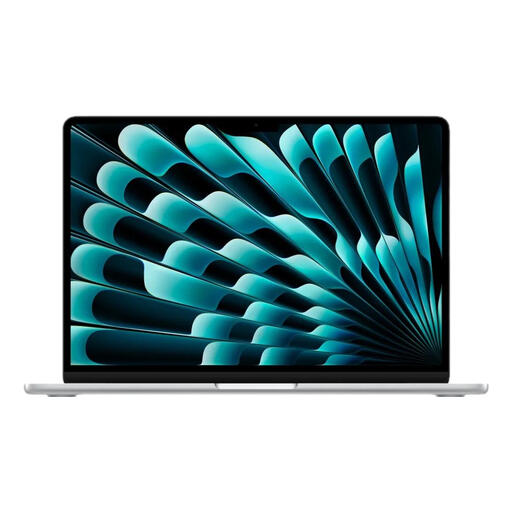
Apple 13-inch MacBook Air (2026), M5, 16GB, 1TB SSD
This is a compact choice when your writing, layout and peripheral workflow is confirmed to work on macOS.
The product title specifies an M5 chip with a 10-core CPU and 10-core GPU, 16GB memory and 1TB SSD. Check this variant’s keyboard layout, ports and suitability for a quiet study rather than relying on claims about noise.
View on Joybuy
 No image available
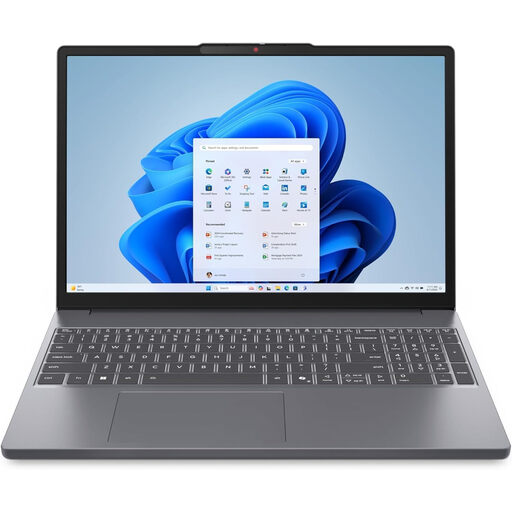
Lenovo IdeaPad Slim 3 83K7009MUK, Ryzen 5 7535HS, 24GB, 512GB SSD
Consider this Windows 11 Home model if your newsletter work calls for a larger built-in display and your required applications and devices are compatible.
Its product title specifies a 15.3-inch WUXGA screen, AMD Ryzen 5 7535HS processor, 24GB DDR5 memory and 512GB PCIe SSD. Check its ports, keyboard layout and operating noise for your desk.
View on Joybuy
 No image available
ASUS Vivobook 14 X1407QA-LY003W, Snapdragon X, 16GB, 512GB SSD
This Windows-on-Arm option needs an individual compatibility check for publishing apps, plug-ins and driver-dependent peripherals before its size becomes a deciding factor.
The product title specifies a 14-inch model with a Snapdragon X processor, 16GB memory and 512GB SSD. Confirm the keyboard layout and quiet-study suitability of the exact laptop.
View on Joybuy
 No image available
Acer Chromebook Plus 514 CB514-5H, Core 5 120U, 8GB, 512GB SSD
Consider this Chromebook only if your complete newsletter workflow, including images, exports and printing, works in ChromeOS.
The product title specifies a 14-inch 1920 × 1200 display, Intel Core 5 120U processor, 8GB memory and 512GB SSD. Check the keyboard layout, screen finish and operating noise if those affect your study setup.
View on Joybuy
Questions about newsletter laptops
What specifications do I need to write a local newsletter?
Start with a laptop that runs your required applications and peripherals, then choose a keyboard and screen you can use comfortably for drafting and editing. Compare memory and SSD capacity against the applications and files you actually keep; processor names alone do not establish that a particular publishing workflow will work.
Will my existing newsletter software run on Windows on Arm?
Some Windows applications can run through emulation, but compatibility needs checking for each essential tool. Microsoft says Windows 11 on Arm emulates x86 and x64 applications, while driver-dependent hardware needs compatible Arm64 drivers; check the app publisher and the makers of your printer or scanner.
Can I make a local newsletter on a Chromebook?
Yes, if every step of your newsletter workflow works in ChromeOS. Confirm writing, image handling, file exports, storage, collaboration and printing with the services and devices you plan to use; do not assume a required Windows desktop application will run.
What should I keep if the laptop develops a fault?
Keep your order confirmation and any warranty terms so you can identify the purchase and the support offered. Citizens Advice says warranties and guarantees add to legal rights; a voluntary warranty should not be treated as the only route for dealing with a faulty laptop.


