What matters when choosing
Start with the marking platform’s requirements, then decide whether you need a portable laptop alone or room for a monitor and desk peripherals.
| Concern | What to check | Who this matters to |
|---|
| Reading and feedback comfort |
Compare display size, resolution and reflection treatment; check whether a monitor fits the desk. |
When I read submissions for long stretches, I need text I can view comfortably without fighting reflections. Around 31% of consumers would put reading and desk comfort first. |
| Marking-platform compatibility |
Confirm supported operating systems, browsers, authentication and required applications with your institution. |
If my marking tools cannot run or receive institutional support, a better screen will not help me finish the work. Compatibility would come first for around 31% of consumers. |
| Shared-desk mobility and connections |
Check the selected laptop’s dimensions and ports against the desk’s monitor, charger and peripherals. |
I need to pack the laptop away and reconnect without disrupting my marking routine. Around 25% of consumers would make mobility and desk connections their primary concern. |
| Specification and support |
Compare the exact model and configuration, then check the seller’s support process and warranty terms. |
When I order, I want the display and memory I chose, with a clear route for dealing with a problem. For around 13% of consumers, that purchase assurance would be the main priority. |
Joybuy product choices
These laptops offer different ways to approach shared-desk marking: compact Windows and Chrome OS models, a MacBook Air for a confirmed macOS workflow, and larger-screen options. Check the exact software requirements and desk connections before choosing.
 No image available
ASUS Vivobook 14 X1407QA-LY003W, Snapdragon X, 16GB/512GB, Quiet Blue
Consider this compact laptop if its Windows configuration works with your institution’s marking tools and your shared desk has limited space.
Its listed configuration includes a Snapdragon X processor, 16GB RAM and a 512GB SSD. Check the precise display and connection requirements for your desk before ordering.
View on Joybuy
 No image available
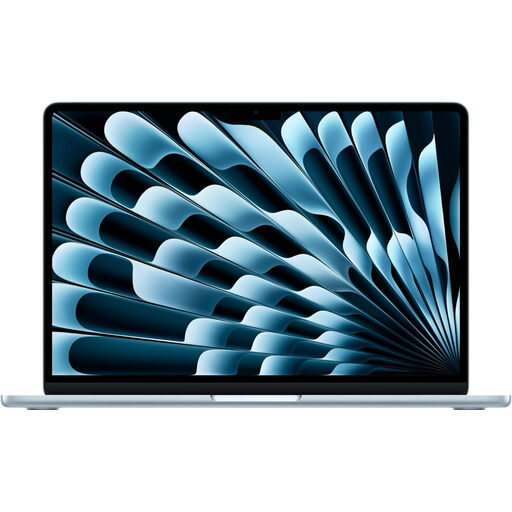
Apple 13-inch MacBook Air (2026), M5, 16GB/1TB, Sky Blue
This compact choice depends on your institution confirming support for its marking platform, authentication and required applications on macOS.
The listed variant has an M5 chip, 16GB memory and a 1TB SSD. Apple’s 13-inch MacBook Air specification lists Thunderbolt 4/USB-C connections; check compatibility with the monitor and peripherals at your desk.
View on Joybuy
 No image available
Lenovo IdeaPad Slim 3 Chromebook 14IAN8, 83BN001EUK, 8GB/256GB
Consider a Chromebook only if your institution confirms that the complete marking and authentication workflow works on Chrome OS.
This 14-inch variant lists an Intel Core i3 N305 processor, 8GB RAM and 256GB eMMC storage. Check its connections if the shared desk uses a monitor or other peripherals.
View on Joybuy
 No image available
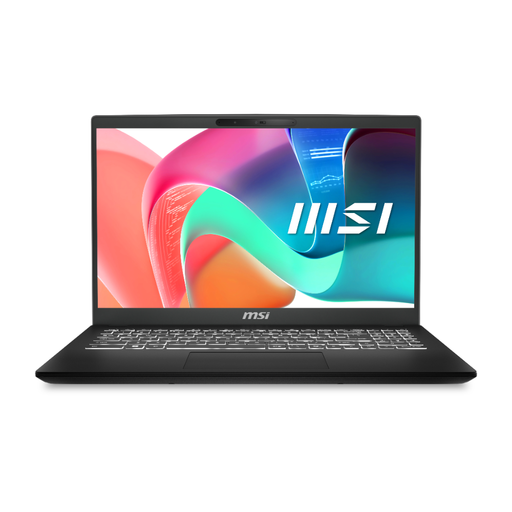
MSI Modern C2RMG-282UK, 9S7-15H431-282, 16GB/512GB
A larger built-in screen may suit a shared desk with enough room for the laptop and your marking materials.
The listed variant has a 15-inch FHD display, Intel Core 5 processor, 16GB DDR IV RAM and a 512GB SSD. Confirm its pre-installed operating system and display treatment against your software and lighting needs.
View on Joybuy
 No image available
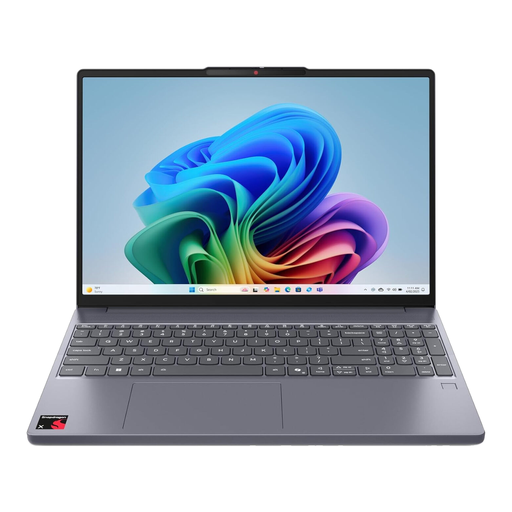
Lenovo IdeaPad Slim 3 15Q8X10, 83N30029UK, 16GB/256GB
This larger-screen option is worth considering if you prefer to read assignments on the laptop itself and have room for a 15.3-inch machine.
The listed variant has a Qualcomm Snapdragon processor, 16GB RAM and a 256GB SSD. Confirm that required marking applications and security tools work with its Windows on ARM configuration, and check the display treatment and connections you need.
View on Joybuy
Common questions
Do I need a large laptop screen to mark assignments?
Not necessarily: a compact laptop may suit a desk you regularly clear, while a larger screen or compatible external monitor gives you another way to arrange a submission, rubric and feedback. Check the space and display connections at the desk before deciding.
Does laptop-based marking at work require a workstation assessment?
The Health and Safety Executive says employers must assess workstations for workers who use display screen equipment daily for continuous periods of an hour or more. Its guidance includes laptops and calls for consideration of equipment, furniture and working conditions, not just the screen.
Can I use a MacBook for my institution’s marking platform?
Yes, if your institution confirms that its marking platform, browser, authentication and required applications work on macOS. Check its IT-support requirements and the connections for any shared-desk monitor or peripherals before buying.
What if a laptop bought in the UK is faulty?
A faulty laptop may give you a statutory remedy, depending on the circumstances. For goods that do not meet statutory standards, legislation.gov.uk describes a minimum 30-day period for the Consumer Rights Act 2015’s short-term right to reject; keep your order details and contact the seller promptly rather than treating its change-of-mind returns policy as your only option.
What should I do with an old laptop?
Check your local authority’s or retailer’s current electrical-equipment collection arrangements, and erase personal data before handing the laptop over. GOV.UK describes the UK’s waste electrical and electronic equipment framework as a way to reduce electrical waste.


