Choose a laptop that your institution approves for its marking software, sign-in process and student-data rules before comparing screens or memory. If Windows management is required, consider a Windows laptop in an approved configuration; if macOS is supported, a MacBook Air is another route. In either case, check the shared desk’s lighting, display connections and peripherals before ordering.
Who needs to consider this setup?
Markers handling student data in shared spaces
If other people can see your screen, the laptop needs to fit your organisation’s access and security process as well as the desk layout. The Information Commissioner’s Office advises that a privacy screen might help in shared workspaces, alongside strong passwords and multi-factor authentication where possible.
Markers spending long sessions on documents and feedback
Reading submissions, annotating PDFs and moving between feedback tools puts the whole workstation in use, not just the laptop screen. The Health and Safety Executive says employers must assess workstations for workers who use display screen equipment daily for continuous periods of an hour or more.
Markers moving between shared desks
A portable laptop still has to connect to the monitors and peripherals at the desks you use. Check their inputs and the laptop’s exact port and external-display requirements before choosing a configuration.
What matters when choosing?
For marking in a shared office, establish the permitted software and data-handling arrangements first. Then assess reading comfort and how the laptop will connect at each desk.
| Concern |
What to check |
Who this matters to |
| Institutional compatibility |
Confirm the approved operating system, marking applications and secure sign-in method with your institution. |
If I cannot run the required marking and access tools, the laptop will not serve my workflow; around 29% of consumers would put institutional compatibility first. |
| Student-data protection |
Check personal-device permission and approved account controls; consider whether nearby people can see the screen. |
When assignments are open beside colleagues or visitors, I need to prevent casual viewing and follow the organisation’s data rules. Student-data protection would come first for around 29% of consumers. |
| Long-session comfort |
Assess screen reflections and size alongside the available monitor and workstation setup. |
For sustained reading and feedback, I need a screen and desk arrangement I can use comfortably; around 24% of consumers would make long-session comfort their primary concern. |
| Desk reconnection |
Match the laptop’s ports and display support to the monitors, docks and peripherals at your desks. |
If I change desks, I want to reconnect without discovering that a required display or accessory cannot be used. Around 18% of consumers would prioritise portability and desk reconnection. |
Mistakes to avoid
-
Buying before checking institutional requirements
An operating system’s general requirements do not establish compatibility with a marking application or secure-access process. A personally owned device also needs to fit the institution’s data-handling rules.
Ask which operating systems, applications, browsers and sign-in tools are approved, and whether personal-device use is permitted, before ordering.
-
Expecting an anti-glare screen to solve every desk problem
Screen finish alone does not address lighting, screen position or the wider workstation. The Health and Safety Executive’s display screen equipment guidance covers the work conditions and task as well as the equipment.
Assess the shared desk where you mark and check whether a suitable monitor and peripherals are available for longer sessions.
-
Assuming every configuration of a model is alike
Dell Latitude 5450 and Lenovo ThinkPad T14 Gen 5 specifications vary by configuration, so a display, memory or warranty detail shown for one version may not describe another.
Check the exact variant’s display, memory, storage, operating system, ports and warranty against the configuration you intend to order.
-
Treating an open assignment as private in a shared office
The Information Commissioner’s Office notes that other people may be able to see a screen in a shared workspace. A camera shutter does not prevent someone from viewing the display.
Follow approved account and device controls, position the screen with nearby sightlines in mind and consider a compatible privacy screen where appropriate.
Relevant brands to consider
Lenovo
The ThinkPad T14 Gen 5 is a 14-inch Windows business-laptop route to examine when an institution supports that type of configuration.
- Lenovo’s UK listing for part number 21ML003QUK specifies Windows 11 Pro, 32GB DDR5 memory, a 1TB SSD and a 14-inch 1920 × 1200 anti-glare IPS display.
- Those specifications describe that configuration, not every ThinkPad T14 Gen 5; confirm the selected variant and support terms.
Dell
The Latitude 5450 offers configurable 14-inch business-laptop options for a Windows-based marking workflow.
- Dell lists anti-glare display options, including a 400-nit anti-reflect and anti-smudge option, across Latitude 5450 configurations.
- Display and memory specifications depend on the chosen build; confirm the exact configuration rather than applying one option’s details to the whole model line.
Apple
MacBook Air is a macOS route where the institution supports its marking, authentication and remote-access tools.
- Apple’s UK specifications list 13.6-inch and 15-inch M5 MacBook Air configurations with 16GB unified memory, two Thunderbolt 4 ports and external-display support.
- Those hardware specifications do not establish compatibility with a particular institution’s software or desk peripherals.
Joybuy laptop choices
These laptops offer different screen sizes and configurations for document-based work. Check each one against your institution’s approved software, security requirements and shared-desk connections before choosing.
 No image available
ASUS Vivobook 14 X1407QA-LY003W, Snapdragon X, Quiet Blue
Consider this 14-inch laptop if you move between desks and need a compact screen for documents. The named configuration has 16GB RAM and a 512GB SSD. Confirm that your marking applications and secure-access tools work on this configuration, and check its connections against your desk equipment.
View on Joybuy
 No image available
Acer Chromebook Plus 514 CB514-5H, Iron
Consider this Chromebook only if your institution supports the complete marking and secure-access workflow on ChromeOS; traditional Windows or macOS desktop applications are not its route. The named configuration has a 14-inch WUXGA (1920 × 1200) display, Intel Core i3-1315U processor, 8GB RAM and a 256GB SSD. Check whether that memory and storage meet your workload.
View on Joybuy
 No image available
HP OmniBook Ultra Flip 14-fh0006na, 2-in-1
This two-in-one is an option to assess if you want a 14-inch device for moving between desks. The named configuration has Windows 11 Home, 16GB RAM and a 1TB SSD. If office reflections matter, check the display finish; also confirm the exact graphics and port configuration, as well as institutional approval.
View on Joybuy
 No image available
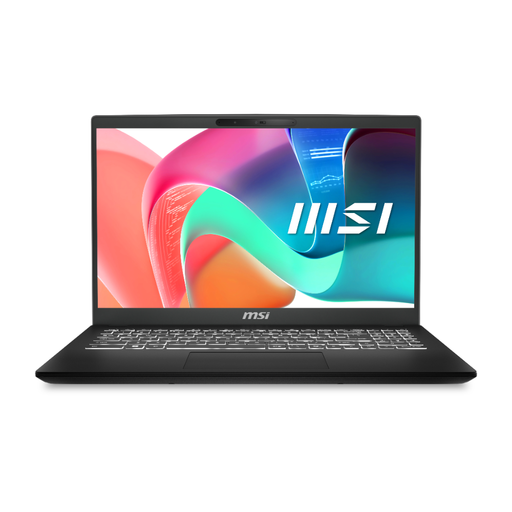
MSI Modern C2RMG-282UK (9S7-15H431-282), 15-inch FHD
Consider this model if you want a larger built-in screen for marking at a desk. Its named configuration has an Intel Core 5 processor, 16GB DDR IV RAM and a 512GB SSD. Check the screen finish if reflections are a concern, and confirm the connections and software requirements for your institution’s setup.
View on Joybuy
Frequently asked questions
Should I choose Windows or macOS for marking assignments?
Choose the operating system your institution supports for the entire marking workflow, including authentication and remote access. Microsoft notes that individual applications can have requirements beyond Windows 11 minimum requirements; check required tools with your institution before buying either type of laptop.
Is a laptop screen enough for long marking sessions?
A laptop screen alone does not determine whether the workstation suits extended marking. The Health and Safety Executive says employers must assess the workstation when workers use display screen equipment daily for continuous periods of an hour or more; screen position, lighting and available peripherals matter alongside the laptop.
How can I keep assignments from being seen in a shared office?
Follow your organisation’s access controls and position the display with nearby sightlines in mind. The Information Commissioner’s Office says a privacy screen might help where others can see your display, but it does not replace approved account security and data-handling practices.
Can I mark student assignments on my own laptop?
Use a personally owned laptop only if your institution permits it and confirms the necessary security and support arrangements. The Information Commissioner’s Office identifies additional risks with personal devices and describes organisation-issued devices as generally the most secure option.


