Choose a laptop for marking digital assignments only after confirming the requirements of your assigned marking platform. AQA describes e-Marker 2 as Windows-PC software, while OCR documents a macOS route for RM Assessor3, so neither operating system is a safe default for every marker. For long sessions at home, plan the whole workstation; choose a touchscreen or 2-in-1 format only if it fits the way you review and annotate work.
Who this advice is for
Markers with an assigned platform
If your school, university, employer or awarding body specifies a marking application, its requirements should determine your laptop choice. AQA describes e-Marker 2 as Windows-PC software; OCR documents a macOS route for RM Assessor3.
Markers working long sessions at home
If you review many submissions at a fixed desk, consider your screen, keyboard and pointing-device setup together. The Health and Safety Executive says display screen equipment rules can apply to permanent or long-term home workers.
Touch-first reviewers
If you prefer touch navigation or a convertible screen, check whether your marking software supports the annotation method you intend to use. Confirm pen compatibility and bundle contents separately.
What to check before buying
Confirm platform compatibility before comparing screen and input formats. Then decide whether most marking happens at a fixed desk, away from it, or through a touch-led workflow.
Windows laptop
Choose when: Your institution requires Windows or assigns a Windows desktop client, such as AQA e-Marker 2.
Check: Windows alone does not establish that the specified application will run on a particular processor or meet your institution’s other requirements.
Mac laptop
Choose when: Your exact marking system and institutional workflow support macOS; OCR documents a macOS route for RM Assessor3.
Check: Support for one marking system does not make a Mac suitable for a Windows-PC client such as AQA e-Marker 2.
| Concern |
What to check |
Who this matters to |
| Marking-platform compatibility |
Ask for the named application, required operating system and supported browser; confirm whether a desktop client must be installed. |
If I have to use an assigned marking client, I need to know it will run on the laptop I buy. Around 36% of consumers put platform compatibility first. |
| Comfort at a fixed desk |
Consider screen and input-device placement alongside any applicable workstation assessment. |
When I spend long periods reviewing submissions, I need a desk setup I can use comfortably, not just a larger laptop screen. For around 29% of consumers, desk-based comfort comes first. |
| Working away from the desk |
Compare device weight, required ports and the conditions behind battery-life claims. |
If I move between home and campus or work away from a power point, carrying and connecting the laptop matter to me. Portability is the main concern for around 21% of consumers. |
| Touch-led reviewing |
Confirm the exact touchscreen configuration, pen compatibility and your software’s annotation tools. |
I want to navigate work by touch or change the screen position while reviewing it, but only if that suits my marking workflow. Around 14% of consumers prioritise this format. |
Buying pitfalls
-
Choosing an operating system before checking the marking platform
AQA’s e-Marker 2 is accessed from a Windows PC, while OCR documents Windows and macOS routes for RM Assessor3. Compatibility with one service does not establish compatibility with another.
Get the current requirements from your platform owner before ordering, including the operating system, browser and any installed client.
-
Expecting screen size alone to solve workstation comfort
A larger display does not determine whether your screen and input devices are positioned comfortably for extended marking. The Health and Safety Executive says display screen equipment rules can apply to permanent or long-term home workers.
Plan your desk setup and follow any applicable workstation assessment before deciding which additional equipment you need.
A separate monitor, keyboard, mouse or stand may form part of the resulting setup.
-
Assuming a 2-in-1 includes a suitable pen
A touch display and convertible hinge establish neither pen inclusion nor support for your marking software’s annotation tools.
Check the exact model’s pen compatibility, bundle contents and the feedback method your platform permits.
If a compatible pen is needed but sold separately, it becomes an additional accessory to arrange.
-
Comparing model families instead of exact configurations
Memory, storage and display options can differ within a named product family. Dell lists different memory configurations for the Inspiron 14 2-in-1 7440, and Lenovo describes display options for the ThinkPad E14 Gen 6.
Check the selected unit’s processor, memory, storage, display, operating system, ports and included accessories before ordering.
Brands and product lines to consider
Lenovo
The ThinkPad E14 Gen 6 is a conventional 14-inch laptop line to consider for a compatible marking workflow.
- Lenovo describes upgradeable storage and memory for this model family.
- Check the selected configuration’s display, memory and storage; family-level options do not identify what a particular unit includes.
Apple
MacBook Air is a macOS option where the assigned marking system supports it.
- Apple lists external-display support for MacBook Air, subject to its stated limits.
- AQA describes e-Marker 2 as Windows-PC software, so confirm the assigned platform before choosing a Mac.
Dell
The Inspiron 14 2-in-1 7440 is a convertible option for people who will use touch navigation or flexible screen positioning.
- Dell lists a 360-degree hinge and touch-display configurations for this model.
- Check the exact memory configuration, pen compatibility and bundle contents before relying on it for annotation.
Microsoft
Surface Laptop offers conventional touchscreen laptop configurations for a compatible Windows workflow.
- Microsoft lists several Surface Laptop screen-size options.
- Check the chosen size and processor against the requirements of any installed marking application.
Joybuy laptop choices
These laptops offer conventional Windows, convertible and Mac formats for marking at home. Check your assigned platform first, then compare the configuration and format that fit your desk and feedback workflow.
 No image available
Microsoft Surface Laptop 7 15-inch, Maya Color
Consider this 15-inch model for desk-based review if your marking application supports its Snapdragon X Elite processor.
Listed configuration: 16GB RAM, 256GB SSD and PixelSense touchscreen. Confirm pen compatibility separately if you intend to annotate by hand.
View on Joybuy
 No image available
HP OmniBook X Flip 16-as0004na
Consider this 2-in-1 if you want a touchscreen format for reviewing work and your assigned marking platform supports the configuration.
Listed configuration: 16-inch touchscreen, Intel Core Ultra 5 226V, 16GB RAM, 512GB SSD and Windows 11 Home. Check pen compatibility and whether a pen is included if annotation matters.
View on Joybuy
 No image available
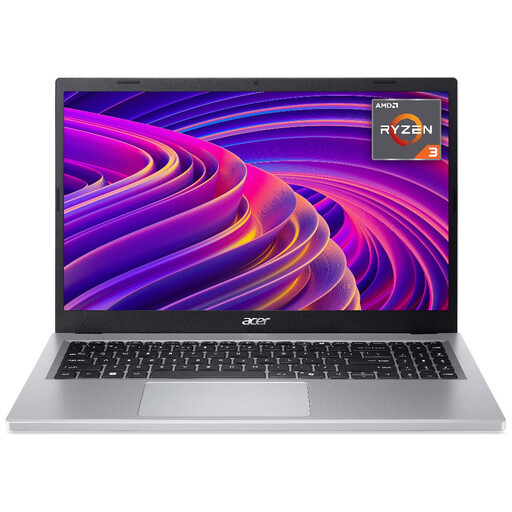
Acer Aspire Go 15 AG15-21P, Silver
Consider this conventional laptop for document review after checking the assigned application’s requirements against the exact configuration.
Listed configuration: 15.6-inch Full HD (1920 × 1080) display, AMD Ryzen 3 7320U, 8GB RAM and 256GB SSD. Check whether that memory and storage meet your workload.
View on Joybuy
 No image available
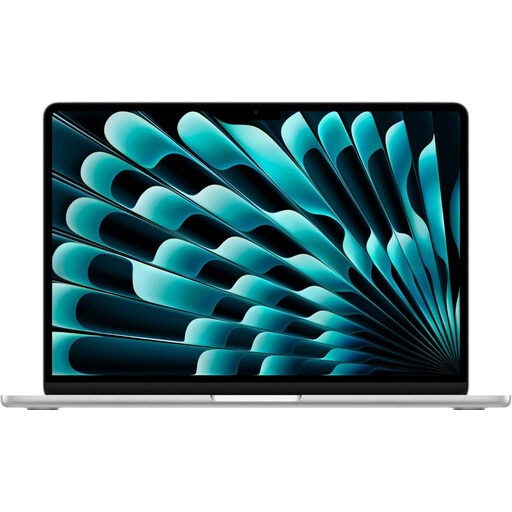
Apple 15-inch MacBook Air M5, Silver
Consider this Mac only if your assigned marking system supports macOS; it is not the route for AQA’s Windows-PC e-Marker 2 client.
The title specifies an M5 chip with a 10-core CPU and 10-core GPU, 16GB memory and a 1TB SSD. Confirm that the unit supplied matches that memory and storage configuration.
View on Joybuy
 No image available
ASUS Vivobook 14 X1407QA-LY003W, Quiet Blue
Consider this 14-inch format if you move between work locations, after confirming that your marking software supports its Snapdragon X processor.
Listed configuration: 16GB RAM and 512GB SSD. Check the exact display and connection requirements for your desk setup; choose a different format if touch input is essential.
View on Joybuy
Frequently asked questions
Can I use either Windows or a Mac to mark digital assignments?
Only if your assigned marking system supports the operating system you choose. AQA describes e-Marker 2 as Windows-PC software, whereas OCR documents a macOS route for RM Assessor3; ask your platform owner for the current requirements before buying.
What should I ask my institution before buying a laptop?
Ask for the marking application’s name and its current operating-system, browser and hardware requirements. Confirm whether you must install a desktop client, connect to the internet while marking or use institution-managed access; Microsoft Support notes that available web-based tools depend on an organisation’s configuration.
Does a larger laptop screen remove the need to think about my home workstation?
No. Screen size alone does not determine whether your desk setup is comfortable for long marking sessions. The Health and Safety Executive says display screen equipment rules can apply to permanent or long-term home workers, so check whether your work arrangement calls for an individual workstation assessment.
What can I do with an old laptop when replacing it?
Use an appropriate electrical-waste recycling route rather than household rubbish. UK guidance from the Office for Product Safety and Standards says that when you buy a new electrical product, the retailer must accept an old like-for-like item for free.


