Markers working at a small desk
If papers, a mouse and charging equipment share your desk with the laptop, a compact model is a useful starting point. Check its actual width and depth before deciding how the workspace will fit together.


Start with a 13- to 14-inch laptop with a conventional keyboard if you mainly type feedback and need room on a small desk for papers and a mouse. Choose touch or pen input if your marking work uses it, and check your institution’s browser, software and sign-in requirements before settling on an operating system. For prolonged marking, plan the whole workstation rather than relying on the laptop alone.
If papers, a mouse and charging equipment share your desk with the laptop, a compact model is a useful starting point. Check its actual width and depth before deciding how the workspace will fit together.
If you work mainly in Canvas, Turnitin or a similar platform, check that your institution’s full marking workflow runs in a supported desktop browser. Instructure and Turnitin publish browser and system requirements, but local integrations can add requirements of their own.
If you regularly write on submissions or sign documents on-screen, a touch-and-pen-capable device may be worth considering. Confirm that your marking application supports the interaction you need and whether the exact bundle includes a pen.
For marking digital assignments at a small desk, check institutional compatibility before comparing screen and input options. Then decide whether typed feedback alone meets your needs or whether on-screen annotation changes the choice.
| Concern | What to check | Who this matters to |
|---|---|---|
| Desk space and typing | Measure the model’s width and depth against the usable desk area; consider keyboard layout and space for a mouse and charger. | I need to type feedback without crowding my papers and mouse off the desk. Around 36% of consumers put desk space and conventional input first. |
| Marking-tool compatibility | Confirm required browsers, extensions, sign-in methods and locally installed software with your institution; check the exact operating system and processor. | If I cannot access the full marking workflow, the laptop’s other features will not help me complete submissions. Compatibility is the primary concern for around 36% of consumers. |
| Visible work and annotation | Compare the display layout with your submission and rubric; check external-display connections or pen support if your workflow needs them. | I want to keep the submission and feedback usable on-screen, or write annotations directly where my tools allow it. Around 28% of consumers prioritise this part of the workflow. |
A larger display may leave less room for papers and input devices. Screen size alone also does not tell you the laptop’s physical width or depth.
Measure the usable desk surface and plan where the charger, mouse and any external display would go before choosing a model.
Canvas and Turnitin publish desktop-browser requirements, but your institution may use additional extensions, authentication, VPN access or applications.
Ask for the requirements of your actual marking workflow and, where possible, test it with the account and tools you will use.
A touchscreen does not by itself establish that a device supports the pen or application features needed for handwritten marking.
Choose a pen-capable configuration if you regularly annotate by hand, and confirm support and bundle contents for the exact model.
For prolonged marking, viewing height, posture and the placement of input devices matter alongside the laptop. The UK Health and Safety Executive addresses display-screen-equipment risks through the working arrangement, not a prescribed laptop size.
Review the workstation setup for regular extended sessions; if you use display screen equipment for work, raise assessment needs with your employer where applicable.
The cited M5 MacBook Air is a 13.6-inch macOS option for compact, browser-led marking.
The cited 13-inch Surface Laptop offers a conventional Windows laptop format with a touchscreen.
The cited ThinkPad X13 Detachable configuration is a Windows option for marking that involves direct on-screen writing.
The XPS 13 is a compact conventional Windows laptop line to compare if pen input is not central to your marking.
These compact laptops cover conventional typing, Chromebook-based browser work and touch-capable options. Choose by your institution’s software requirements and the way you mark, then check the exact device footprint and configuration.
 No image available
Consider this conventional laptop for typed, browser-led marking if your institution’s tools work on macOS.
The listing identifies a 13.6-inch display, Magic Keyboard and two Thunderbolt 4 ports; Apple specifies external-display support for the cited M5 MacBook Air. Check the model’s physical dimensions against your desk.
 No image available
Consider this 14-inch Windows laptop for typed marking if your required applications work with its Snapdragon X processor.
The listing specifies a 16:10 anti-glare, non-touch display, Windows 11 Home and a 315.2 × 223.4 mm footprint. It also identifies USB4 Type-C with DisplayPort and an HDMI connection for checking an external-display setup.
 No image available
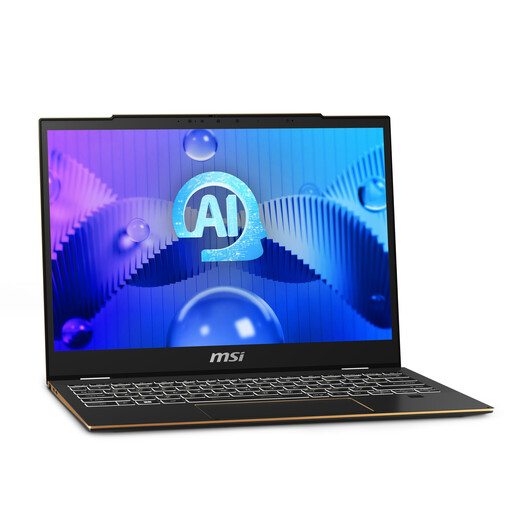
Consider this 13-inch-class Windows touchscreen laptop if direct interaction with documents matters alongside typed feedback.
The title specifies an FHD+ 60 Hz touch display, while the listing describes MSI Pen 2 support. Confirm the exact screen size and whether a pen is included before choosing it for handwritten annotation.
 No image available
Consider this Chromebook for browser-led marking only if your institution’s complete workflow works on ChromeOS.
The listing specifies a 14-inch 1920 × 1200 WUXGA display with a 16:10 aspect ratio. It says traditional Windows and macOS desktop-native software is incompatible, so check any required installed applications before buying.
 No image available
Consider this Windows 2-in-1 if you want a conventional laptop that can also be positioned for touch interaction.
The listing specifies a 14-inch touchscreen, 360-degree hinge and Windows 11 Home. If handwritten annotation is essential, confirm pen support and bundle contents; check the physical dimensions against your desk.
Each can be an option, but check your institution’s exact workflow before choosing. Instructure lists current compatible desktop browsers for Canvas, and Turnitin lists Windows, macOS and ChromeOS among its supported desktop operating systems; local extensions, authentication and installed applications may add requirements.
You may be able to review or annotate work, but check the full grading workflow before relying on tablet mode. Turnitin recommends a supported desktop or laptop browser for its most reliable experience, while Instructure describes limited mobile-browser support and features in native Canvas apps.
Not necessarily: decide whether the laptop display lets you use your submission, rubric and feedback fields comfortably. For longer sessions, consider an external display if it fits the desk, and check the laptop’s connection and any cable or adapter needed.
No particular laptop size is prescribed in the cited Health and Safety Executive guidance. For workers using display screen equipment daily for continuous periods of an hour or more, its guidance addresses the employer’s responsibilities for assessing the workstation and reducing risks; the working arrangement matters alongside the device.