For long marking sessions at a standing desk, choose a laptop you can use with a raised screen and separate keyboard and mouse, rather than judging its built-in display alone. A portable 14-inch model may suit frequent moves between locations if you can set up those peripherals; a larger built-in screen or external monitor may suit document-heavy marking. Whichever route you take, check your institution’s software, account and device requirements before choosing an operating system.
Who is this setup for?
Markers working at a standing desk for long sessions
If you mark for an hour or more at a time, plan where the screen, keyboard and mouse will sit. The Health and Safety Executive (HSE) advises separating a laptop’s keyboard and mouse from its screen so the screen can be raised.
Educators moving between locations
If you carry a laptop between home, campus, classrooms or shared desks, consider both what you will carry and how you will connect to a standing-desk setup when you stop to mark.
Markers using rubrics and multiple documents
If submissions, rubrics, feedback and reference material stay open together, consider the space available for those windows as well as the laptop’s carrying weight. An external display is another option for a fixed desk.
What matters when choosing?
Check the marking system your institution permits, then plan the screen and input-device positions at your standing desk. Balance built-in screen space against how often you carry the laptop.
| Concern |
What to check |
Who this matters to |
| Standing-desk fit |
Allow room for a riser, separate keyboard and mouse. Check how you would connect an external display if you need one. |
I mark for long stretches while standing and need the screen raised without raising my typing position; around 33% of consumers put workstation fit first. |
| Portability |
Compare the exact configuration’s weight, screen size and charger, alongside the connections needed at each desk. |
Moving between marking locations makes carrying the laptop a regular part of my day, but I still need to work at a desk; roughly 25% of consumers prioritise portability. |
| Screen space |
Check the built-in display’s size, resolution and aspect ratio, or the exact model’s external-display connection. |
With a submission, rubric and feedback open together, I need enough room to work across them; around 25% of consumers make screen workspace their primary concern. |
| Institutional compatibility |
Confirm the required operating system, browser, account and licence, marking tools and managed-device rules with your institution. |
If my institution prescribes software or a managed device, the marking workflow has to work before other specifications matter; roughly 17% of consumers put compatibility first. |
Buying pitfalls
-
Buying a laptop without planning the standing workstation
A better built-in screen does not resolve the linked screen-and-keyboard height problem. For prolonged laptop use, the HSE advises a separate keyboard and mouse so the screen can be elevated.
Measure the desk space and plan the screen position and connections before choosing a laptop.
A riser and separate input devices need space at the workstation; an external monitor also needs suitable cabling.
-
Assuming browser access means any laptop will do
Access to a browser-based service does not establish that your institution’s annotation tools, file handling or managed-device rules will work on your chosen laptop. Microsoft also specifies account and licence requirements for Teams on the web.
Ask your institution to confirm the complete marking workflow on the operating system and browser you intend to use.
-
Comparing laptop families instead of configurations
Memory, storage, display and operating-system options can vary within a product family. A family name alone does not identify the configuration you will receive.
Record the exact model or part number and check its display, memory, storage, ports, keyboard layout and operating system before checkout.
Relevant brands to consider
Lenovo
The ThinkPad X1 Carbon Gen 13 Aura Edition is a 14-inch business-laptop line to consider if you move between marking locations.
- Lenovo’s UK listing describes a configuration with a 14-inch WUXGA anti-glare touch display, 16 GB memory, a UK keyboard and a stated weight under 1 kg.
- Check the selected build’s ports and your institution’s requirements; the listed configuration does not establish the specifications of every build.
Dell
The Dell Pro 14 is a configurable Windows business-laptop line to consider for an institution-managed workflow.
- Dell’s UK listing shows a PC14250 configuration with Windows 11 Pro, 16 GB DDR5 memory and a 512 GB SSD.
- Processor and memory choices vary; check the exact configuration against your institution’s software and device requirements.
HP
The HP EliteBook 6 G1ah is a 14-inch Windows business-laptop line to consider when vertical document space matters.
- HP’s UK product page lists a configuration with Windows 11 Pro, 16 GB RAM, a 512 GB SSD and a 14-inch WUXGA display.
- Confirm the exact display and configuration you are considering, as well as the connections needed for your desk setup.
Joybuy product choices
These laptops offer different built-in screen sizes and operating-system choices for digital marking. Choose between them only after checking your institution’s workflow and the peripherals you will use at the standing desk.
 No image available
ASUS Vivobook 14 X1407QA-LY003W, Quiet Blue
Consider this 14-inch laptop if you move between marking locations and plan to check its connections for your standing-desk setup.
Snapdragon X; 16 GB RAM; 512 GB SSD. Confirm that your institution’s marking software and device policy suit this configuration.
View on Joybuy
 No image available
Acer Aspire Lite AL15-36P-C29Z, Silver
Consider the 15.6-inch built-in screen if you prefer to read marking documents on the laptop itself.
Full HD display; Intel N150; 8 GB DDR4 RAM; 128 GB SSD. Check whether the listed Windows 11 Home in S Mode configuration permits your institution’s required applications and marking workflow.
View on Joybuy
 No image available
Acer Chromebook Plus 514 CB514-5H, Iron
Consider this Chromebook only if your institution confirms that its complete marking workflow can run on ChromeOS.
14-inch WUXGA (1920 × 1200) display; Intel Core 5 120U; 8 GB RAM; 512 GB SSD. Traditional Windows or macOS desktop applications are not a substitute for checking the required browser-based tools.
View on Joybuy
 No image available
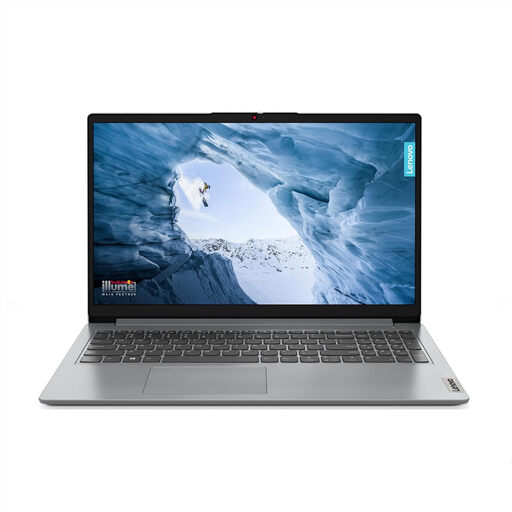
Lenovo IdeaPad 1 15-inch, Cloud Grey
The 15.6-inch built-in screen may suit marking documents when you do not want to rely solely on a compact laptop display.
Full HD display; AMD Ryzen 3 7320U; 8 GB RAM; 128 GB SSD; Windows 11 Home in S Mode. Confirm required application compatibility and the exact external-display output before planning a monitor setup.
View on Joybuy
 No image available
Microsoft Surface Laptop 7 15-inch, Maya
Consider its larger built-in touchscreen if viewing a submission and rubric on the laptop is a priority.
Snapdragon X Elite; 16 GB RAM; 256 GB SSD; PixelSense touchscreen. Check institutional software compatibility, carrying weight and the exact external-display connection if those affect your setup.
View on Joybuy
Common questions
Do UK display-screen-equipment rules specify a laptop for marking at a standing desk?
The HSE guidance does not specify a laptop model for this work; it addresses the workstation and how display screen equipment is used. The HSE says its display-screen-equipment rules apply to workers who use it daily for continuous periods of an hour or more, so ask your employer whether your standing workstation is covered by its assessment.
Is a laptop alone suitable for a long standing marking session?
For prolonged laptop use, the HSE advises a separate keyboard and mouse so the laptop screen can be raised on a riser or similar support. Plan where those items will sit before deciding whether the built-in screen is sufficient or you also want an external display.
Can I mark Teams assignments in a browser instead of choosing Windows?
Browser access may be an option, but it does not establish that your institution’s entire marking workflow will work on another operating system. Microsoft documents Teams for Education assignments and specifies account and licence requirements for Teams on the web; confirm the required browser, annotation tools, file handling and managed-device rules with your institution.


