What should you check first?
Choose the addition that addresses your immediate work or call problem, then check that it fits both the desk and the laptop.
| Priority | What to check | Your needs |
|---|
| Screen and input position |
Allow desk space for a stand, separate keyboard and mouse. HSE recommends separate input devices when raising a laptop screen for prolonged use. |
My laptop screen sits too low during long desk sessions, but I may not need another display. |
| Display space and connection |
Match the laptop’s video output to the monitor input. For a dock, check display count, resolution and refresh-rate limits for the exact laptop and connection method; Apple says these vary by Mac model. |
I need documents or reference material visible while I’m in a meeting, so a separate screen could be useful. |
| Dock functions |
Check whether the laptop and chosen dock support the required video output and USB Power Delivery, plus the laptop’s charging requirement. HP’s Universal USB-C Multiport Hub, for example, specifies both DisplayPort and Power Delivery support on the host. |
One desk connection would be useful if I regularly attach a display and other peripherals. |
| Call audio |
Check the headset’s connector or wireless receiver, microphone position, mute controls and compatibility with the computer and meeting app. |
In a shared room, private listening and an easy way to mute matter more to me than adding screen space. |
| Camera and lighting |
Check camera placement after positioning the screen. Arrange the desk light to avoid reflections and glare, as HSE advises; assess the image at the intended call position before changing the camera. |
If raising my laptop leaves its camera at an awkward angle, I want more control over where the camera sits. |
| Work-device approval |
Check employer rules for new devices, software and meeting services. The National Cyber Security Centre advises organisations to consider meeting access controls and how shared files, messages and recordings are handled. |
I use a managed work laptop, so an accessory also needs to fit the organisation’s setup. |
Relevant brand references
These examples illustrate features to compare on exact models, rather than capabilities shared by every product from a brand.
Dell
Dell offers desk displays that may combine a separate screen with conferencing connections.
- Dell lists its P2726DEB as a 27-inch QHD IPS monitor with an integrated webcam, speakers and microphone.
- Check that model’s connections and charging options against your laptop; the P2726DEB specifications do not describe every Dell monitor.
Logitech
Logitech has separate webcam and headset models relevant to desk calls.
- Logitech lists 1080p video for the Brio 500 webcam and publishes operating-system and meeting-app compatibility for particular Zone Vibe Wireless versions.
- Confirm the exact version, connector or receiver, and any employer requirements rather than assuming compatibility across the range.
HP
HP’s Universal USB-C Multiport Hub is an example of a hub whose functions depend on the host computer.
- HP specifies display connections and USB Power Delivery requirements for this hub, with different stated display modes for single- and dual-display use.
- Check the laptop’s DisplayPort and power support against the particular hub; its requirements are not a rule for every USB-C hub.
Joybuy product options
These options cover a separate display, desk connections, a webcam and private-listening headphones for a laptop workstation. Choose by the problem you need to solve, then confirm the relevant laptop and meeting-app compatibility.
 No image available
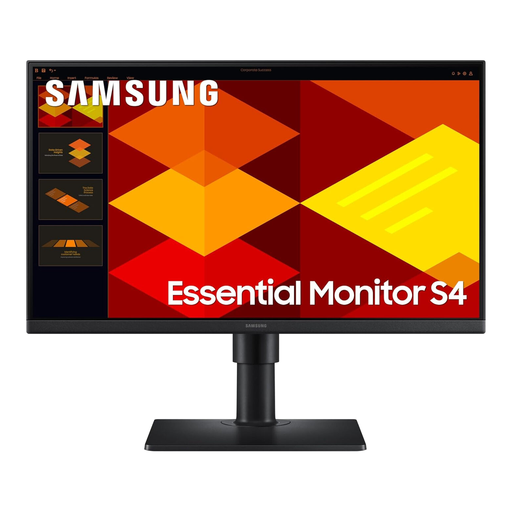
Samsung 22-inch S40GD LS22D400GAUXXU Full HD monitor
Consider this separate screen when documents compete for space with a video meeting on your laptop. Check that the exact laptop can drive the intended display mode and has a suitable connection.
View on Joybuy
 No image available
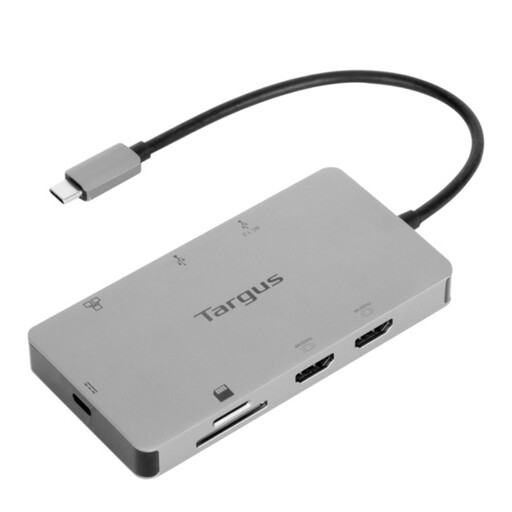
Targus USB-C Universal Dual HDMI 4K dock, 100W PD pass-through
This dock is for a desk where you want to connect displays and peripherals through the laptop. Check the laptop’s USB-C video output, supported display count and charging needs; the listed setup requires an external 100W+ power adapter, so confirm whether one is included.
View on Joybuy
 No image available
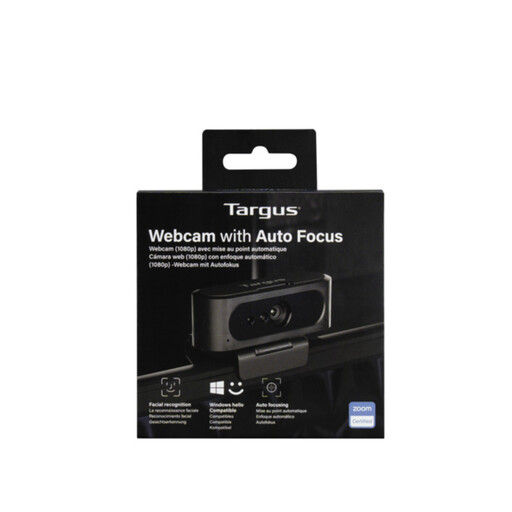
Targus autofocus webcam
Consider a separate webcam if raising the laptop leaves its built-in camera poorly positioned. Confirm the camera’s actual resolution before buying: the listing uses both 2K and 1080p descriptions. Check its USB-C connection against your computer and work-device policy.
View on Joybuy
 No image available
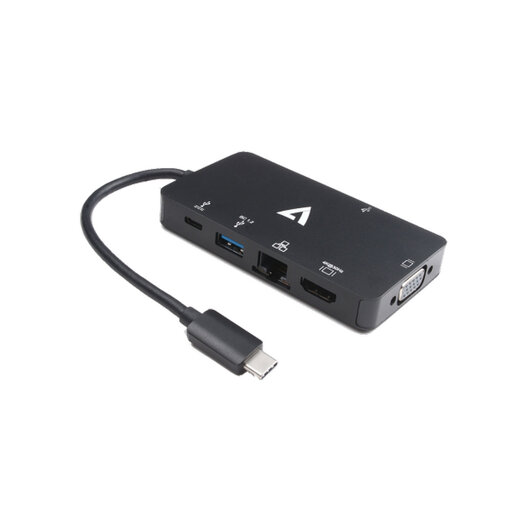
V7 V7UC-U3CRJ45HDVG-BLK USB-C adapter
This adapter is an option when you need display and peripheral connections at the desk. Confirm its physical video ports and simultaneous-display mode before buying: the title and detailed description differ. Check that your laptop supports the required USB-C video mode and charging arrangement.
View on Joybuy
 No image available
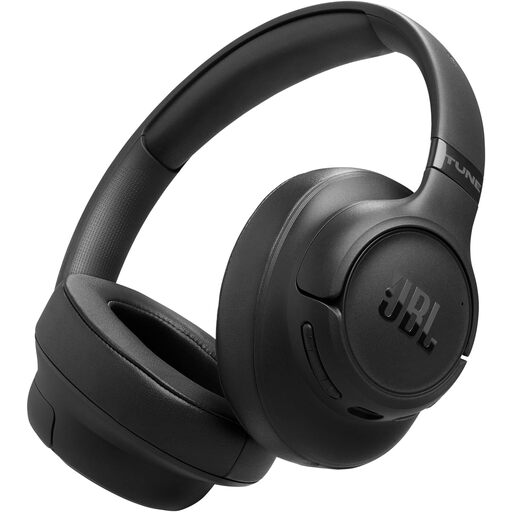
JBL Tune 780NC wireless noise-cancelling headphones, black
These over-ear headphones may suit a desk where private listening matters. Before relying on them for meetings, check call support through the connection you intend to use, compatibility with your computer and meeting app, and any employer device rules.
View on Joybuy
Questions about the setup
Should I choose a laptop stand or an external monitor?
Choose a stand when the main problem is a low laptop screen and you do not need another display; for prolonged desk use, pair the raised screen with a separate keyboard and mouse, as HSE recommends. Choose a monitor when you also need a separate screen for documents or meeting material, after checking the laptop’s display connection.
Will any USB-C dock work with my laptop?
No. Check the exact laptop’s video output, charging support and external-display limits against the dock’s requirements. HP’s Universal USB-C Multiport Hub specifies a host USB-C port with DisplayPort and USB Power Delivery, while Apple says Mac display limits depend on the model, resolution and refresh rate.
Should I change the lighting before buying a webcam?
Check lighting and camera position first. HSE advises arranging screens and lighting to avoid reflections and glare; a separate webcam can address an awkward camera position, but changing cameras does not remove screen glare.
Do I need a headset for every home meeting?
No. Consider one when private listening, microphone placement or accessible mute controls would help in your room. Check the connector, computer and meeting-app compatibility before choosing a model.
What should I check before changing a managed work setup?
Check your employer’s rules for devices, software and approved meeting services before adding equipment. The National Cyber Security Centre advises organisations to consider meeting access controls and the handling of recordings, messages and shared files.


