One-screen hybrid workers
If one extra screen would give you room for documents, calls or applications, check whether a direct connection works before adding a dock.


Start with the exact laptop model: check its video outputs, supported number of external displays, operating system and charging needs before choosing a monitor connection. A direct HDMI or DisplayPort connection suits one supported screen; a USB-C or Thunderbolt dock suits a compatible laptop when you also want desk peripherals and possibly charging. A DisplayLink dock offers a driver-dependent route for supported computers, including some with USB-A, while an arm or stand changes screen placement rather than display capability.
If one extra screen would give you room for documents, calls or applications, check whether a direct connection works before adding a dock.
If you want several screens or connected peripherals, check the laptop’s display limit alongside the dock’s outputs, video conditions and charging support. Apple Support advises checking the exact Mac model’s external-display support.
If your laptop relies on USB-A or has no confirmed USB-C video output, a compatible DisplayLink dock may be worth considering. Plugable Technologies says its USB 3.0 docks require a DisplayLink driver.
Choose it when: One external monitor can use the laptop’s documented HDMI or DisplayPort output, or a supported video-capable connection and suitable adapter.
Trade-off: A display cable does not also connect your other desk peripherals.
Choose it when: The laptop supports the dock’s video path and you want monitors and peripherals connected at the desk through one host connection.
Trade-off: Video output and laptop charging need separate compatibility checks; a USB-C socket alone guarantees neither.
Choose it when: A supported USB-A or other compatible laptop needs a driver-based display route and you can install the required software.
Trade-off: Driver and operating-system support matter, and DisplayLink Support warns that some protected video may not play on a Mac while DisplayLink screens are connected.
| Concern | What to check | Who this matters to |
|---|---|---|
| Video compatibility | Check the exact laptop model’s video-capable ports and the monitor’s input; confirm USB-C video support rather than relying on the connector shape. | If I cannot yet tell whether my laptop can send video to a monitor, I need to establish that before choosing a cable or dock. Around 36% of consumers put this compatibility question first. |
| Number of screens | Compare the laptop’s supported external-display count with the dock’s stated display combinations, including the intended resolution and refresh rate. | When I need documents and communication tools visible on separate screens, I care whether the laptop can extend to the number I plan to use. Around 29% of consumers make multi-display expansion their primary concern. |
| Peripherals and charging | List the ports your desk equipment needs, then check the dock’s host connection and whether its charging support meets the laptop’s requirements. | I want to reconnect my desk equipment without plugging everything in separately, but I still need a workable charging arrangement. For around 21% of consumers, that desk connection is the main priority. |
| Desk placement | If using an arm, check the monitor’s VESA mounting, its weight against the arm rating and the desk-clamp fit. | On a desk with limited room, I need a screen position that fits the workspace without mistaking an arm for a video connection. Desk placement comes first for around 14% of consumers. |
A dock’s USB ports can work even when its monitor outputs have no supported video path from the laptop. Microsoft Learn distinguishes USB-C connector capability from video over a supported alternate mode.
Check the exact laptop specification for DisplayPort Alt Mode, Thunderbolt or documented support for the intended dock or adapter.
Two physical monitor sockets do not establish that the connected laptop can run two extended displays at your intended settings.
Decide how many external displays you need, then compare the laptop model’s display support with the dock’s stated combinations. Apple Support advises checking model-specific display support for Macs.
Plugable Technologies says its USB 3.0 docks require a DisplayLink driver. Charging is a separate question: Kensington states that USB-A-connected laptops using its SD4781P need a separate power source.
Confirm the exact dock’s operating-system and driver requirements, as well as how your laptop will be charged. For Mac use, check whether DisplayLink’s protected-video limitation affects what you need to watch.
You may still need to connect the laptop’s own charger at the desk.
An arm changes where a monitor sits; it cannot add a laptop video output. It also needs to fit both the monitor and the desk.
Settle the display connection first, then check VESA mounting, monitor weight, arm capacity and desk-clamp fit. The Health and Safety Executive also advises considering workstation suitability for home display-screen work.
Dell’s USB-C and Thunderbolt docking range is relevant to compatible laptops used with displays and desk peripherals.
Kensington’s SD4781P is a reference point for buyers considering a dock that connects to either USB-C or legacy USB-A laptops.
StarTech.com has USB-A and hybrid dock models relevant to older monitor connections and mixed laptop setups.
Plugable’s USB 3.0 DisplayLink docks are relevant when a supported laptop needs a driver-based monitor connection through USB-A.
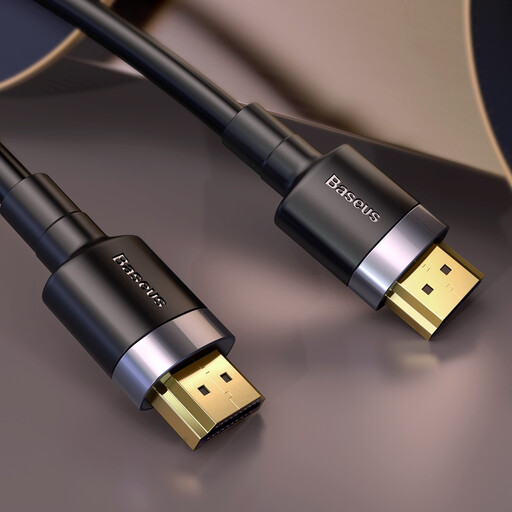
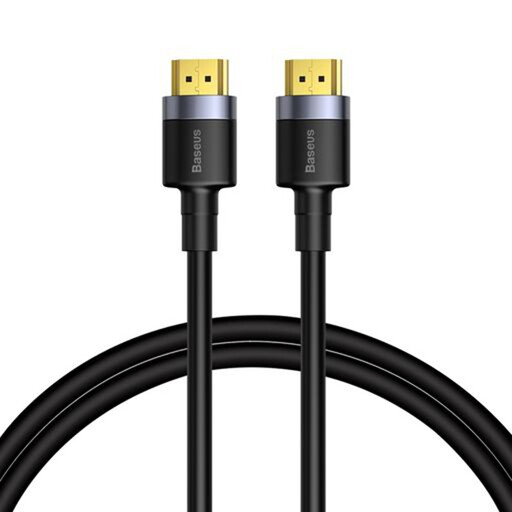
These Baseus cables are options for connecting a laptop’s HDMI output directly to a monitor’s HDMI input. Check both devices and the laptop’s supported external-display count first; the cables do not add a dock, a monitor or another video output.
 No image available
Consider this for a direct connection when the laptop has an HDMI output and the monitor has an HDMI input.
The 3m cable has HDMI connectors at both ends. Check the connected devices’ display support for the mode you intend to use.
 No image available
Consider this for a direct connection when matching HDMI ports are available and a 2m cable suits the desk layout.
It has HDMI connectors at both ends. If you need a particular display refresh rate, confirm the cable and both devices support the intended mode.
No. USB-C describes the connector, not a guaranteed video output. Microsoft Learn explains that a supported alternate mode can carry display video over USB-C; check the exact laptop specification for DisplayPort Alt Mode, Thunderbolt or another documented video path.
A native USB-C or Thunderbolt dock does not remove the laptop’s model-specific display limit. A compatible DisplayLink dock can provide a driver-based route to additional displays, but you must check its software, operating-system and display conditions before buying.
Check the exact Mac model’s Display Support or Video Support specification and the dock’s stated macOS compatibility. If the dock uses DisplayLink, allow for its driver requirement; DisplayLink Support says some protected video may not play while its screens are connected to a Mac.
Consider the whole workstation, not just whether the new monitor connects. The Health and Safety Executive says Display Screen Equipment rules can apply to workers who routinely split their time between home and the workplace; check your working arrangement and assess screen position, desk fit and any equipment needs accordingly.